

What That Little Button On The Back Of Your Chromecast Is For
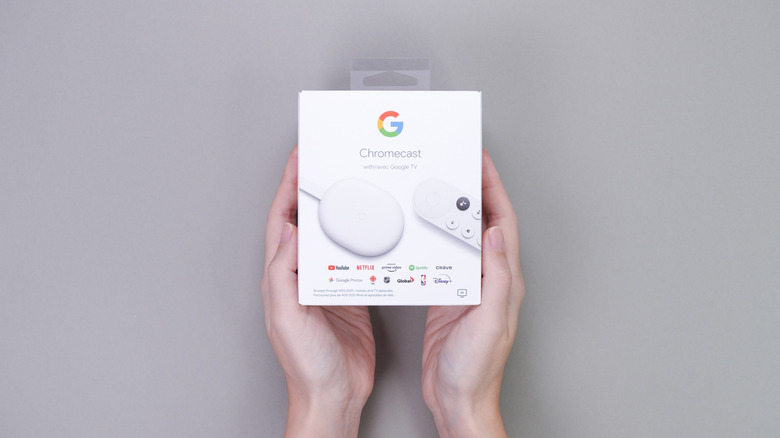
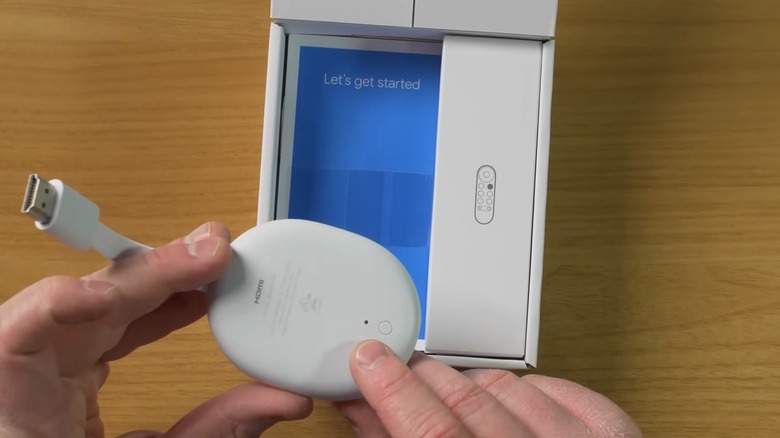
Many smart TV models support popular streaming apps, and some come with the Google TV platform preloaded instead of a custom operating system. But some people may prefer using set-top boxes or streaming sticks connected to their TV to access their favorite streaming services. The Google TV Streamer and the various Google Chromecast models that preceded it are among the available streaming options. These devices are essentially tiny computers and, as such, can malfunction. When troubleshooting fails, the Chromecast models can be reset to factory settings if other fixes don't work. Rather than going into the device's settings, you can press a little button on the back of your Chromecast to start the factory reset process.
Older models may have the button placed on the side, but either way, the button is useful when you can't access the operating system to initiate a factory reset. The physical button is also a quicker way to factory reset the Chromecast once you've determined that a device reboot won't fix the underlying issue. The factory reset should be your last resort after trying other fixes, though. In addition to turning the device on and off, you can delete and reinstall apps and update the firmware to try to fix the underlying problem.
A factory reset is also necessary before selling or giving the Chromecast to another user. This step ensures that you delete your personal data from the Chromecast, including Google account sign-in and streaming apps. Google released several Chromecast products (discontinued in 2024) over the years, including the Google TV Streamer, Chromecast with Google TV, Chromecast Ultra, third-generation Chromecast, second-generation Chromecast, first-generation Chromecast, and the Chromecast Audio device. All of them can be restored to factory settings in two ways: from the Settings menu or using the hardware button.
How to factory reset your Chromecast
The software factory reset option is similar across models. You have to navigate to the Settings menu, using either the device's remote or the Google Home app on iPhone or Android devices. This process involves switching on the TV and Google streaming device, finding the Settings menu, and then looking for the Factory Reset option (sometimes under the About menu).
If this process is unavailable, you should look for the hardware button to perform a factory reset. Regardless of the Chromecast model, the device will need to be connected to the TV and turned on. The process of using the physical button to factory reset a Chromecast device is similar across models. It involves pressing and holding the button for a few seconds and observing a specific light color change that will indicate the reset process has started. The streaming device will restart after the procedure.
For the Google TV Streamer, you should press and hold the button on the back for 10 to 12 seconds and wait for the LED light to change from blinking yellow to solid white. The Chromecast with Google TV will follow a similar pattern. You'll press and hold the button on the back, waiting for the light to change from blinking yellow to solid white. Chromecast Ultra and second-generation and third-generation Chromecast models have a button on the side. The light will change from blinking orange to solid white. The first-generation model's physical button has to be held for 25 seconds until the solid LED light starts flashing red. Finally, the Chromecast Audio's light will change from blinking orange to white when the side button is held.