

This iPhone Menu Tells You Exactly When Your Battery Will Be Fully Charged
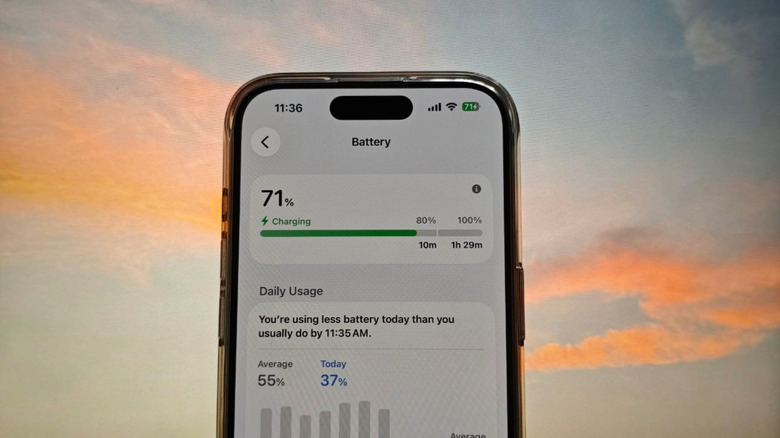
Probably the most annoying part of owning a portable battery-powered device like a smartphone is having to charge it. You always have to guess when it will fully charge and be ready for a whole day out. Well, if you have an iPhone, you really won't need to do any guesstimating. Apple already took the guesswork out of charging and provides a charge-time estimate to iPhones via iOS 26. This is another of the new iOS features Apple recently added to your iPhone, so be sure to update your device to the latest software to take advantage of it.
This charge-time indicator is essentially an estimate of how long it will take for your iPhone to reach 80% and 100%. You can find it in two places. One is right on the Lock Screen, just below the status bar. If your phone isn't locked, you can also go into the Settings app to view the charge-time estimate. Just launch Settings and head over to Battery. The charge-time estimate will appear at the very top of the screen, along with your current battery level.
Understanding the iPhone's charge-time estimate
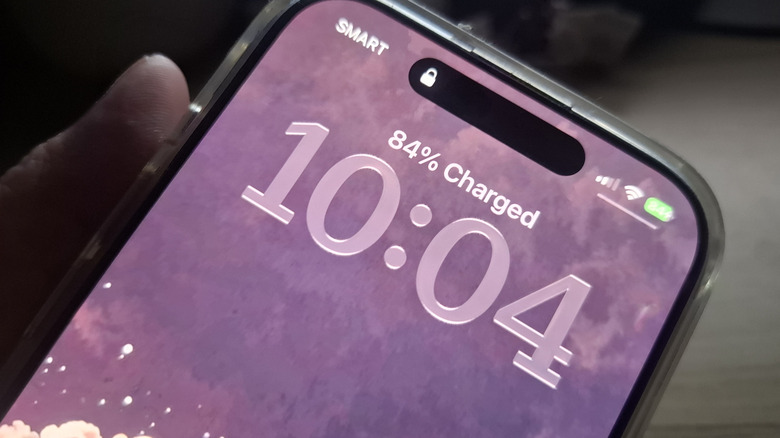
The iPhone's charge-time estimate seems simple at first glance, but it comes with a few quirks. On the Lock Screen, the charge-time estimate won't stay there forever as you might have hoped. Instead, it only shows up briefly and automatically changes to today's date after about three seconds. The Lock Screen also displays just the charge estimate for up to 80%. Once you pass that, it will just show you the current percentage of charge the battery has, but not the time remaining to full charge. Unfortunately, the charge-time estimate doesn't appear on the Always On Display either. You'd always have to wake the screen to see it.
In the iPhone Battery menu in Settings, the charge-time estimate is much more detailed. It typically features two estimates: one for how long it takes to reach 80% and another for the time to fully charge (or reach your charge limit if you have that turned on). The only time you get a single charge-time estimate is when you limit your iPhone's charging capacity to 80%. Whatever the case is, after you hit 80%, the only charge-time estimate remaining on screen will be for 100% (or whatever charge limit you set it to). After your phone charges to your charge limit, the Battery menu will say "Charged to X% Limit" and a blue button to charge to 100% if you like.
How to make your iPhone charge faster
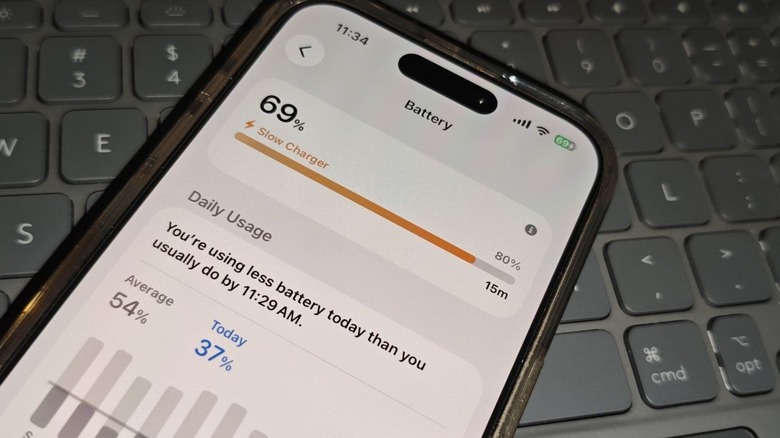
If you're not satisfied with how fast your iPhone is charging, there are some Apple tips you can apply to boost the charging speed a little bit. For one, pick the right iPhone fast charger. Since modern iPhones no longer come with their own chargers, you'll have to provide your own. Make sure it's a USB-C Power Delivery adapter. Otherwise, your phone will charge more slowly. To see if what you have is a suitable charger, go to the Battery menu in the Settings app. It should say "Charging" in green. If it says "Slow Charger" in orange, try switching to a different charging brick.
Once your iPhone is plugged into a compatible fast charger, it's best to leave it alone. If you absolutely need to use it, keep your tasks light. For instance, stop using the camera, playing games, and streaming videos until you're finished charging. Don't set the display brightness to full, and don't use other demanding features, like GPS navigation. These tasks can easily increase your charging time.
Your charging location is another important consideration. It should be in a cool spot away from direct sunlight, as charging will be paused if the iPhone gets too hot. If you're using any wired accessory with your device, such as a headphone or USB-C multiport adapter, unplug them while you charge. They might interfere with how much power your iPhone battery is getting.