

iOS 26.4 Finally Solved A Frustrating Apple Watch Alarm Issue
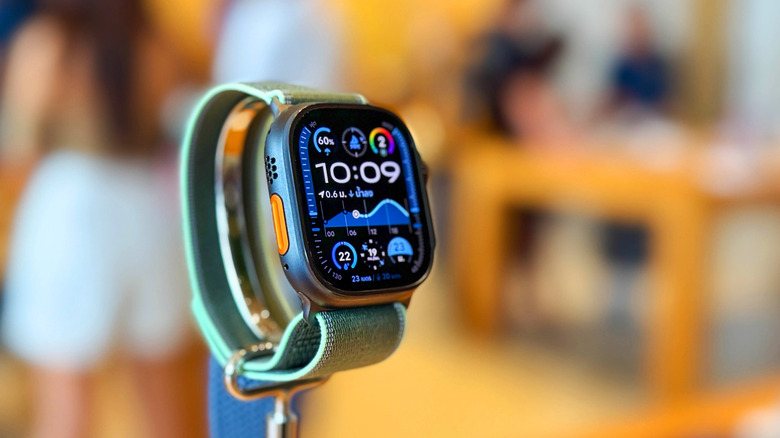
The iPhone and Apple Watch can be used to track your sleep, which can help improve your sleep and understand how sleep impacts your daily routines, including workout performance. But the sleep tracking feature has a frustrating issue that users have criticized in the past. The Sleep Schedule feature lets users set up their desired time to go to sleep and the primary wake-up alarm in the morning. However, that alarm would be muted on the iPhone if the user wears the Apple Watch at night, which can lead to missed alarms in the morning. After years of complaints and questions, Apple has finally addressed the issue in iOS 26.4, offering users a setting that forces the iPhone and the Apple Watch to play sounds and haptics in the morning, respectively.
The fix is long overdue, considering that Apple introduced the sleep tracking features, including Sleep Schedule, in 2020 with the iOS 14 and watchOS 7 releases. Since then, many people have complained about missing alarms in the morning because the iPhone would not play a sound and the Apple Watch only produced a vibration that the user didn't register.
In theory, this isn't a buggy behavior, and some may appreciate it. Silencing the iPhone at night and providing alarms via haptics on the Apple Watch may be a better experience for some. Also, these quieter alarms can reduce the chance that a partner would be woken up by them. But those people who missed at least one alarm because of this behavior will appreciate the fix in iOS 26.4.
How to force the iPhone to play the Sleep Schedule alarm
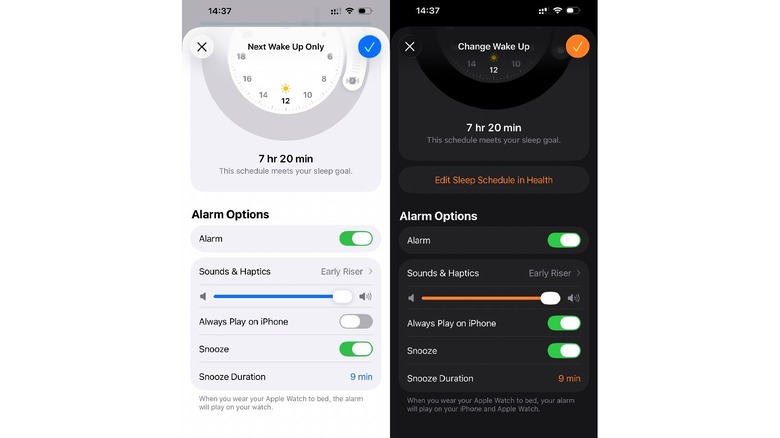
The new alarm feature Apple introduced in iOS 26.4 can be enabled or disabled in two places. Regardless of how you choose to enable (or disable) it, you'll be looking for a self-explanatory toggle called "Always Play on iPhone." Go to the Health app, tap the search icon in the lower right corner, and tap on Sleep. Then, tap the Sleep menu and scroll down to find the "Your Schedule" menu. Tap Edit, and you'll get the menu seen on the left in the image above, letting you customize your alarm. Scroll down to the Alarm Options section to find the Always Play on iPhone option and enable it. On the left of the above image, the toggle is disabled, meaning the iPhone won't play a sound in the morning.
The second option involves using the Clock app, finding the Sleep/Wake Up alarm at the top of your alarms, and tapping the Change button. The screen that appears lets you customize the Sleep Schedule, including the alarm. Scroll down to the same Alarm Options section until the Always Play on iPhone toggle appears and enable it. The right half of the image above shows the alarm menu in the Clock app, which is similar to the Health menu. The Always Play on iPhone toggle is enabled in this image.
It's important to note that the new setting Apple included in iOS 26.4 only affects the Sleep Schedule alarm behavior that some criticized. It's not related to other iPhone alarm bugs that may have affected users over the years. You only need to use one of the methods above to enable and disable the feature.
What about other iPhone alarms?
Before Apple added the Always Play on iPhone toggle to the Sleep Schedule alarm, there was a simple workaround for the problem. Users who feared missing the Apple Watch alarm in the morning could set a secondary alarm on the iPhone, scheduled a few minutes after the Sleep Schedule alarm. This alarm wouldn't be muted. Users could also set a second alarm on the Apple Watch. This trick allowed users to get a more reliable alarm setup. They'd still be able to track their sleep with the Apple Watch via the Sleep Schedule feature and wake up on time in the morning.
That's still something you can do, even after you enable the Always Play on iPhone toggle. You can set up different alarms on the iPhone to play in the morning, in addition to the main Sleep Schedule alarm, for added peace of mind.
These alarms should play loudly, assuming no other bugs are affecting the iPhone alarm feature. Put differently, these optional alarms don't have the Always Play on iPhone setting, because they don't need it. They're not tied to the Sleep Schedule feature or the Apple Watch.