

5 Powerful YouTube Features You Need To Start Using
YouTube has become the go-to entertainment hub for billions of users online. However, people barely scratch the surface of what they can do on the platform. It's quite easy to watch a video, subscribe to your favorite content creators, and miss out on features that help improve the experience. Sure, some of the best tools are locked behind YouTube Premium. But even if you don't subscribe, YouTube has some powerful features that you may never know you needed. You can make your viewing experience easier, smarter, and more personalized without paying a single cent.
For instance, if you tend to go down the rabbit hole that is the infinite feed, you can tell the YouTube mobile app to remind you to take a break. If others in your household are fond of using your YouTube account, you can disable history so they don't mess up your recommendations. There are even several shortcuts that allow you to better control playback when watching videos on a desktop. These features are all so easy to use and can even make the YouTube experience a little more enjoyable if you give them a try.
Set reminders to take frequent breaks
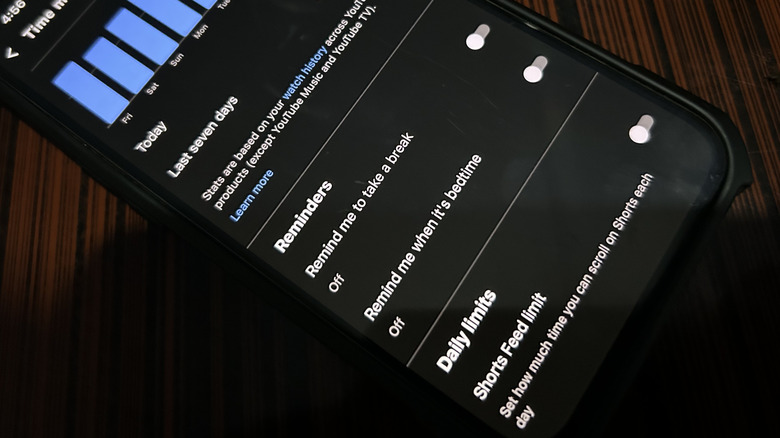
It happens to everyone. You decide to take a break from work, or you're lying in bed, shutting down for the night, and you decide to watch a YouTube video or two. Besides the fact that using your phone before bedtime is a terrible idea since the blue light from screens can disrupt your sleep, by the time you realize you've watched enough of YouTube, an hour or more could have gone by. YouTube has fine-tuned its algorithm to keep you scrolling, and it doesn't care if you need to get back to work or go to sleep. Luckily, it also allows you to set reminders that snap you out of mindless watching.
To set a break time reminder in the YouTube app, follow the steps below:
-
Tap your profile picture icon in the bottom-right corner of the screen.
-
Tap the gear icon in the top-right corner to enter Settings.
-
Tap "General" or "Time Management."
-
Tap "Remind me to take a break."
-
Choose between "Every 30 minutes," "Every 45 minutes," "Every hour," or "Customize."
You can also tell YouTube when your bedtime is. You'll have to set a start time and end time, and if you're viewing YouTube within these times, you'll get a reminder that it's time to go to sleep.
Follow the steps below:
-
Navigate to the General or Time Management screen.
-
Tap "Remind me when it's bedtime."
-
Set the "Start time" and "End time."
-
Tap "OK."
Pause your YouTube watch history
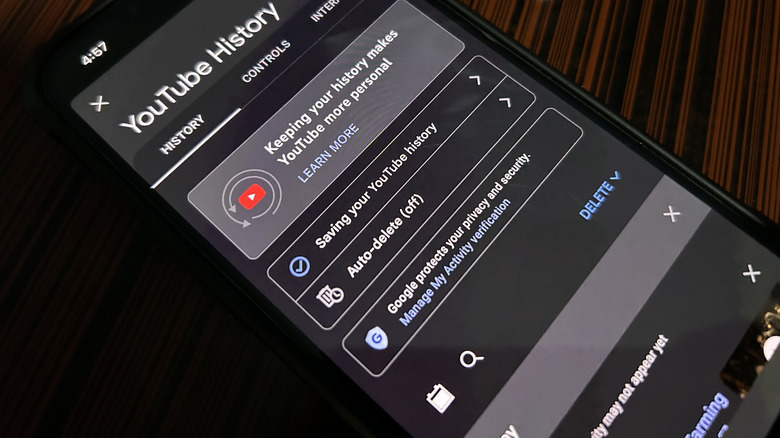
One of the metrics YouTube uses to recommend videos is your watch history. But sometimes, all it can do is create a lot of noise and feel intrusive. Furthermore, if someone else uses your phone to watch YouTube videos, particularly if you have little ones (PS: turn on Restricted mode to protect them from adult content), you'll suddenly have your feed littered with recommendations you're never going to watch, such as "Paw Patrol" or "Miss Rachel."
To stop YouTube from using your watch history to make recommendations moving forward, do the following:
-
Tap your profile picture icon in the bottom-right corner of the screen.
-
Tap the gear icon in the top-right corner to enter Settings.
-
Tap "Manage all history."
-
Tap "Saving your YouTube history."
-
Tap "Turn off."
-
Tap "Pause."
YouTube will no longer save new history on your device. If you ever miss those recommendations, you can turn them back on. But if you want them all to briefly disappear, you can try using incognito mode. While pausing history will still show you recommendations based on your past activity, incognito mode offers a blank session unaffected by anything from your account.
Here's how to turn on incognito mode:
-
Open YouTube settings again.
-
Tap "Accounts" or "Switch or manage account."
-
Tap "Turn on incognito."
You will get a cleaner and distraction-free YouTube experience. When you're done, tap "Turn off incognito," and your account and all its activity will be restored.
Use YouTube shortcuts
On a desktop, shortcuts save you unnecessary clicks and make navigation easier. For instance, if you are playing a video and need to quickly pause, you will have to reach for the mouse, navigate it to the "Pause" button, and then click it. But you can also just skip all these steps by pressing K or the Space bar to start and stop playback. If you want to rewind or forward a video by 10 seconds, you can simply press J or L, respectively. The Left and Right arrow keys do the same, but in five-second intervals. This can be faster than fiddling with the seek bar if you want to rewind or forward videos a little, even if it's a bit imprecise.
It's actions like these that make your YouTube viewing experience more efficient and enjoyable. Other YouTube shortcuts you need to know include pressing M to mute a video, F to enter full-screen mode, and C to toggle captions on and off. If you want to skip to the next video, press Shift + N, and pressing Shift + P will go to the previous video. If the video is split into chapters (something good content creators do to respect your time), pressing Ctrl/Command + Left arrow goes to the previous chapter, while Ctrl/Command + Right arrow skips to the next one.
Use search filters
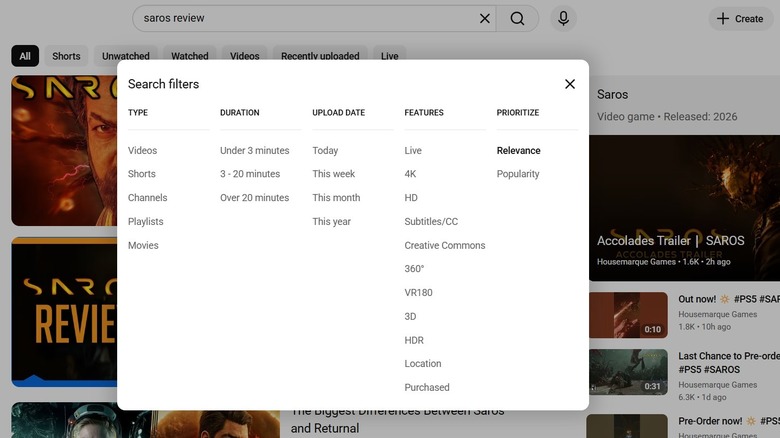
YouTube's basic search function is great if you have time to explore the search results. But if you don't have any tolerance for irrelevant results that you have to scroll through, you can use filters. This can help if, for example, you want a Short instead of a video, something that is less than three minutes, or a video that was uploaded this month.
To use search filters on YouTube, do the following:
-
Type "allintitle:" and then the title of the video you want in the search — this brings up exact matches.
-
If you're on a desktop, click "Filters" in the top-right corner of the screen.
-
If you're using the mobile app, tap the three-dot icon in the top-right corner and select "Search filters."
-
In the pop-up, choose the filter(s) you want under "Type," "Duration," "Upload Date," "Feature," and "Prioritize."
On mobile, you can select multiple filters at once (one of each type). On the desktop, once you select a filter, the pop-up will close. You can open it again and select another filter, but keep in mind that it will be added to the existing one already applied. That means if you first select "Video" under "Type" and then "Today" under "Upload Date," it will only show you videos that were uploaded on that day. If you don't want that to happen, remove the filters you don't want by clicking the "X" button next to them in the pop-up.
Go through a video frame-by-frame
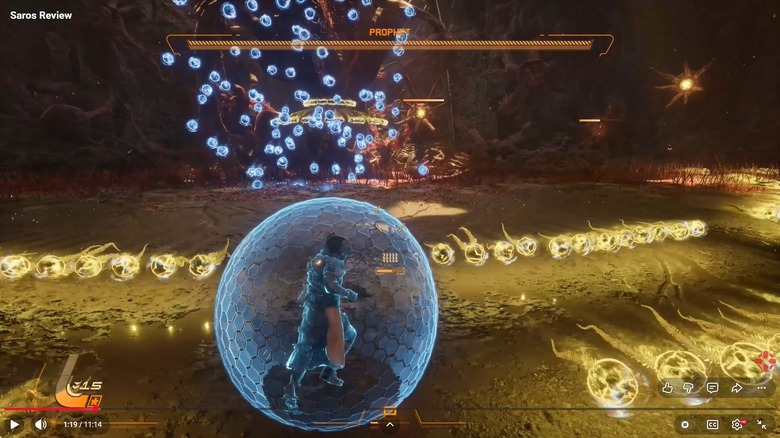
When you hit the play button, YouTube moves through the frames in the video in sequence. A frame is an individual still image, and the speed at which YouTube plays them (frame rate) is measured in frames per second (FPS). That is why when you see a video with "720p60" or "1080p60HD" in the "Quality" menu, it means the video is 60FPS. The more frames per second, the smoother the video will look. So when we say going frame by frame, we mean viewing these frames one by one, and the higher the FPS, the more frames you have to go through.
To go through a video frame-by-frame, press "." to move to the next frame and "," comma to move to the previous one. Doing this can allow for deep analysis of a video, and it's different from looking at the video second-by-second. The frames go by so fast that it's easy to miss important details at normal speed, such as fast-moving objects or fast-paced action scenes that only appear for a split second.