

These Built-In iPhone Features Can Help You Sleep

You already know how many health benefits you get from a good night's sleep. But sometimes, no matter how hard you try, you just can't seem to drift off to dreamland. If tossing and turning and counting sheep don't do the trick, there's one other way you can sleep better, according to experts: playing relaxing music or nature sounds.
One study from the University of New South Wales reports that music with slow musical notes successfully encourages sleep faster and improves the sleep quality at the same time. Meanwhile, a study published in the journal Urban Forestry & Urban Greening observed that participants who listened to a mix of valley water and forest birds were more relaxed, with their heart rate lower than when hearing road traffic sounds.
So if you've ever needed help falling asleep, try pulling up some soft music or nature sounds. You won't have to go digging on Spotify or YouTube, though. If you own an iPhone, these natural sleep aids are actually built into the device. Ambient Music plays soft music for you, while Background Sounds lets you play different kinds of nature sounds, from rain on a roof to fire crackles. Here's how to turn these features on.
How to toggle on Background Sounds on your iPhone
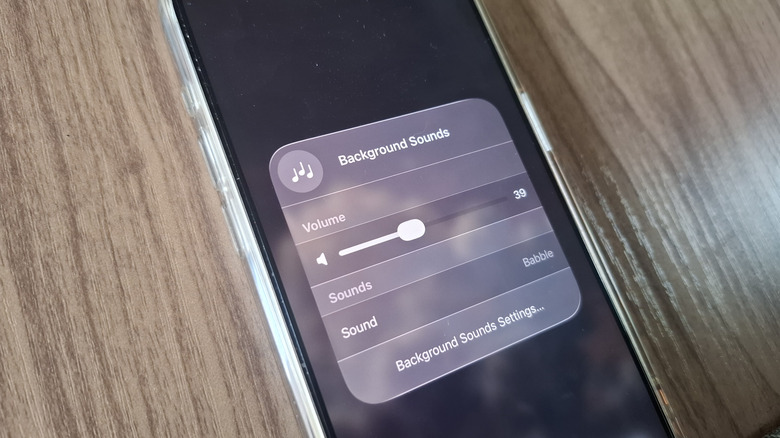
The Background Sounds on your iPhone is accessible from either the Settings app or your Control Center. In the Settings app, follow these steps:
- Navigate to Accessibility.
- Under Hearing, choose Audio & Visual.
- Tap on Background Sounds.
- Enable Background Sounds.
- Select Sound.
- Choose your preferred sound from the list. You'll hear a preview of the sound when you tap on it.
- Press the back button.
- Adjust the volume to your liking.
- (Optional) To automatically turn off Background Sounds at a certain time, go to Stop Sounds with a Timer. Toggle on Timer and select either a specific time or a set period for when the sound will stop.
- (Optional) To personalize the Background Sounds profile, go to Equalizer. Switch on the Equalizer and play around with the Tone and Balance until you find the most comfortable output.
If you'd rather not go into the Settings to enable Background Sounds, you can simply customize your iPhone Control Center and add it as a control. Just search for Background Sounds (three notes icon) under the Hearing Accessibility section. When you tap on this icon in the Control Center, it will automatically play the last sound you selected. To change it, touch and hold the control, tap on Sound, and pick a new one. When you long-press on the control, you can also see a volume slider to tweak the volume whenever you need to.
How to enable Ambient Music on your iPhone
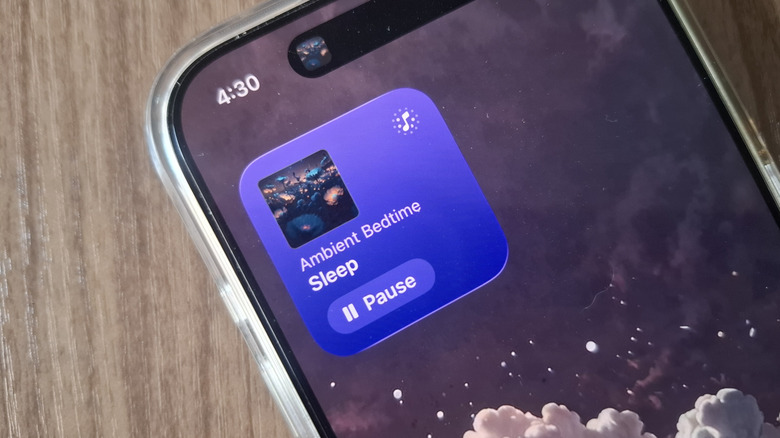
If you prefer listening to Ambient Music instead of a specific Background Sound, you can launch the Sleep Ambient Music playlist by going to your Home Screen. You first need to customize your iPhone Home Screen, though, as Ambient Music isn't available there by default. Here's how to do so:
- Touch and hold on any empty space on the Home Screen.
- Press Edit in the top-left corner.
- Go to Add Widget.
- Tap on Ambient Music.
- Select which widget size you want to add to the Home Screen. If you'll mainly use Ambient Music for sleeping, the smallest widget should do.
- Hit Add Widget.
- Tap Done.
- To start playing, simply tap the play button on the widget. If you're not a fan of the current playlist, you can switch to one of the three other options. Long-press on the Ambient Music widget, go to Edit Widget, and change the Playlist.
Aside from the Home Screen, you can also access Ambient Music from your Lock Screen or anywhere else on your device if you add it to the Control Center. Go to your Control Center and edit it. Then, under the Ambient Music section, choose Sleep. A single press on the Ambient Music control will automatically play the previously set playlist. If you need to switch it out, touch and hold an empty space in the Control Center, select the Ambient Music control, and choose a different playlist.