

AirPods Have Had This Audio Sharing Feature Since 2019 – And You've Probably Never Used It
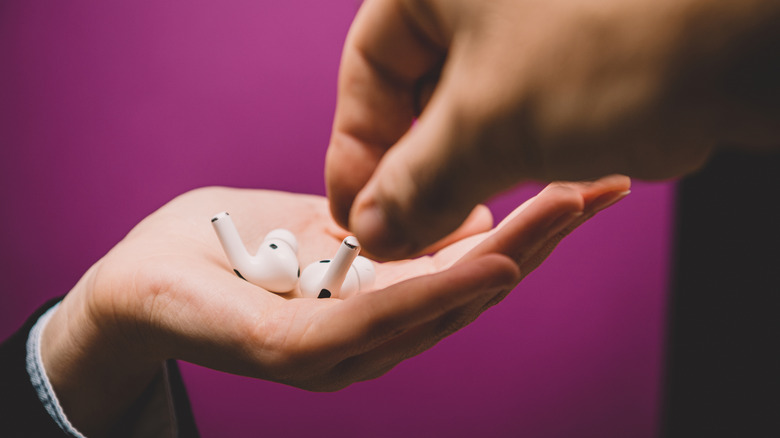
The best music and movies need to be shared. With an iPhone, that usually means either playing the audio via the built-in speaker, using a Bluetooth speaker, or — if you prefer to listen privately — sharing one AirPod with your friend. The last method comes especially handy when you're out in a public space, or anywhere else you don't want other people overhearing what you're playing.
But while AirPod sharing is the usual route, it isn't necessarily the most efficient way to share audio. You can't fully immerse yourself in the sound if you only have one AirPod in. Plus, you'll have to stick to one volume level and, for AirPods Pro 3 and the likes, one listening mode. That can be uncomfortable for either you or your friend. To avoid all that, there's one clever AirPod feature you can use instead: Audio Sharing. This feature has been around for a couple of years now, but you might not even know it exists.
What you need to know about AirPods Audio Sharing
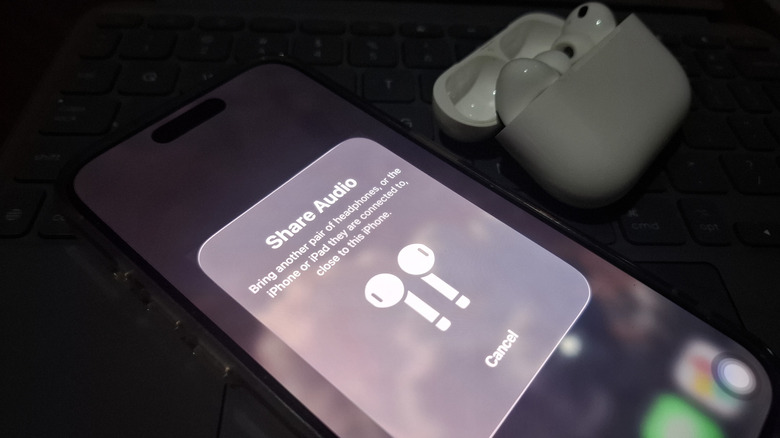
Audio Sharing in AirPods is essentially letting one device play the same audio to two sets of AirPods. So instead of having one earbud each, you and your friend get to enjoy your own set of AirPods while still listening together wirelessly. In Audio Sharing, both AirPods are controlled independently, meaning you can have your AirPods volume at 75 while your friend has theirs at 50. If both your AirPods support listening modes, you can set a different mode for each pair, too.
Compatibility-wise, Audio Sharing is supported on all AirPods, AirPods Pro, and AirPods Max models, including older generations. It's also available for some Beats and Powerbeats headphones. For Audio Sharing to work, though, the two sets of AirPods have to be connected to at least an iPhone 8 or an iPad model from 2017 or later. But the two sets don't necessarily need to be owned by two separate users. If you have two pairs of AirPods paired to the same Apple account, you can actually use both for Audio Sharing. That way, your friend can still listen in even if they don't have their own AirPods.
How to share your iPhone's audio with another set of AirPods
To start a private listening or streaming party with your friend, here's what you need to do:
- Wear your AirPods.
- If it doesn't automatically pair, connect your AirPods to your iPhone first.
- Go to the Control Center.
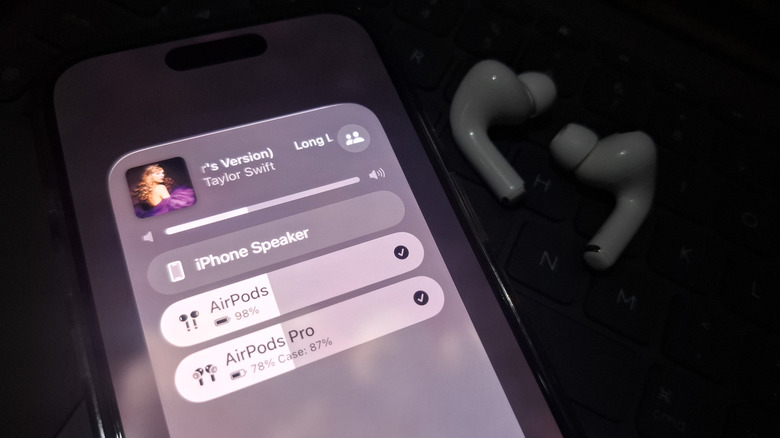
- In the Now Playing tile, press the AirPods icon.
- Select the Share icon (icon with two people) in the top-right corner.
- Ask your friend to hold their open AirPods charging case (with both AirPods inside) near your iPhone.
- Hit Share Audio on the pop-up on your iPhone.
- Pair your friend's AirPods with your iPhone by double-tapping the front of the case or long-pressing the back button, whichever applies to their AirPods model. If you're using another pair of AirPods you own, you can skip this step as you won't need to connect them to your iPhone again.
From here, your friend's AirPods will appear in your Now Playing panel, and whatever you have on should also play on their end. You can freely adjust the volume of your friend's AirPods from your Now Playing tile or the volume control on the Control Panel, all without changing your own AirPods' volume. When you want to disconnect your friend's AirPods, all you have to do is open the Control Center, tap the Now Playing tile, and press the AirPods + 1 at the bottom of the Now Playing Panel. You can then uncheck your friend's AirPods to stop the audio for them.