

5 Cool New Features Recently Added To Android Watches You Need To Try
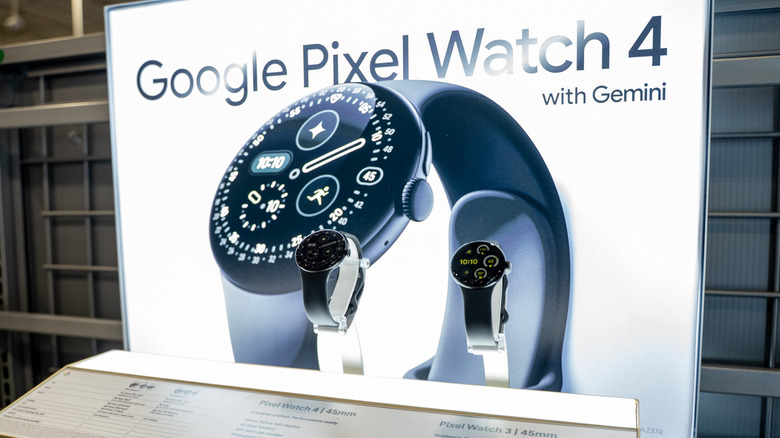
Google has released several new features in the past six months that smartwatch users who own one of the newer Pixel Watch models, or a compatible non-Pixel Wear OS device, should check out right away. The list of added features includes support for new gestures, a new way to pay for goods and public transport, and an improved method for quickly replying to messages with on-device AI. Google also added a few safety features that will come in handy in specific instances, including standalone earthquake alerts on Wear devices and support for emergency communications via satellite. Finally, the smartwatch can also be used to ensure you don't leave your Android smartphone behind, a feature that goes hand-in-hand with Find Hub updates for Pixel Watches that allow users to find connected devices directly from the wearable.
The Wear OS 6.1 update that rolled out in December is available to Pixel Watch 2, Pixel Watch 3, and Pixel Watch 4 models. The original Pixel Watch will remain on Wear OS 5.1, however, which means owners won't be able to enjoy any of the new features without upgrading their devices. Also of note is that the March 2026 Pixel Drop targets Pixel Watches specifically. Other devices that can support Wear OS 6 and newer may get some of these features in the future, but it's unclear when that will happen. For now, though, here's an overview of some of the most intriguing of these updates.
Pay faster for goods and transit
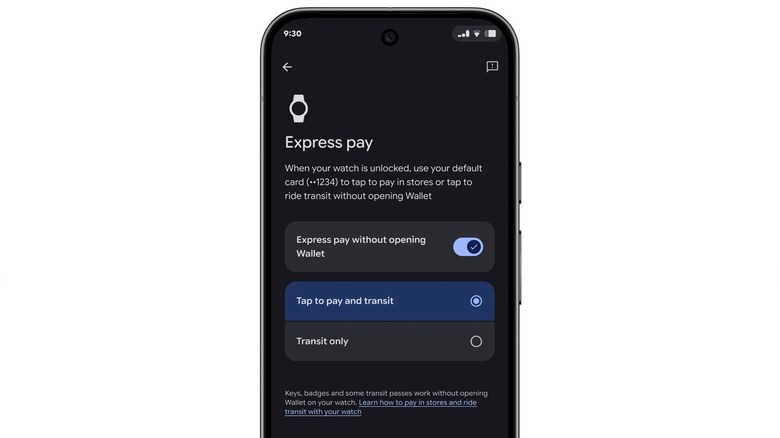
Google added a new express pay feature to Pixel Watch 2 (and newer) devices in March 2026. The feature should appeal to those Android users who already use their smartphones for wireless payments in stores and public transport. Express pay allows users to tap the Pixel Watch to pay without opening the Google Wallet app for authentication. Express pay will work automatically when the Pixel Watch is unlocked.
To enable express pay in the Pixel Watch app on your handset, go to the Google Wallet menu under Google, tap on your profile picture, and go to Wallet settings. The "Tap to pay and transit" menu lets users enable the "Express pay without opening Wallet" feature. You can customize the functionality to work only for transit tickets if you're worried about security but want to enjoy a smooth experience when paying for public transit. If you want to use the Pixel Watch without opening Google Wallet to pay for goods in stores, you'll have to enable the "Tap to pay and transit" feature.
Google explains in a support document that users need to unlock the wearable once in the last 24 hours for express pay to work. Otherwise, the wearable will prompt an unlock before allowing you to pay for goods. Wrist movement also matters. You have to turn your wrist completely towards the payment terminal, according to Google. That way, the Watch detects the movement and starts the transaction. Otherwise, the Pixel Watch will prompt the user to confirm the payment. If a payment is successful, the wearable offers feedback, showing a blue check mark on the screen and vibrating or making a sound.
Manage the Pixel Watch faster than before
The December update brought new ways to control the Pixel Watch that should help users navigate the device faster than before. For example, Wear OS 6.1 has enabled the new AOD Media Controls that ensure media playback controls remain visible and accessible when the Pixel Watch screen is in always-on display (AOD) mode.
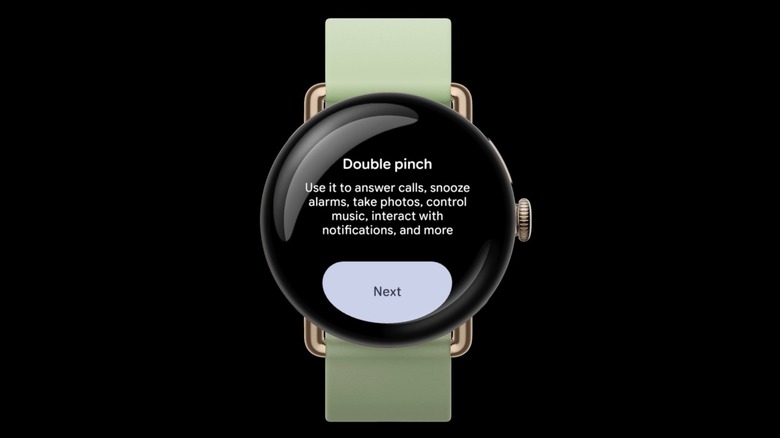
Google also brought new gestures in Wear OS 6.1, including Double pinch and Wrist turn features. Double pinch is a gesture that involves tapping the index finger and thumb twice to control the wearable. For Wrist turn, you'll have to turn your wrist quickly from side to side. Double pinch lets users scroll through notifications, send the first Smart Reply suggestion in Messages, snooze alarms, start and stop timers, take photos, start and stop video recordings, and play or pause music. A Wrist turn will let users close notifications and silence calls.
The gestures are available on Pixel Watch 3 and Pixel Watch 4 models, and they can be enabled in the Google Pixel Watch app on your handset. Go to Settings > Gestures > Hand gestures to turn Double pinch and Wrist turn on or off. The same menu is available directly on the wearable.
Use AI for smarter replies to messages
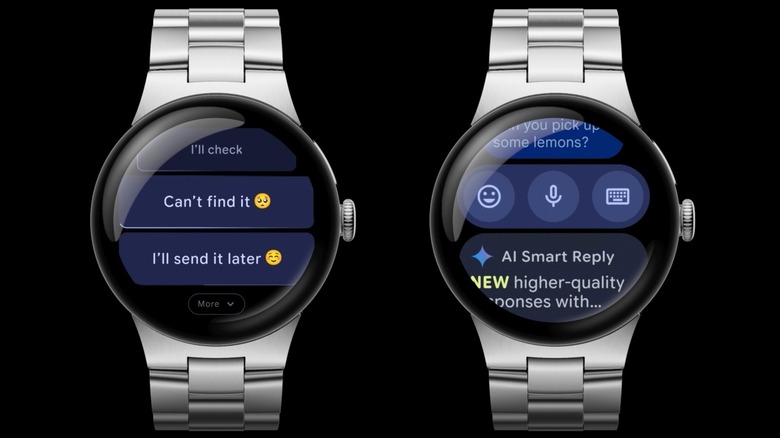
Speaking of sending a first Smart Reply with a Double pinch gesture on the Pixel Watch, Google improved the Smart Replies experience in Wear OS 6.1 by allowing users to take advantage of the AI-powered feature even when a phone isn't nearby. The enhanced Smart Reply functionality involves an on-device language model based on Google's Gemma AI models that help users generate replies to incoming texts in Google Messages directly on the wearable. The feature can come in handy when crafting text responses on a wearable device in a hurry, like responding to incoming texts while walking or running without the Android phone nearby. You'll need a cellular Pixel Watch model to use Smart Reply in those scenarios.
The enhanced Smart Replies should be "twice as fast and nearly three times more efficient in terms of memory usage" compared to the previous version, according to Google. That said, the feature requires newer hardware to work. You'll need a Pixel Watch 3 or Pixel Watch 4 to take advantage of enhanced Smart Replies.
Never leave your phone behind again
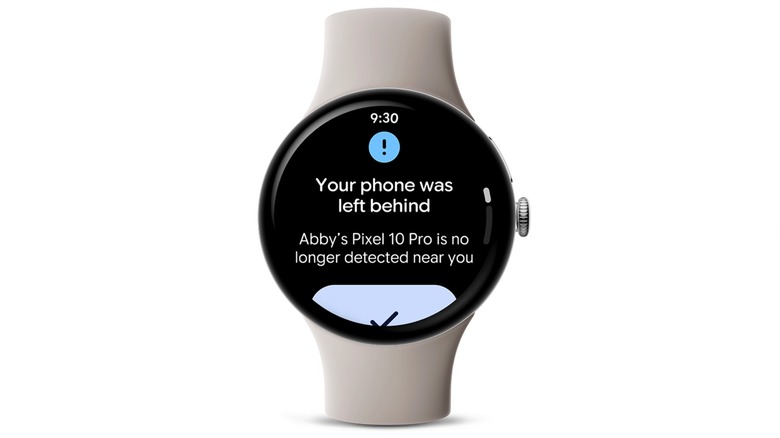
You may not want to carry your phone with you while exercising outdoors, but that's one of the rare scenarios where you'll purposely leave your device behind. More often, you'll want to ensure your phone is with you, rather than left on a desk at work or in a public location like a grocery store or bar. In March, Google added a new feature to Pixel Watch models to help with that. The smartwatch can send an alert if you leave the handset behind and lock the phone when it's out of range. The feature requires a Pixel 8 or newer and a Pixel Watch 2 or newer to work.
Pixel device users may want to track other valuables with the help of Bluetooth trackers, and that's where the Find Hub comes in handy. You can see the tracker-connected items on a map and find missing devices. In March, Google brought Find Hub support to the Pixel Watch, allowing users to locate missing items directly from their wrists. The smartwatch lets you play a sound on a missing item as long as the device is within Bluetooth range. Alternatively, you can use the Pixel Watch to see the location of the missing device and navigate to it.
The Pixel Watch can also offer faster identity checks (Pixel Watch 3 or newer) when paired with a Pixel 8 Pro or newer, thanks to the March update. This feature can be useful for faster access to passwords, app authentication, and sensitive settings management (including Find Hub tracking and anti-theft features).
Learn the new safety features
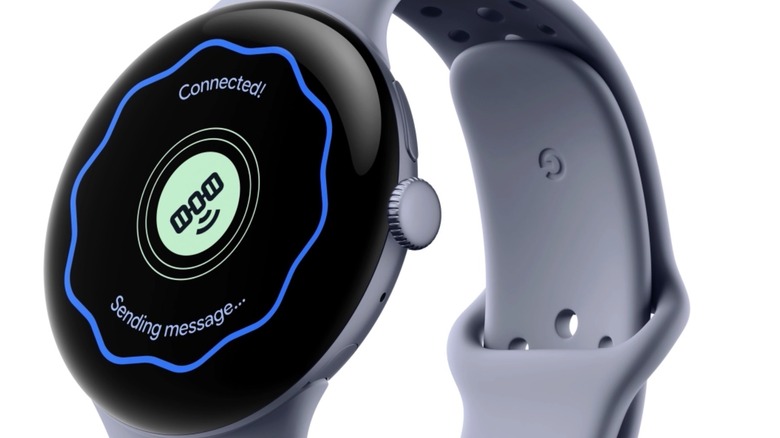
The Pixel Watch can also improve your safety following the March update, as Google expanded Satellite SOS support to more markets, including Alaska and Hawaii in the U.S., Canada, and Europe. This feature requires a Pixel Watch 4 (LTE) model paired with a smartphone that runs Android 11 or later. Satellite SOS will be available for free to users for two years after activation. The feature should come in handy in emergency scenarios where users don't have access to a cellular connection or Wi-Fi network. Tapping the Satellite SOS feature allows users to start a conversation with emergency contacts. On-screen prompts help the wearer position the wearable correctly so a satellite connection can be established. The conversation with first responders begins on the device after the device connects to the satellite. People who routinely travel to remote places should ensure they know how Satellite SOS works on the Pixel Watch so they're ready to use it in case of an emergency. Google has a support document to help in that regard.
The March update also brought standalone earthquake notifications to the Pixel Watch, a feature that may be useful in earthquake-prone regions. Google's earthquake detection service, also available on Android phones, issues quake alerts in real-time. While such detection methods can only offer a few seconds of warning, it still gives wearers time to make a quick decision and seek protective shelter. The Earthquake alerts can be enabled and disabled on the Android phone by going to the Settings app and looking for a toggle in the Safety & Emergency menu or in the Advanced section of the Location menu.