

4 Signs You Should Replace That Old USB Drive
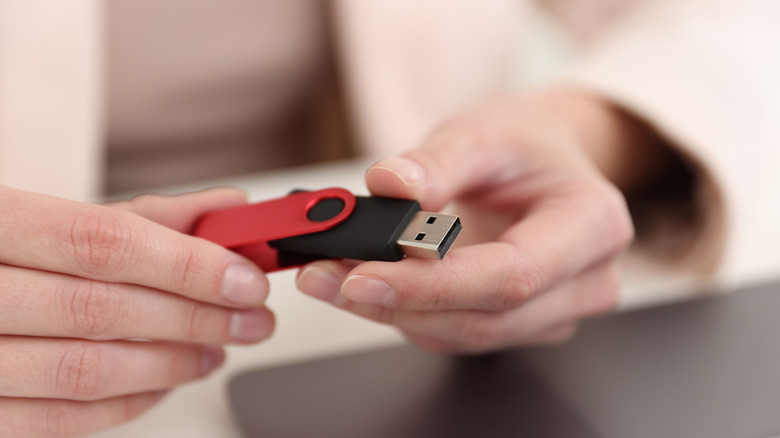
USB drives can be a convenient solution for storing personal files and data without paying out of pocket for a heavy external HDD or SSD. As you might already know, they offer advantages, especially in portability, as long as you don't leave them in awkward places, like your jeans' pocket, where they might later be taken to the wash by accident.
But dealing with instances where your USB stick has corrupted your files, can't consistently connect to your device, or has a loose connector when plugged in, makes replacing it a more cost-efficient solution than keeping it around for another incident. The USB stick itself can last for years if the quality is high enough, but internal components will eventually degrade, or speeds might not keep up with modern hardware. If your drive has sustained damage from being left loose in a bag for too long or is just showing signs of age, it might be time to replace it, and the signs that you should are pretty obvious.
The data transfer is becoming too slow
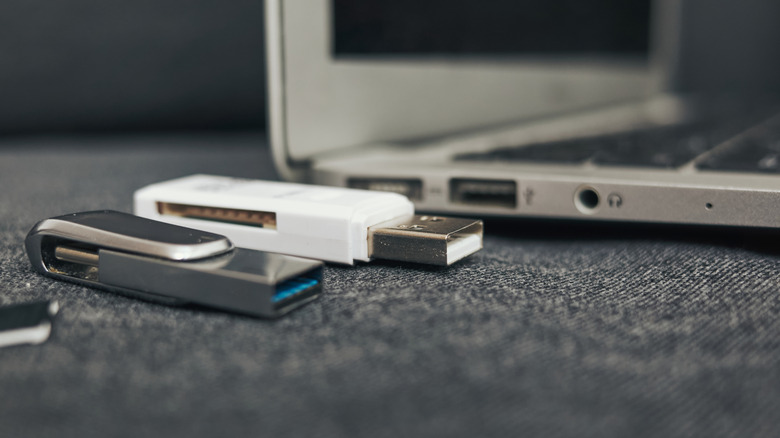
Data transfer becoming too slow is a sign that either your USB drive has experienced wear and tear or the demands on transferring your data have changed since you first bought the drive. The age and underlying technology determine the data transfer speed of your drive. Of course, this doesn't matter too much if you bought your USB more recently, as it likely supports newer technology.
Curious what speeds to look for? You just need to look to the standards for your USB drive. If you're using one that only supports USB 2.0, it can only achieve a maximum speed of 480 Mbps. Meanwhile, USB 3.0 and later generations split into multiple branches: USB 3.2 Gen 1, Gen 2, and Gen 2x2. For USB 3.2 Gen 1, the expected speed is around 5 Gbps, while USB 3.2 Gen 2 can reach up to 10 Gbps. USB 3.2 Gen 2x2 is the fastest of the three, at a blazing 20 Gbps.
The connector feels loose
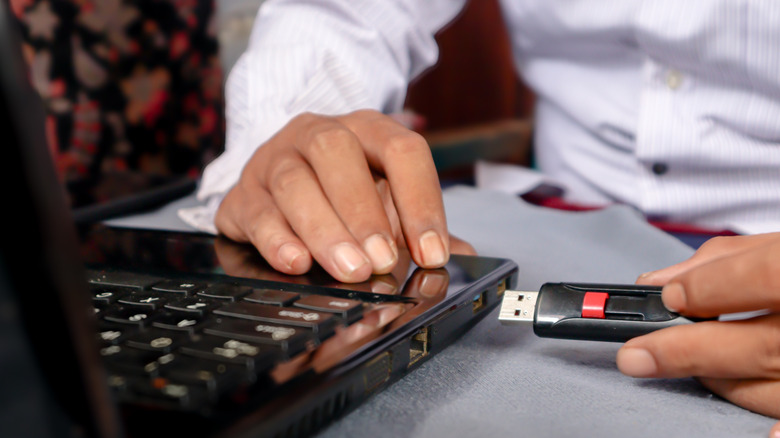
To check whether your USB drive has a loose connector, perform a "wiggle" test. When you plug the USB drive into a port, gently press it with your finger to check if it feels unstable or wobbly. You don't necessarily want to add too much pressure to avoid causing damage; you just need to test if there's any resistance or if it moves slightly while it is connected. If you are plugging the USB drive into a Windows-based computer, you should see a prompt indicating whether the drive is connected or disconnected. If you see the disconnected prompt after lightly touching it, your connector is too loose. Sometimes, you might also see an error message saying "USB Device Not Recognized" during normal use, which is another sign that hardware damage is the culprit. A loose connector can also slow data transfer more than you'd expect.
It's also important that you either run a controlled test with a USB drive you know is good, or try one you think is damaged across multiple ports. The last thing you want is for the loose connector to be caused by a damaged USB port, rather than the drive itself. A damaged USB port can fail the wiggle test and also cause the same errors/issues displayed on the host device.
Data becomes corrupted
Your USB drive can only handle so many operations before the NAND flash memory reaches its limit. Sometimes data corruption occurs due to physical damage to the drive, such as a loose connector or a damaged pin, which can interfere with the erase and write processes. Malware can also cause corruption that can even spread to other devices. And, of course, your drive could just be old, leading to bit rot, which includes a number of corrupting issues, from physical hard drive damage to SSDs losing electrons as they naturally age, also known as charge leakage.
You should take steps to make sure you're not contributing to this, too. If the general write-erase functions are interrupted, you can lose data. This is why there is a "Safely remove hardware" option when you right-click the drive, as it helps prevent accidental interruptions. Doing so ensures your data transfers are complete before it prompts you to unplug your device.
Encountering storage limitations
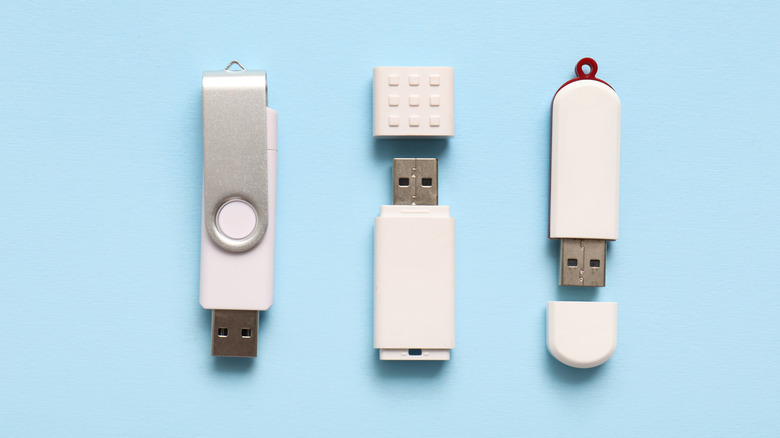
The size of USB drives can range from a handful of GB to TBs. The sad truth is that if you find yourself constantly low on storage and constantly moving files to free up space, you should definitely consider upgrading. USB drives are similar to external hard drives and even internal ones in your computer; they all have hard limits on how much data they can carry, as well as only so many write-erase cycles available, so constantly making more space is actually ruining them.
It's a bit frustrating to have to replace it, but if you have changed how you use that USB drive from casual use to something you need for work every day, then paying a little extra for a more comfortable size with decent transfer speeds could save you some trouble. Power users will likely want to opt for a healthy storage size, at least 256GB, and you will want one that rates at 400 Mbps or more.