

Changing This Simple Display Setting Can Noticeably Extend Your Laptop's Battery Life
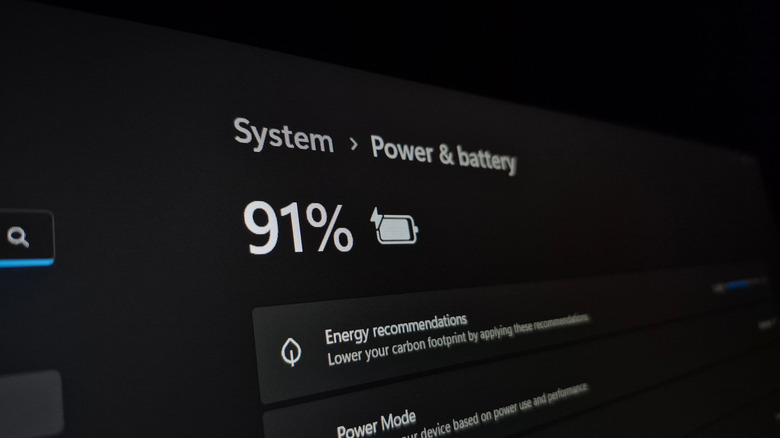
If you have a fairly modern laptop, chances are that it already lasts hours on a single charge. With hardware components, programs, and operating systems becoming more power-efficient, we are witnessing an era of relatively low battery drain, at least under the default configuration. For instance, the Windows OS picks the "Balanced" power plan by default since this offers an ideal balance between performance and battery life. But there's one setting that can easily extend your laptop's battery life by over an hour without affecting its performance: the brightness level.
Your laptop's display is one of the most power-consuming components. While other components adjust power draw based on workload, the display continuously consumes power when it's active. And as screen brightness increases, so does the extent of battery drain. Keep in mind that battery consumption also depends on active tasks, screen size, and display technology. For instance, a static wallpaper won't consume as much power as playing a video. Tests analyzing the impact of brightness on battery life suggest that lowering brightness by 30% can reduce the discharge rate by as much as 30%. These numbers will, of course, vary from one laptop to another, but they do paint a clear picture of the impact.
So, if you want to extend your laptop's battery life, adjusting brightness levels is one of the easiest solutions. It's fairly straightforward, doesn't require any major changes, and the results are noticeable immediately.
Lowering display brightness levels to improve battery life
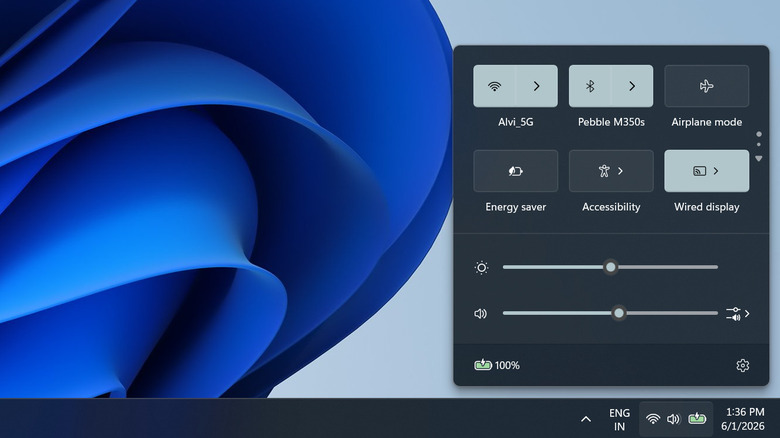
Most operating systems have an easy-to-access slider to adjust the brightness levels. On Windows, you will find it under the Quick Settings at the bottom-right corner. It can also be accessed using the "Windows + A" keyboard shortcut. Similarly, you can change the brightness in the Control Center, accessible via the "fn + C" shortcut, on macOS. On both systems, you may also find dedicated keyboard buttons to increase and decrease the screen's brightness.
The optimal brightness levels for a laptop depend on where it's being used. If you are using the laptop indoors, anywhere between 40% and 60% should do the trick, while outdoor use may require higher brightness for better visibility. Lowering brightness doesn't just improve battery life, but it also reduces eye strain during extended use. That's another reason to change the setting.
Also, if your laptop supports it, enable adaptive or auto brightness. The feature, available on both Windows and macOS, automatically adjusts the display's brightness based on lighting conditions around the laptop. This way, you won't have to manually adjust the levels when changing the laptop's position. On Windows, you can find the option under Settings > System > Display > Brightness > Change brightness automatically when lighting changes. On macOS, it's under System Settings > Displays > Automatically adjust brightness. While there are plenty of ways to get more battery life out of your laptop, lowering brightness is clearly the first thing you should do because it's simple and doesn't affect performance or usability.