

5 MacBook Features Students Will Use Daily

As laptops have become more and more affordable, they've also become as essential to the student experience as backpacks and notebooks. The demands of being a student haven't necessarily changed all that much, though, with writing papers, conducting research, taking notes in class, and adjusting to new schedules remaining as some of the core challenges each semester. Apple's MacBook lineup is a favorite tool to help meet challenges among students of all ages, with macOS offering features that put more capabilities in their hands with each passing year.
Because there's a MacBook for every budget, the lineup is nearly as accessible to students as devices like Chromebooks. Apple includes the MacBook Air among its more affordable laptop options, and the more recently released MacBook Neo specifically targets students and budget shoppers who want to utilize the many features of Apple's software ecosystem without completely breaking the bank. Features intended for fun, like sharing songs on Apple Music and screen-capturing memes to share on social media, of course, will always be popular draws among students.
But there are a lot more ways for students to put a MacBook to use. While many may not have explored macOS beyond its surface-level features, the operating system is packed with tools and software that students can use daily. Brainstorming, collaborating, remembering, focusing, and organizing can all be made simpler, easier, and more convenient with a MacBook, so let's explore some of the features that students can use to maximize the learning experience.
Record lectures with Voice Memos

Keeping track of everything that's communicated during a lecture can be a challenge. It's nearly impossible to keep up when taking notes by hand, and typing in a word processor while simultaneously trying to absorb the material simply doesn't work for students who aren't natural multitaskers. It can be easy to miss a point in the moment, and just as easy to take notes illegibly or in a way that makes it difficult to remember when referring back to them.
The Voice Memos app that comes built into macOS can handle a long lecture without any of these issues. Students can set it to run in the background while taking notes of their own or simply listening to the professor, knowing a recorded version of the lecture will exist for later reference. This can certainly help students who learn more naturally by listening, but having a recording of every lecture is something just about all students could find useful at some point during the semester.
QuickTime Player is another built-in app that students can use to record lectures, though Voice Memos can take voice recordings a step further. It doesn't have the ability to annotate or time-stamp while it's recording, but Voice Memos on a MacBook is capable of transcribing audio and presenting it as text. Students can then copy and paste the transcript into a word processor, where they can search, highlight, annotate, and even summarize the text with various AI programs.
Create multiple virtual desktops with Spaces
There's no shortage of windows, apps, and browser tabs that can fill a student's MacBook screen. Essays, documents, research tabs, and Apple Music are likely candidates to be open simultaneously, and that's to say nothing of the digital space that productivity apps like Calendar, Notion, Pages, and Reminders can take up. Just like a physical desktop, a student's MacBook screen may never quite seem to be large enough.
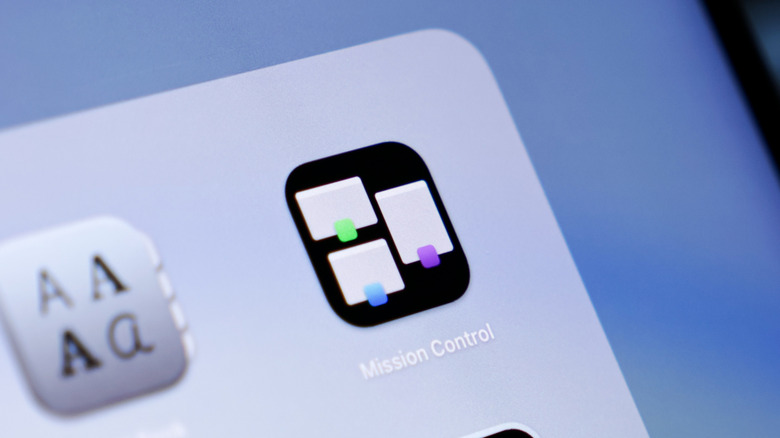
An external monitor is always an option, but that cancels out the portability of a laptop. Available with macOS, however, is a feature called Spaces, which allows students to set up virtual desktops that they can easily switch between. Apps can be organized into spaces by category, but students may also find it convenient to set up different workspaces for each course they're taking. Software like Pages and Notes could each get its own space, while software dedicated to schedules and to-do lists could live in a separate one.
Students can set up Spaces through Mission Control, with macOS allowing up to 16 different spaces. This feature can be somewhat frustrating when used to create spaces for related apps, as each app can be open in only one space at a time. In other words, students can't have Pages open in a designated writing space and also in a separate note-taking space. But this feature can also be used to organize any and all windows that are open at a time, which gives students the option to simply create temporary spaces as they open and close files throughout the day.
Work across devices with Handoff and Universal Clipboard

While a MacBook may be the centerpiece of a student's digital world, iPhones and iPads are common secondary devices. For students with multiple Apple devices, a feature called Handoff is available. It allows students to move what they're doing on one device over to another. Some popular uses include moving a webpage open in Safari from a phone to a MacBook to view on a larger screen and working on an essay in Pages before moving it to an iPad for more comfortable writing on a sofa or recliner.
Handoff has been so popular among Apple users that a similar feature is coming to Android, as well. But another way for students to spread their work across multiple Apple devices is through the Universal Clipboard feature. This allows students to copy text, images, and video on one Apple device and paste them on another. It's a very handy tool for moving links, excerpts, media, documents, and even passwords that are difficult to remember from one device to another.
The main requirement for these features to work is that the devices need to be signed into the same Apple ID and connected to the same Wi-Fi network. The latter can make these features difficult to use while out and about, though most students connect their multiple devices to the same campus Wi-Fi network anyway. AirDrop is a fallback option, as it lets users transfer files between Apple devices without any need for a Wi-Fi connection.
Eliminate distractions with Focus modes

Between applications like iMessage, FaceTime, and Calendar — as well as the endless pull of browser tabs and social media sites — a MacBook can quickly become as much of a distraction as it is a tool. Apple has built a feature called Focus into macOS specifically to help users like students keep their eyes on what's most important while using their laptops. Through the computer's System Settings, students can set up different Focus modes based on what they're doing at any given time. One Focus mode could eliminate text notifications while writing, for example, while another might block all notifications while studying for an exam.
One thing to be careful of when utilizing Focus modes is that, by default, the feature applies to all devices that share an Apple ID. This means that in hiding notifications on a MacBook, a student is also hiding them on their iPhone or iPad. It's simple enough to ensure these only apply to a MacBook, however, by toggling the Share across devices button within the Focus sidebar of the MacBook's System Settings. Distractions can be prevented in a more general sense by utilizing Screen Time, which allows students to set daily time limits for certain apps and websites.
Keep coursework organized with Finder tags
There's no telling what each semester may hold when it comes to the amount of handouts, research, and media collected for assignments. Files and folders can quickly pile up on a MacBook's desktop or within its Documents folder, making specific files difficult to track down when a user needs them. But macOS includes a tagging feature that can be used to color-code and organize files. Students can tag everything related to an English course in red, a science course in blue, and a group project in green, for example. This makes any tagged file searchable and filterable specifically by the tag it's given.
Students can use the tag feature to organize files any way they like, as each tag color can be renamed to suit any organizational structure. The color-coding system can even be used to match up calendars and reminders in their respective macOS apps. But while this organizational structure can be a game-changer for keeping chaos at bay, the tracking and filing will only be as good as a student's commitment to maintaining it. Tags might need to be renamed with the arrival of new courses each semester, for example, and older files may need to be untagged or filed into a permanent archive tag to keep them separate from current semester files and folders.