

How To Get The New Disco Icons For Your Google Pixel Phone
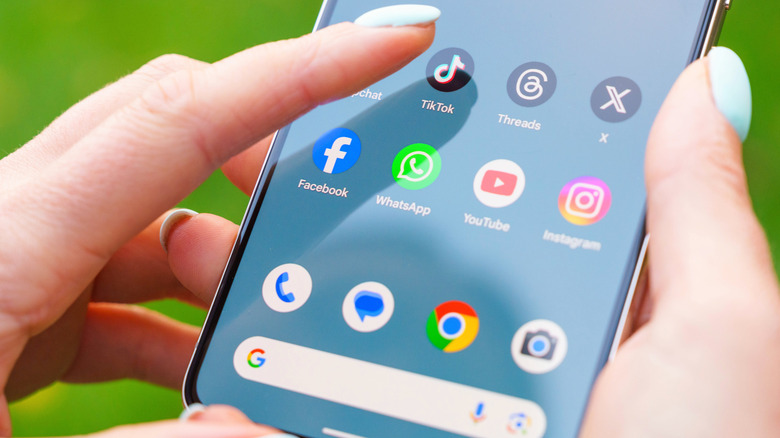
Google Pixels updated to at least Android 16 can take advantage of new Pixel Launcher customization options (something exclusive to Pixel phones that iPhones can't replicate) that add a bit of extra pizzazz to your home screen. You can change the icon styles in ways that differ significantly from the current preset options. These custom packs use AI to generate icons that can be applied system-wide for Google Pixel 6 models and later.
While some packs let you tweak the prompt to change colors, you can see this after you tap a pack, and the text below the word in the prompt shows a dotted line indicating which colors or aesthetic can be changed. Some icon packs come with a set style, like the Disco icon pack, meaning it has a predetermined look that can't be altered. But thankfully, you can still make a few changes to ensure it works better on your home screen, such as freezing the animations through the "Static" toggle.
The idea behind this disco-themed pack that Google released came from a Twitter/X thread by user RaceJohnson, who posted about discomorphism. And as a pleasant surprise, Sameer Samat, Android Ecosystem President, also spoke about bringing this pack to Android phones — which eventually happened, hence the new Disco icon packs you can now download and apply to the icons on your home screen. This particular pack is shinier and more animated than the available default options, plus with Material 3 Expressive giving your device a more lively feel, now is as good a time as any to experiment and see exactly what your Pixel phone is capable of.
How to change your app icons to the Disco style
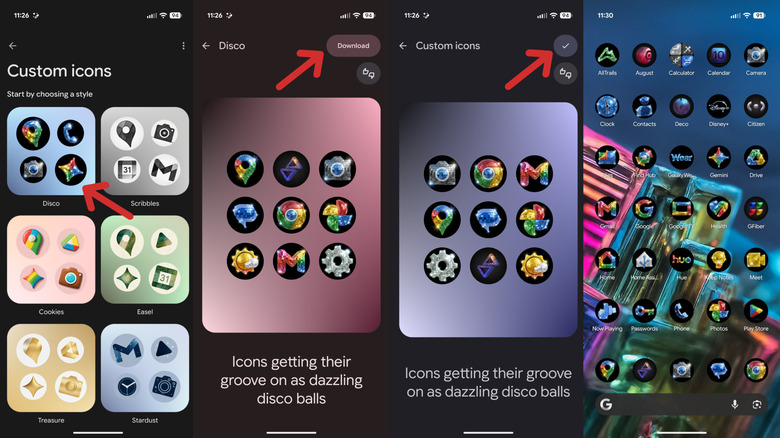
As long as your Google Pixel device is at least a Pixel 6 or newer and running the March 2026 Pixel Feature Drop (Android 16 QPR3) or later, you should be able to use the "Create" feature to add the Disco icon packs to your phone. You can check for OS updates under Settings > System > Software updates > System update.
To add the pack and change to the new app icons, start by opening Settings, then tapping Wallpaper & style. Alternatively, you can long-press any empty space on your home screen, then tap Wallpaper & style to access the same menu. Swipe to the right to ensure you are on the Home screen tab. From there, scroll down and tap on Icons. Four options will appear: Default, Minimal, Custom, and Create. Tap Create. In this section, you should see a set of custom icons — scroll down to the "Create a new style" section and choose Disco. Once the system generates a new set of icons for you, tap the Download button in the upper-right corner to obtain the Disco icon pack.
After the Disco icon pack is downloaded, back out to the previous menu. Under the "Your styles" header on the "Custom icons" screen, tap the newly added pack (it should look disco-like). From there, select the check mark icon in the upper-right corner to apply it to your home screen.