

Here's What The Green Dot At The Top Of Your Apple TV's Home Screen Means

Those with an Apple TV streaming device may have noticed various icons appearing in the upper-right corner of their home screen when the control center isn't active. These aren't anything to worry about, as they're simply status icons that indicate certain Apple TV features are active. For example, a crescent moon icon indicates your Apple TV device is in Do Not Disturb mode, a clock icon tells you that a sleep timer is activated, and an icon of a child beside a lock shows that content restrictions are active.
However, while certain status icons that appear on your Apple TV home screen can be straightforward to decipher — like the one for an active FaceTime video call, which is indicated by a video camera icon — others, like the green dot that tells you your camera or microphone status, aren't quite as obvious. Below, we break down what the green dot on your Apple TV home screen means and how to turn it off.
What does the green dot on your Apple TV home screen mean?
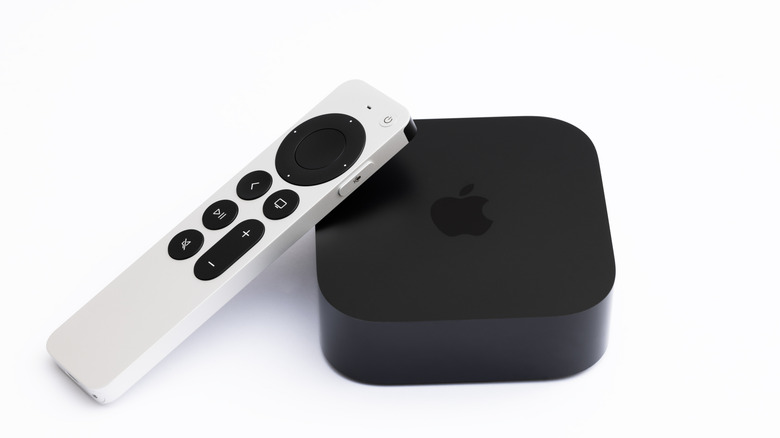
As it does on an iPhone, the green dot icon on your Apple TV home screen is a privacy indicator that tells you when a connected camera or microphone is active, while an orange dot tells you that a connected camera or microphone is not active. In other words, if the green dot status icon appears, it means an app, such as FaceTime, is currently using the camera and/or microphone connected to your Apple TV device.
Apple TV streaming devices don't have a built-in microphone or camera, nor do they support standard Bluetooth or USB microphones or webcams (though some users have found workarounds for this). Unfortunately, while there are several new features coming with Apple tvOS 27, third-party camera and microphone support isn't among them. However, Apple's Continuity camera feature allows you to use your iPad or iPhone (iPadOS 17 or iOS 17 and above) as a webcam or microphone for your Apple TV 4K device. That setup lets you FaceTime others or use the Apple Music Sing karaoke feature — one of the many cool things you may not know your Apple TV can do.
When you're actively using your iPad or iPhone's microphone or camera with the Continuity feature on your Apple TV 4K device, you'll likely see the green dot icon on your home screen, indicating that the peripheral is active. This should go away when you close the app that's using the camera or microphone, but if not, follow our steps below.
How to turn off the green dot on your Apple TV home screen
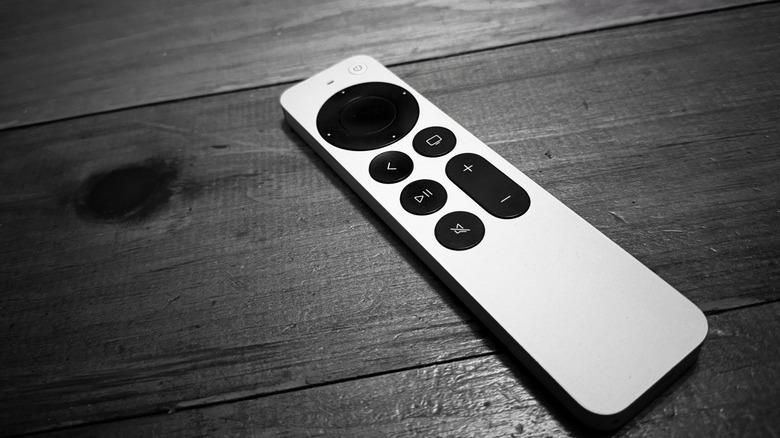
If you see the green dot but are not currently using a microphone or camera connected to your Apple TV via the Continuity feature, ensure you've closed the FaceTime or any other apps on your TV that could be using your camera and/or microphone. If the green dot is still on at that point, disconnect the device you connected to your Apple TV 4K streamer, such as an iPad or iPhone. This is straightforward to do: simply navigate to Settings on your TV, then Remotes and Devices, and select Dedicated Camera. If an iPad or iPhone is connected to your Apple TV streaming device using the Continuity feature, you'll see the option to Disconnect. On your iPhone or iPad, also select the option to Disconnect on the lock screen.
If the green dot continues to persist, it might be due to a glitch, and it may be time to restart your Apple TV device. To do this, hold down the TV icon and Back (or Menu) buttons on your smart TV remote until the status light blinks rapidly. Alternatively, you can disconnect your Apple TV from its power source for five seconds, and then reconnect it, or select the Restart option under System in Settings.