

5 Things You Didn't Know Your Samsung Phone Could Do
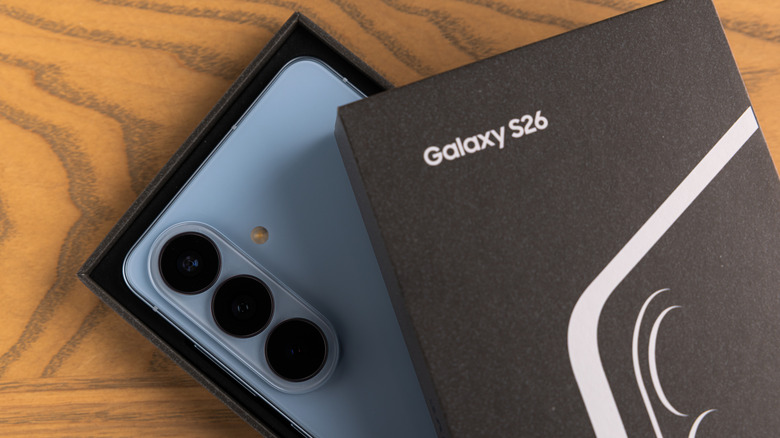
When you get a new phone, it's always fun to poke around and test out the various settings, functions, and applications to see what cool things you can do. That's especially true of Samsung's Galaxy series and the brand's collection of devices, which tend to get new software updates and upgrades with each iteration — they're usually offered for older generations too, like the older Samsung phones getting the new One UI 8.5 update. But even if you've had your phone for years, you may not know the full potential it offers if you're not a power user. Did you know you can take a screenshot anytime by pressing the screen and volume down buttons simultaneously?
That's actually an Android feature available on most Android devices; it's not exclusive to Samsung. But it's still useful to know about. It's also relevant because you can completely change some of the button combinations for the physical buttons on your device. If you fish around in the settings, there's a lot more to find, some options that could even change your experience for the better.
You can separate app audio streams between devices
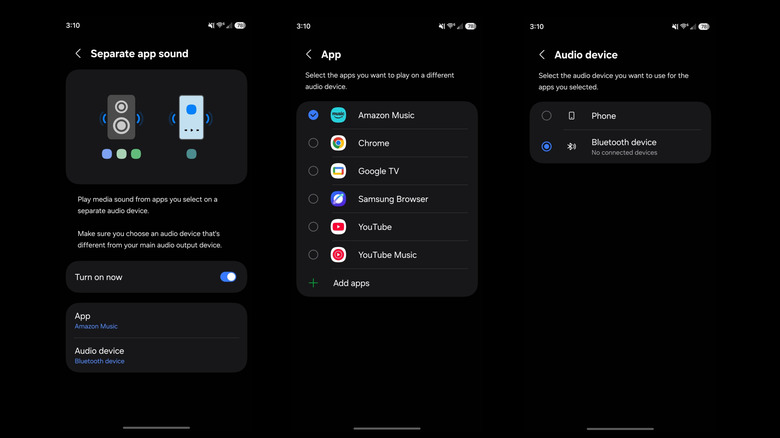
Say you're listening to some funky tunes, and you don't want that jam session interrupted, but you have another app open that requires you to hear the audio, like turn-by-turn navigation. You can actually separate app audio feeds to come out of two different devices. Thanks to Samsung's tinkering you can keep the navigation directions coming from your phone's speaker, while the music audio plays through your vehicle's speakers and Bluetooth connection, or vice versa.
Alternatively, if you're relaxing with friends, listening to music on a Bluetooth speaker and only want the music audio from your current app to play through the speaker, while everything else still goes to your phone, you can do precisely that. Setting it all up is actually pretty simple in Samsung's One UI, but keep in mind that any devices you want to use, like a Bluetooth speaker, need to be synced and connected before you change any settings. So, go ahead and do that first, if you haven't already.
Then, navigate to Settings > Sounds and Vibration > Separate App Sound and toggle the Turn On Now option. A pop-up will appear letting you know that you need to select the app and audio devices, and choose Select. Then, you'll need to choose the app you're using, or want to, and pair it with a particular device, like a Bluetooth speaker. You can always come back and change the settings later or turn it off if you want to return the device audio to normal.
You can customize what the side button does
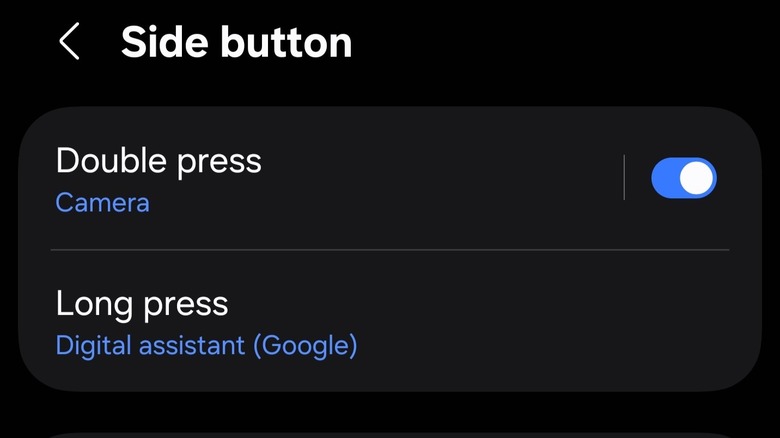
By default, there's a single button on the newer Galaxy devices that acts as the screen on/off button, and the Bixby button if you hold it down. You can also double-tap the button to automatically open the camera, which is useful for quick captures if your phone screen is locked — that hotkey works regardless. But what's also special about the button is that you can customize what it does and what apps it opens to really improve access to your favorite apps.
To change what the button does, navigate to Settings > Advanced Features > Side Button. The top option, Double Press, allows you to open the camera with a double press. You can swap this to another app, routine, or tool like the flashlight. If you don't use it at all or want to eliminate accidental presses, you can disable it entirely with the toggle.
Below the Double Press option is the Long Press shortcut. Unfortunately, you're limited by what you can set this to in system settings. You can swap it to open another assistant, like Alexa, Meta AI, or Google Assistant. Alternatively, you can open the power off menu. Either way, you can customize how the physical buttons react, which is good to know.
Create a Secure Folder to hide apps and media or segment data
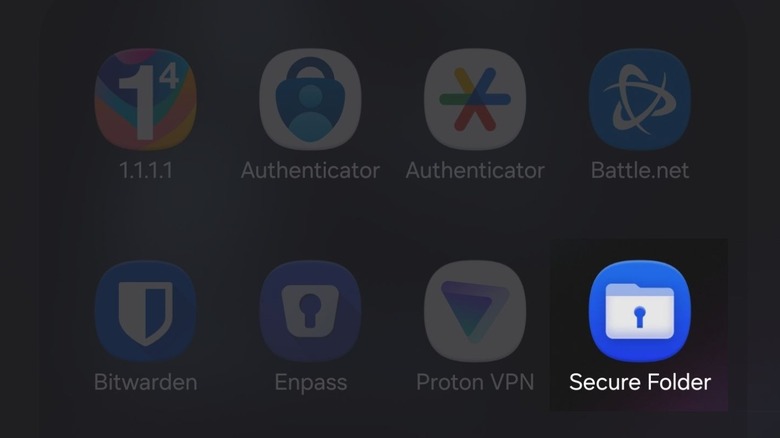
A unique privacy feature available only on Android phones is the option to create a second, private space for your apps and data, like your photos. On Pixel, it's called Private Space, but Samsung's version is called Secure Folder. What it does is build a completely separate instance or partition where you can install apps, store sensitive files, and keep certain data-hungry tasks away from your most vulnerable content.
For example, you can install a banking or finance app in your secure folder that doesn't have access to your main profile and vice versa. Or, you could store risque photos or apps that you don't want others to know you have in there. Secure Folder has its own security lock and is only accessible when it's unlocked.
To set it up, go to Settings > Security and Privacy > More Security Settings > Secure Folder. You'll be asked to set up a unique pass, pin, or pattern for a lock. Fingerprints and biometrics work, too. You will also tie the Secure Folder to a Google or Samsung account. After it's ready, a new Secure Folder icon will appear in your app drawer. You can also hide the icon and use the quick settings toggle to access it instead, which appears in the notifications tray.
Run an extra version of messaging apps
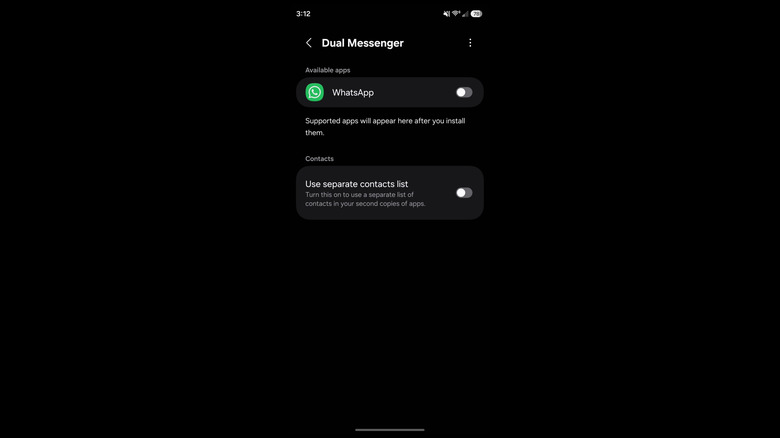
Say you want to be signed in to two WhatsApp accounts simultaneously, using the app in two separate instances. You don't have to use the Secure Folder for that. Instead, you can use a neat feature Samsung calls Dual Messenger. It clones the app you choose, like Messenger, Telegram, WhatsApp, or whatever you use most. You can even set the cloned app to use a completely different contacts list so it doesn't have access to your main contacts profile.
Before you set it all up, make sure the messaging app you want to clone is already installed. Head to Settings > Advanced Features > and scroll down to Dual Messenger. In the list of available apps, choose which one you want to clone and select what you want to do about the contacts list. After that, you'll see two copies of the affected messenger app in your apps drawer. You can treat them like two different app installs.
Lift subjects and objects from a photo
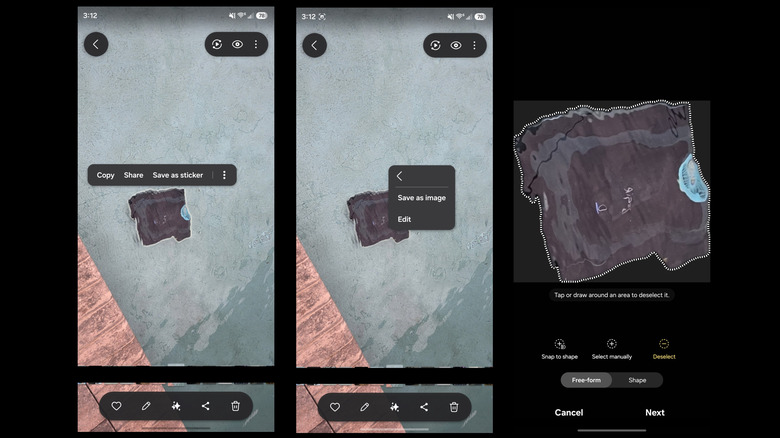
From Samsung's One UI 5.1 and up, you can actually separate the subject in a photo to save it in a separate image, like a cutout, or save it as a sticker you can use elsewhere. This allows you to turn cans of your favorite beverage into a usable sticker in various apps, or create a cutout of items and belongings, even people. Open the Samsung gallery, the stock gallery app, and find a photo you want to use. Then, tap and hold on an element to cut it out.
A bouncy animation will show, and you'll see an outlet around the subject or item. When you release your finger, you should see a shortcut bar with options, including Copy, Share, and Save as Sticker. To save as an image, tap More (three vertical dots) and select Save as Image. You can also choose to edit the subject, which opens it in an exclusive window and allows you to manipulate the individual selection.
It's a quick and neat way to carve out photo elements and remove the background. You can also use the Samsung Photo Assist (AI editing tools) to erase subjects from photos using a similar selection method. Now, a few of these features are exclusive to Samsung, yes, but if you have a Pixel or another brand device, there are actually a lot of neat or hidden things you had no idea your Android could do. It's worth looking up your phone on Google to see if you can find some.