

6 Privacy Features Only On Android Phones
We may receive a commission on purchases made from links.
Privacy has become a pressing concern in the post-Cambridge Analytica era. Many people want to protect their data from being tracked by any company that will send it to third parties and use it for targeted ads, product personalization, and analytics. This is a concern that is especially prevalent on phones, with this device housing so many apps that you may be worried about the sheer level of data tracking that is occurring across the board on these programs.
Apple has added several exclusive privacy features to combat this issue, and it isn't the only one. If you have an Android phone, then you'll be glad to know that Google has gone the extra mile to ensure that this OS will safeguard your privacy and then some. Alongside a suite of industry-standard features to ensure that your privacy isn't compromised on any Android phone, there are some exclusive features — either integrated by the manufacturer or Google itself — that help you know that your activity isn't being tracked every step of the way on your smartphone.
1. Privacy Display on the Samsung Galaxy S26 Ultra
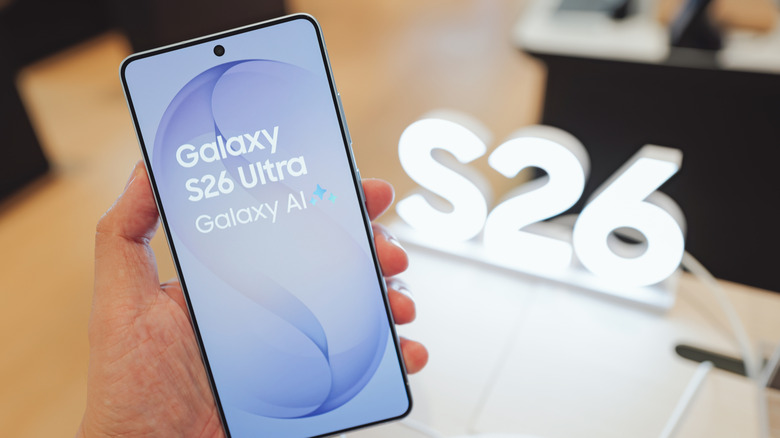
Samsung's flagship Galaxy phones have always gone above and beyond when it comes to adding state-of-the-art features. The company's responsible for creating the first-ever modern flip smartphone with foldable glass in 2020, courtesy of the Galaxy Z Flip. A decade back, the Galaxy S was the first smartphone with a Super AMOLED display. Now, with the release of the Samsung Galaxy S26 Ultra, the functionality of the widely-popular privacy screen guard has been baked into the phone, making it yet another crowning hardware achievement for this manufacturer.
Unlike regular privacy screen protectors that come with the disadvantage of always hiding your screen even if you want to show something to a person next to you, Privacy display on the S26 Ultra is highly customizable and can be toggled automatically as and when you see fit. Either go to the Display tab in Settings and choose "Privacy display," or access this setting from the Quick Settings menu. You'll see a "Maximum privacy protection" toggle here, which sends this feature into overdrive... so much so that even normal viewing angles may be affected in this mode!
Aside from this, there's a "Conditions for turning on" section, where you'll see several options to turn on Privacy display automatically. For starters, you can configure which apps will cause Privacy display to be enabled, which is perfect if you want to use social media or banking apps worry-free. Toggle "PIN, pattern, password" to — as the name suggests — enable Privacy display whenever you're unlocking your S26 Ultra. Under "Partial screen privacy," you'll see a "Notification pop-ups" toggle. What this does is localize the effects of Privacy display whenever a notification pops up, dimming only that portion of the screen.
2. Peek Proof and Peek Mode on Infinix phones
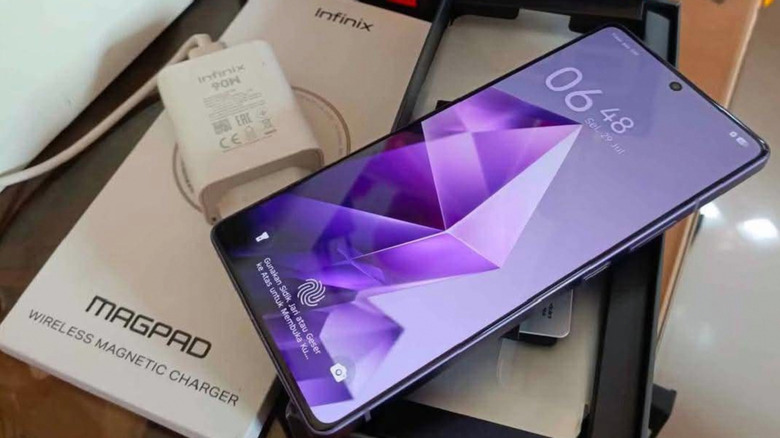
For all the hubbub generated by the S26 Ultra's privacy display feature, most people will be surprised to know that another lesser-known Android manufacturer quietly beat Samsung to the punch. With the release of XOS 7.6 in 2021, Infinix added two amazing features, making it one of the best tech gadgets around that actually protects your privacy.
Peek Proof is a slightly less elegant version of Privacy screen, bringing up a small, resizable square that keeps any relevant information in view while obscuring the rest of the screen. The opacity of this blackout feature can be controlled via a teardrop slider placed right on top of this adjustable square, letting you decide the level of privacy you want in your phone. You can either access Peek Proof in the Quick Settings menu, or go to your device's settings, tap on "Privacy," and enable the "Peek Proof" feature.
If you're a dedicated WhatsApp user who hates it when other people see a blue tick every time you open their messages, Infinix offers a solution that's far more robust than just disabling read receipts outright in the app's settings. With Peek Mode, you can open a separate menu that brings up all your WhatsApp chats and lets you read them without notifying the sender. While no photos or videos can be seen in this mode, it's still an impressive feature that maintains your privacy on this messaging app. From the "Accessibility" tab in settings, select "Smart Panel" and tap on "More Features." From here, you can select "Peek Mode" to enable this unique privacy-focused feature.
3. A private, secondary space for your apps
iPhones let you lock apps with your Face ID, biometrics, or password. Aside from preventing anyone else from opening these apps, notifications are also blocked to ensure a greater degree of privacy. You can take things a step further by setting up a Hidden folder where you can place any sensitive apps. This Hidden folder can be accessed from the bottom of your App Library. As useful as this feature may be, it pales in comparison to the lengths that Android phone manufacturers go to set up a private space for your sensitive apps.
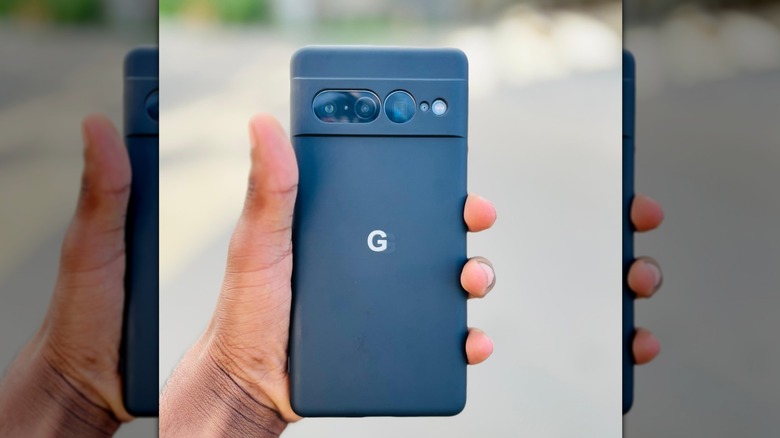
The Pixel's private space feature exemplifies this in spades. At a glance, it may seem similar to the iPhone's Hidden folder, but there are major differences you'll notice from the get-go. For starters, you can set up a separate pattern, PIN, or password for this private space. This section of your phone can be locked and hidden away outright, unlike the iOS hidden folder, which is always visible. Locking this private space suspends any app activity outright, but perhaps its most useful feature is that you can connect a different Google account to use with apps in your private space. This essentially sets up a separate profile on your device — a phone within a phone, if you will. This way, any apps in your private space won't send any data to your main profile, letting you enjoy an additional layer of security.
While Samsung's Secure Folder works in a similar manner, you can't set up a different account to work with this hidden space. However, the rest of the features are largely similar — you can hide this folder, set a unique lock, and add two copies of the same app.
4. A built-in VPN

A Virtual Private Network is far from the be-all and end-all solution to keep yourself secure online. However, compared to Incognito Mode, a VPN is much better for your online privacy. Unfortunately, there are many risks of using a free VPN you need to know. These too-good-to-be-true services are either malicious or very limited, and you'll ideally need to shell out for a paid subscription to enjoy the services of a feature-rich VPN. However, if you own a Pixel 7 or a better model, then you might not be aware of a VPN that's present in the device itself. Tap on the "Network and Internet" section in settings. From here, select "VPN," and you'll see an option to enable the built-in "VPN by Google." By masking your IP address and enabling data encryption, you can browse the internet worry-free.
Aside from the Google Pixel lineup, there's another Android phone that utilizes a VPN to great effect. The Punkt. MC02 is a privacy-focused smartphone that runs Apostrophy OS, an operating system built for smartphones using the tools present in the Android Open Source Project (AOSP). One of the many pre-installed apps on this device is Digital Nomad, a VPN that lets you spoof your location from one of three possible locations. One thing to keep in mind about this service is that it's free of cost for a year, following which you'll need to pay a monthly subscription fee of $9.99 to continue using this in-built VPN.
5. A Lockdown Mode totally different from Apple's version
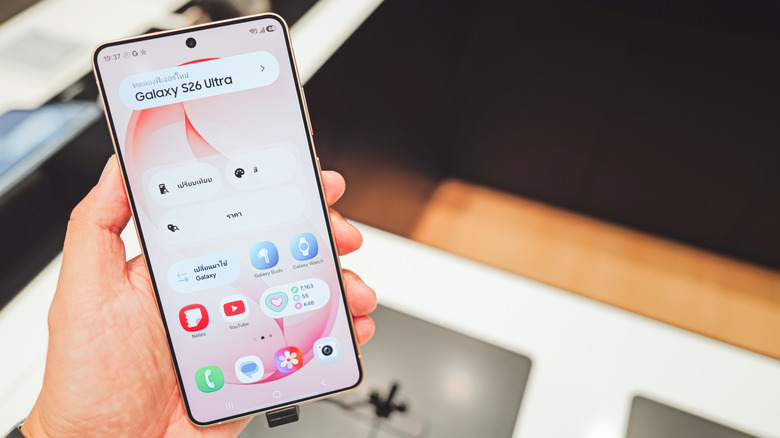
Both Android and iOS devices have a Lockdown Mode, but these similarities end with the nomenclature. On iPhones — and Apple devices in general — Lockdown Mode can be accessed from the "Privacy & Security" tab in Settings. It essentially limits most apps on your device to prevent any cyberattacks from gaining access to your system. Message attachments are blocked, as are incoming FaceTime calls. Photos will be devoid of any location information when shared, and your device will outright refuse to join any un-secure networks. It's the ultimate privacy solution that you should enable if you're in the habit of handling a lot of sensitive data.
Meanwhile, Lockdown Mode on Android is an entirely different beast that is more inclined towards safeguarding your device's physical safety as opposed to its digital one. Since Face ID or biometrics can technically be triggered without your knowledge if you're sleeping, you can enable an additional layer of security with Lockdown Mode. What this does is disabled both these options to unlock your phone, meaning that a PIN, pattern, or password is the only way to gain access to your device. The easiest way to enable this mode is by opening the Power settings — usually enabled by pressing the Power and Volume Up button together — and select "Lockdown." It's a simple but efficient way to prevent any ne'er-do-wells from unlocking your Android phone against your will.
6. Auto-reset permissions
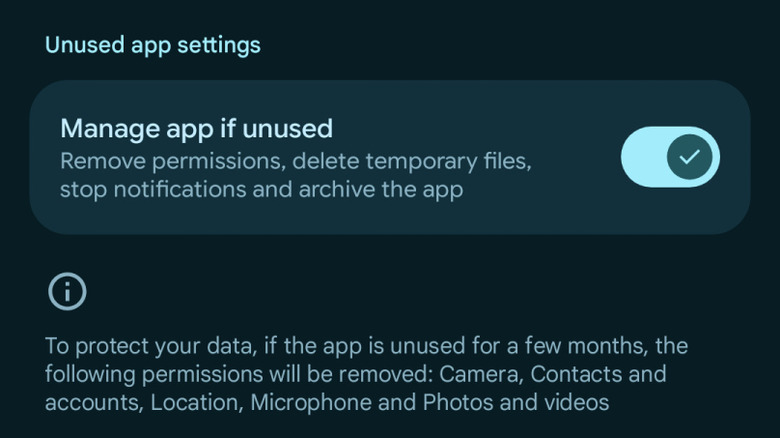
Both Android and iOS devices let you decide what permissions are given to the apps on your phone. This way, your smartphone guarantees that any data being offered to the application in question is of your own volition. While you can customize these permissions to safeguard your privacy — such as providing an approximate location instead of a precise one — it can still be hard to monitor the permissions of every app individually, especially ones that you haven't used for a long time.
Thankfully, Android adds a level of convenience in this department and automatically resets the permissions of any app that you haven't used in a while. This way, you aren't unwittingly giving your data to any program that you've forgotten about. It's bad enough that there are enough everyday apps as is that are tracking your activity. Opening these apps after a while prompts you to give these permissions again, which doesn't take that long and is a far better alternative than either never revoking these permissions in the first place or manually going to an unused Android app's settings and taking away permissions you should've never allowed in the first place.