

5 Android App Permissions You Should Never Allow
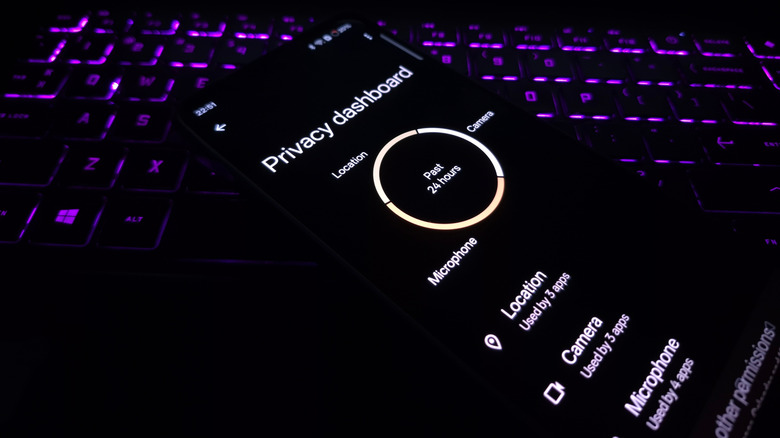
Whenever you install an app, it requests some permissions, such as access to the camera, microphone, accessibility features, contacts, messages, and network. Some of these permissions are critical to the app's functioning, while others could be unrelated. If you are in the habit of allowing every permission the app requests, you could be risking your phone's privacy and security.
Some Android app permissions are dangerous — potentially allowing malicious apps to monitor your activity, capture images, record audio, track your location, display fake login screens, read and delete stored data, and even install other third-party apps. It's not that these permissions are difficult to manage or revoke. But many people simply ignore them, assuming Android will automatically handle the permissions.
Keep in mind that not every app requesting these permissions is malicious. Even safe ones require a certain set of permissions to run effectively on your smartphone. For instance, a scanner app needs access to the camera, and that's something you will need to allow. But if a calculator requests the same, it's a cause for concern, because that particular permission isn't related to the app. It's not about denying every permission, but about identifying the ones that are unrelated. At the same time, there are some permissions that need to be handled more cautiously, because with access to these, a malicious app can exploit data on your phone or potentially turn it into a tracking device.
Accessibility access
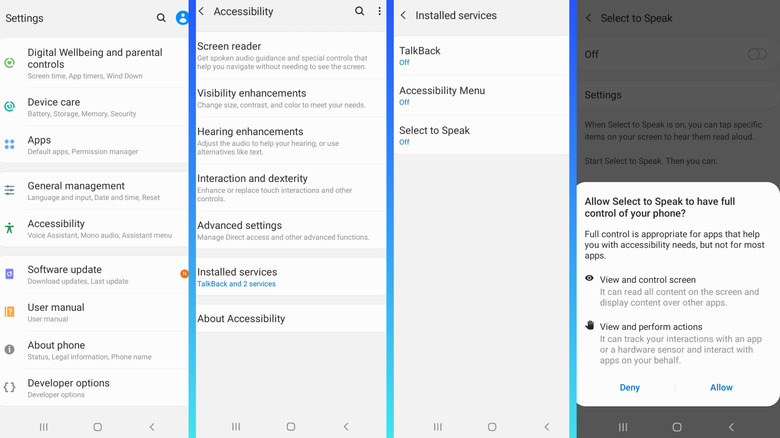
Accessibility features on Android are designed to help people with disabilities interact with their smartphones. For instance, reading on-screen text aloud falls under this category, and it's useful for a few apps. But for others, especially those with malicious intent, these permissions can prove dangerous. An untrusted app with accessibility access can monitor the on-screen activity, identify taps, read messages, and interact with other apps. This means it may allow the app to hack your passwords as you type, perform transactions on your behalf, make purchases, and even change device settings. Additionally, with such permissions, you are allowing malware to spread on your device without detection, as the untrusted app can approve changes without explicit user approval.
That said, it's important to realize that some apps do need these permissions to streamline your Android experience, especially for people with hearing difficulty or low vision. But these permissions should never be granted to apps that don't help you with accessibility needs, say a game, or any app that you don't trust or recall installing. To check which apps have accessibility access, open your Android Settings, go to Accessibility, and tap Installed apps or Installed services. Check the list of apps and services, and if you find any that shouldn't ideally have accessibility access, tap the app, and disable the toggle for it.
Overlay or Appear on top
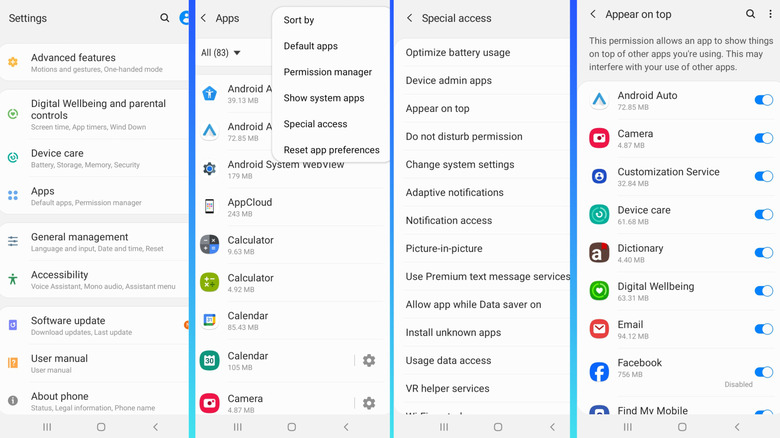
Another app permission you should be really cautious about is overlay access. Depending on your smartphone, it can be called "Appear on top," "Display over other apps," or "Draw over other apps," but it's all the same. The permission allows apps to place content over another active application. It isn't inherently dangerous, but when handled carelessly and allowed for suspicious apps, it becomes a major risk.
For instance, a messenger app will use overlay access to show chat bubbles on top of active applications. Similarly, an Android music app for audiophiles may use the overlay functionality to place controls over other apps. All that's fine. Problems begin when a harmful app gets access to the overlay functionality, as this allows it to place fake login screens on top of your banking or social media app. It could also place transparent overlays, tricking the user into downloading malware-ridden files, granting other critical permissions, or sharing sensitive data. So, it's important that you don't grant overlay access to untrusted apps.
To verify apps that currently have overlay permissions, open Settings, go to Apps, tap the ellipsis near the top right, choose Special access, and tap Appear on top (or as it's called on your phone). Now, look through the list, identify any app you don't trust, and disable overlay permissions for all such apps.
Install unknown apps
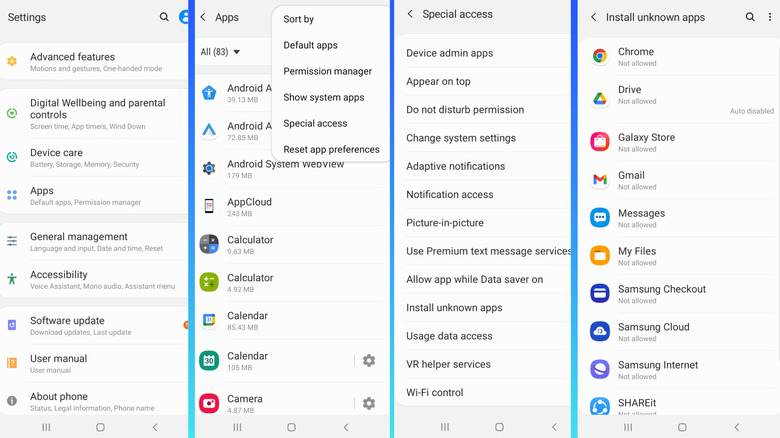
One of the things you should never do on your Android phone is install apps from unknown sources, unless you know where you downloaded the APK file from. It's a major security risk, according to CISA. That's why the functionality is disabled by default. But Android includes a permission that allows apps this privilege and lets them install unknown applications. When enabled, the app can install applications from sources other than the Google Play Store. This could threaten your smartphone's security and privacy and compromise stored data.
Even if it's not malicious, letting apps install other applications from unknown sources isn't the smartest idea. First, it may add apps you don't even need, taking up a significant share of storage and system resources on the smartphone. Additionally, when an app is installed via this route, it can often be challenging to wipe all traces of it later on. So, it's best that you avoid that, at least for apps and sources you don't trust. To check these permissions, go to Apps under Settings, tap the ellipsis, select Special access, and then choose Install unknown apps. If any app has access to this functionality, revoke its permissions.
Usage data access
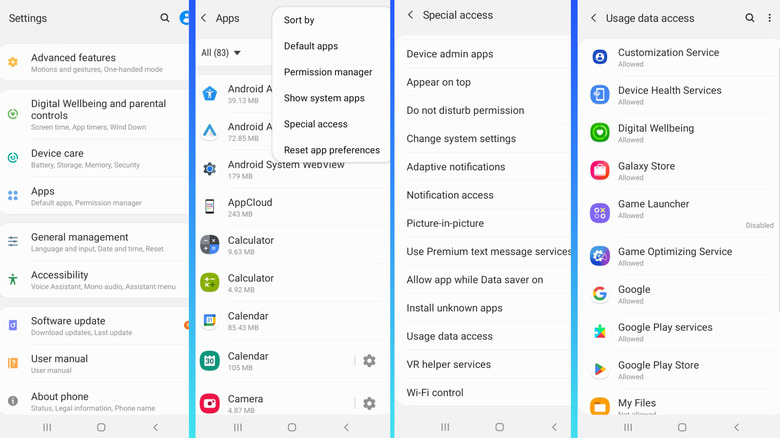
Usage data access is another risky app permission you should pay attention to. When an app has this permission, it can identify your service provider and language settings. Additionally, it can monitor your activity, including the other apps you use, how frequently you use them, and how much time you spend on each. While this may not sound alarming at first, the permission lets apps build a profile of you, revealing your habits and daily routine.
For instance, the application will know when you open banking apps, which parts of the day you spend on social media platforms, and when you typically use e-commerce services, along with how much time you spend on each. This information can then be sold to advertisers and data collection companies to deliver targeted ads.
To check which applications have usage data access, open Settings, then Apps, select Special access from the ellipsis menu, and tap on Usage data access. Look through the list for apps that shouldn't ideally be collecting such data, and disable the functionality for them.
Contacts and SMS access
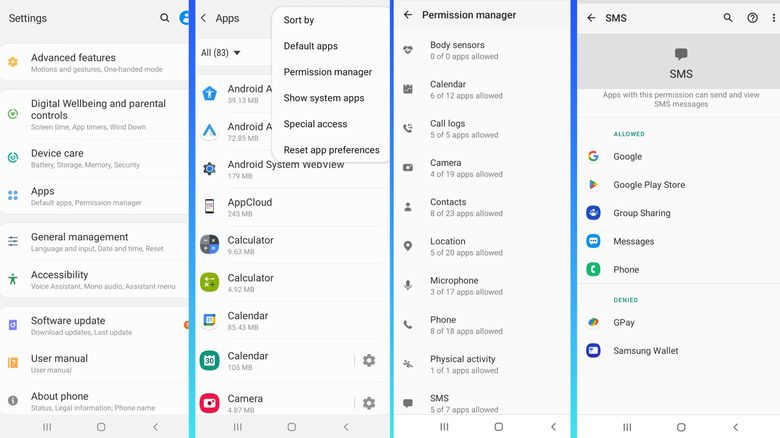
Allowing apps access to contacts and SMS can lead to serious privacy risks. Let's start with contacts. These are not merely phone numbers but also names, email addresses, and relationships. It's sensitive information that shouldn't fall into the wrong hands. When you let apps access contacts, they can harvest that data and sell it to third parties. Many loan apps also use this information to harass and extort money from victims.
SMS also contains sensitive data that shouldn't be shared with random apps, say a photo editing application. SMS messages contain everything from personal conversations to banking OTPs, which can be misused by apps. For instance, a harmful app can intercept OTPs from your bank to process unauthorized transactions. Also, if a malicious app somehow becomes the default messaging app, it's all the more dangerous. So, you have to be extra careful with app permissions on Android.
To check which apps have access to contacts and SMS, open Apps under Settings, tap the ellipsis, select Permission manager, then go through the Contacts and SMS sections, and disable any untrusted apps on the list. Lastly, remember that not all permissions are inherently dangerous. It always comes down to the individual app that's requesting the permission or already has it. The same permission that's perfectly alright for one app can be a major risk when granted to another. So, make it a habit to only grant permissions that match the app's core functionality. Everything else is best avoided.