

What Does The Flower Icon Mean On Your iPhone Camera?
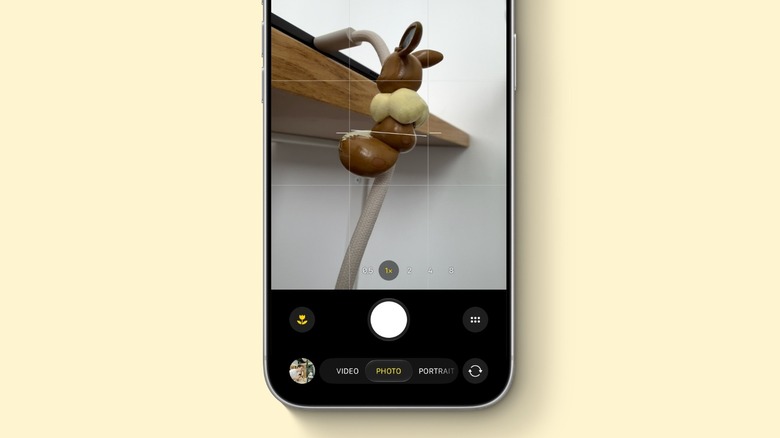
If you have a Pro iPhone or one of the latest iPhone 16 and iPhone 17 models, you probably realized a flower icon on your iPhone camera popping out randomly. Technically, randomly wouldn't be the right description because the flower icon only appears when you have a subject really close to the camera lenses. This icon means that your iPhone has activated the Macro Mode, and it's now using the ultra-wide lens so you can get as close as 2 centimeters from the subject to make a macro shot.
The Macro Mode is available on iPhone 13 Pro and newer devices, but Apple also added this functionality to the regular iPhone 16 and iPhone 17 models; "e" versions and the iPhone Air don't feature this functionality, as they lack the second camera. Interestingly enough, besides these phones, Apple used to offer some kind of Macro Mode on the iPhone 3GS, as this was the first iPhone to introduce autofocus with a tap-to-focus function. With that, users could get as close as 10 centimeters from a subject. However, when Apple introduced the "true" Macro Mode with the iPhone 13 Pro, it kind of forgot that it promoted this functionality with one of its OG smartphones.
Mastering Macro Mode on your iPhone
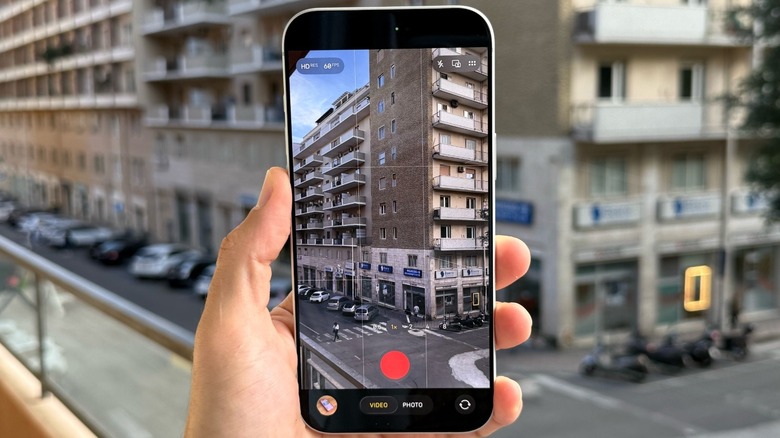
Apple makes the flower icon of the Macro Mode appear automatically whenever you get too close to a subject. However, there are times when you want to get closer to something without switching lenses. In those moments, users can just tap the flower icon to turn this automatic switching off. If by any chance you get the camera automatically switching but you don't see the flower icon, you need to go to iPhone Settings, tap the Camera, and turn on the Macro Control toggle. This button allows users to have better control over this hidden iPhone camera feature, which is especially useful in low-light conditions.
The iPhone's Macro Mode allows users to take both photos and videos. Most interestingly, users can also select Slo-mo or Time-lapse modes to record in Macro Mode. For these modes, Apple says users just need to switch to the .5x camera and move close to the subject.
Another handy feature is to preserve the Macro Control functionality between sessions by going to Settings, Camera, Preserve Settings, and turning on Macro Control. This is especially useful when you just want to focus on taking up-close shots, and you have good light conditions, as the ultra-wide lens usually has a smaller aperture compared to the main camera, making images more challenging when you don't have a good source of light.
Tips and tricks for the best Macro Mode shots
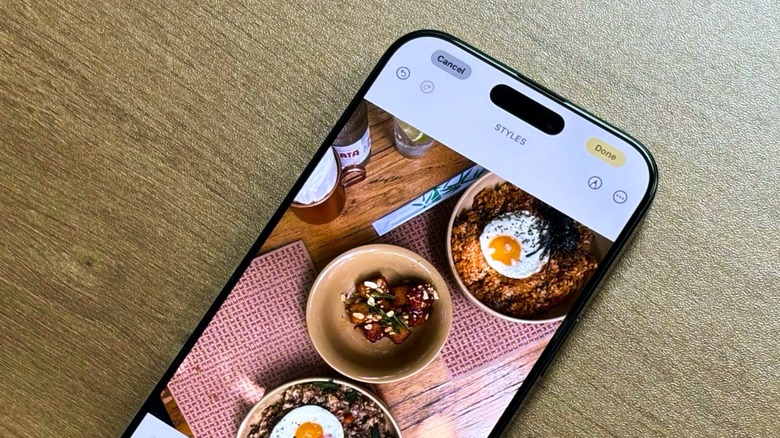
To get the most out of Macro Mode shots, these are some of the tips and tricks I use. First tip, avoid shadows, which can be particularly tricky. Since your own phone can cast a shadow as you get closer to a subject, try shooting from different angles or using a light source from the side rather than directly behind you. One of my favorite iOS features is Photographic Styles. Apple revamped them with the iPhone 16, so you can control several details of your photo after it's taken.
I use a pre-saved setting, but I also tweak my favorite photos afterward by going to the photo's Edit button, and then tapping Style to adjust tone, warmth, and more. Another tip for Macro Mode is to Lock Focus. If the camera keeps switching back and forth, try long-pressing on the screen to lock focus and exposure on the subject. This prevents the camera from hunting for focus when you're getting up close. Last but not least, when you're this close to a subject, you might need to be careful to avoid making the photo blurry. With a small tripod or a steady surface to lean against, your macro shots can be much sharper.