

How To Easily Free Up Space On Your Roku
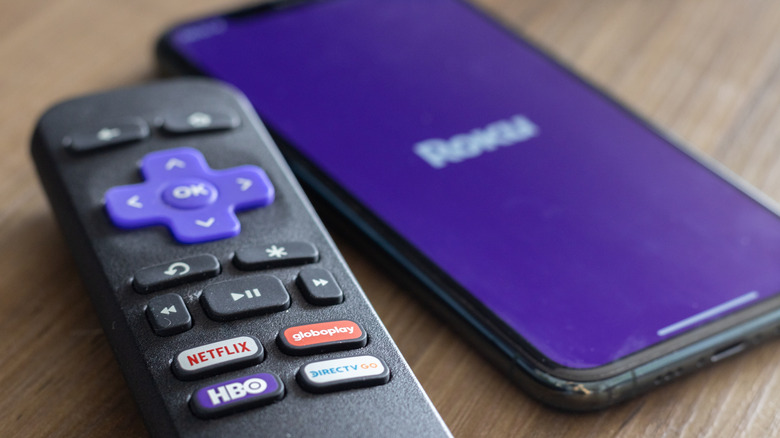
If you're trying to add a new channel to your Roku device but keep getting the "not enough space" error, it could be the device's way of telling you that it's overdue for a quick cleanup. Because these streaming devices don't ship with much internal storage space (anywhere from 512MB to 4GB), it doesn't take much to completely max them out. Downloading too many channels (also called apps) and letting them sit on the home screen unused will quickly eat up every last megabyte you have, just like it would on your smartphone. Fortunately, freeing up space is easy no matter which Roku streaming device you have — and you don't need any technical skills to do so.
Roku makes it super easy to locate and delete any app you no longer want. To delete a specific app, just hit the Home button on your Roku remote and navigate to the specific app you want to delete. Once it's highlighted, simply press the star button on your remote. This opens up the options menu, where you can then click Remove channel and confirm your choice when it prompts you. This process instantly deletes the app from your home screen and gives you room to install other apps you're interested in, like one of the top streaming services. And, of course, you can always reinstall an app you deleted later on if you decide you want it again.
How to delete screensavers and clear temporary cache files
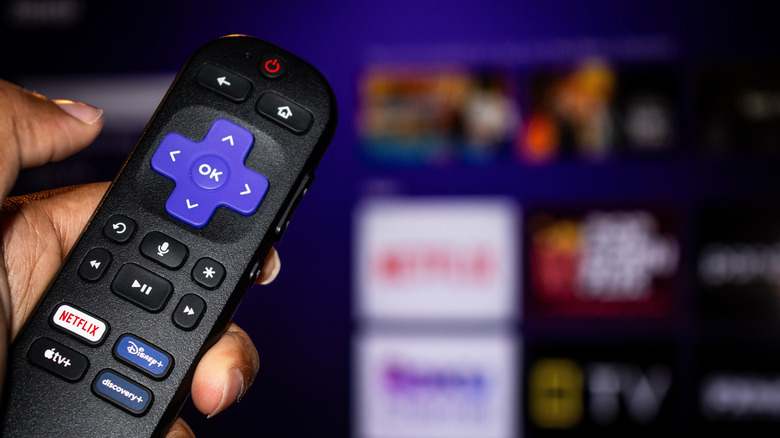
Beyond apps, there are other hidden storage hogs on your Roku device you may not have considered. Downloaded high-resolution screensavers and animated UI themes can also take up space; however, they can be easily cleared out with a quick dive into your system settings. Once you open the settings, navigate to Theme and select Screensavers. You can delete any downloaded screensavers the same way you would a regular app. Simply highlight it, press the star button on your remote control, and choose to remove it.
If you have removed unwanted apps but still need a quick performance boost, clearing your Roku's cache is your next best option. While Roku doesn't have a dedicated menu button for this, you can perform a quick trick to dump this temporary data. Point your remote at the Roku and press the Home button 5 times, the Up button 1 time, the Rewind button 2 times, and the Fast Forward button 2 times. You should see your screen freeze for a moment, and the device will automatically restart from there. Just like that, you've cleared your cache.
This clears up a little space (temporarily) and should also mitigate any crashing or sluggishness. Plus, it's a fun way to mess with your electronics if you haven't gotten to enter iconic cheat codes in a few decades. Keeping your Roku optimized requires a little upkeep, but it's worth the effort — especially after the interface's recent updates to its home screen.