

You Can Interact With Your Samsung Galaxy Watch Hands-Free Thanks To This Useful Feature
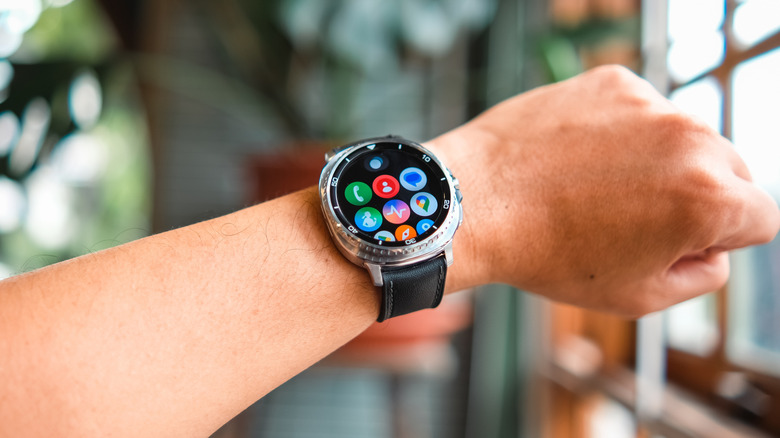
It's amazing what can be packed into such a small screen these days. Looking at the Galaxy Watch 8 as an example, it's got a 3-nanometer, 5-core processor with 2 GB of memory and 32 GB of storage, all with either a 1.34-inch or 1.47-inch AMOLED display, depending on model. The device has plenty of features that take advantage of these specs, but some folks may have issues navigating such a small device. Worry not, however, as Samsung has a nifty accessibility solution.
Back in 2023, Samsung debuted its Universal Gestures feature when it started the rollout of One UI 5 Watch. Aiming to provide more accessibility for users, this feature came with four different options to control a Galaxy Watch by making specific gestures with their hands. Useful as this feature may be, it first needs to be enabled, and there are also additional gesture controls we can show you how to turn on.
Considering Universal Gestures can make a Galaxy Watch even more of a useful wearable for seniors, the hands-free feature can be good for anyone needing assistance navigating their device. Of course, if you're in the market for a new smart wearable, you may want to consider additional accessibility features that Galaxy models provide — just be sure to avoid some of those common mistakes people make when purchasing a new smartwatch.
How to enable Universal Gestures on a Galaxy Watch
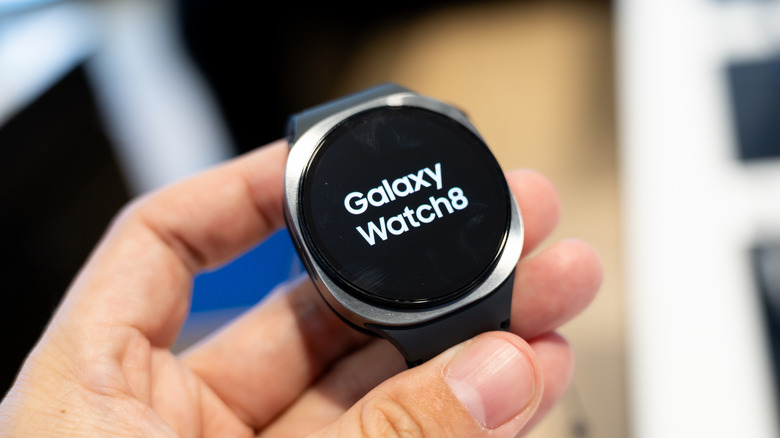
If Galaxy Watch users have difficulty tapping their finger on a screen measuring less than two inches, Samsung offers Universal Gestures to issue Watch commands. Users can make a fist to select an item, make a fist twice to open the Action menu, make a pinch gesture to move to the next item, or double pinch to return to a previous item. It can be an incredibly useful feature for those that need it, but it does need to be enabled from the settings menu to get started.
Here are the steps:
-
Open Settings on your Galaxy Watch.
-
Select Accessibility.
-
Under "Interaction and dexterity," choose Universal Gestures.
-
Turn the feature on with the toggle.
Your Galaxy Watch will give you a tutorial on properly utilizing the gestures. Once that's complete, you'll simply need to make a fist twice (make a fist, open your hand, then make a fist again) to switch between the touch method and these gesture controls. You'll know gestures are enabled when there's a colored outline around your watch screen.
Along with Universal Gestures, a Galaxy Watch also has additional gestures users can enable for more hands-free controls. You can find them on your Watch by selecting Settings, tapping Advanced Features, and then choosing Gestures. These gestures include raising your arm to answer a call, rotating your wrist to dismiss alerts, or even quickly launching apps. Like Universal Gestures, it's a Galaxy Watch feature you have to enable yourself, but those relying on accessibility features are sure to find them beneficial.