

5 Essential Samsung Galaxy Watch Features That You Have To Enable Yourself
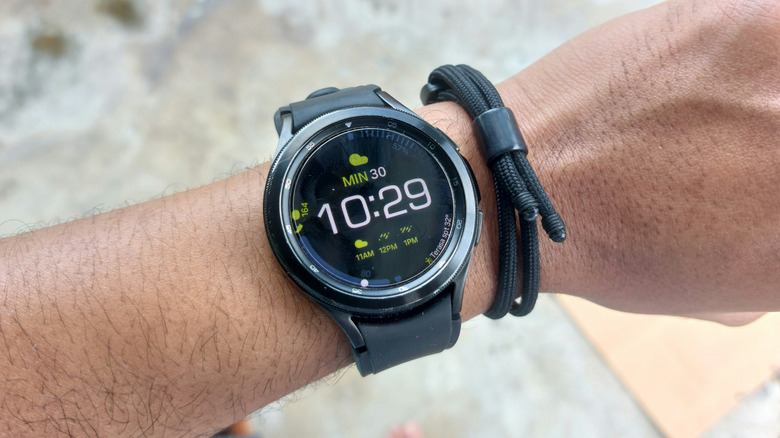
It's possible that you're not getting the most out of your Samsung Galaxy Watch. Looking at the Galaxy Watch 8 Classic as an example, it's got more to it than just providing the time and accessing notifications — you can take advantage of Google Gemini, health metrics, calendar access, and more directly from your device. There's quite a bit packed into Samsung's smart wearable, but users should be aware that not everything is enabled by default.
Ranging from accessibility features that can help users control the device to even monitoring something you may do in your sleep, Galaxy Watch owners may find many of these options downright essential depending on their needs. Fortunately, it's not difficult to go through what each one does and find the settings to enable them. Be aware that specific steps may vary depending on the type of Galaxy Watch you have, what operating system you're running, and may even depend on what cellular provider you use.
It's possible your Watch may not have certain features, but we'll do our best to show you the appropriate steps to check. Once you're done adjusting the capabilities of your device, you may also want to check out some of the best Samsung Galaxy Watch face apps so you can make aesthetic customizations to your wearable.
Mute phone notifications
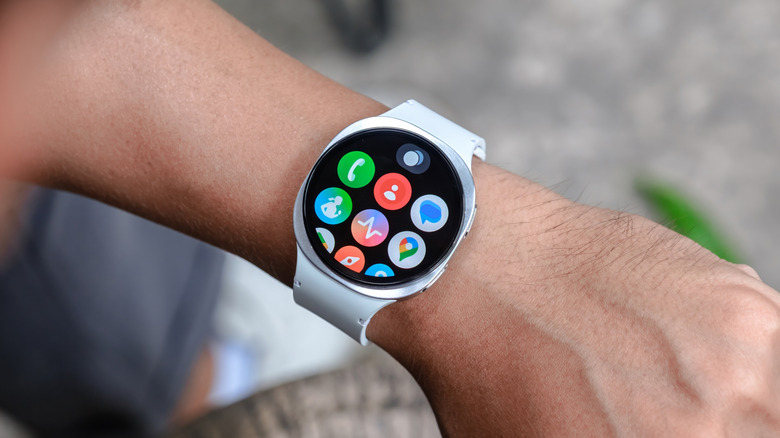
Considering science says phone notifications can be more distracting than you would think, imagine how distracted you are when receiving notifications on both your Galaxy Watch and smartphone. Too many notifications can get frustrating, and while you can always just silence your phone, Samsung's Mute notification feature makes sure you don't have to bother. It's just a matter of knowing where this feature is and turning it on.
By enabling Mute phone notifications, you'll only get alerts on your Watch whenever you're wearing it, and notifications go back to your phone when you're not. This works regardless of whether you have notifications set to alert or vibrate on your smartphone. It's also a pretty easy feature to enable.
Here's the process:
-
Open the Galaxy Wearable app on your smartphone.
-
Choose Watch settings.
-
Tap Notifications.
-
Look for Mute notifications on your phone and ensure the toggle is enabled.
You can always repeat these steps if you want to disable the feature, but it's definitely worth checking out if you have too many notifications coming your way. Additionally, the Notifications menu under Settings has some other options you may want to check out. Just tap Advanced notification settings, and you'll find options to have notifications read aloud (when headphones are connected to your watch), have the screen turn on when you receive notifications, and more. It's worth exploring if you want to get more (or less) out of your notifications, so be sure to peruse what's available.
Fall detection
Available on Galaxy Watches since 2020, Fall detection can be vital for certain individuals, as it sends an emergency message should it detect that the user has suffered a hard fall. It can be good for those participating in more extreme activities, but the feature also turns a Galaxy Watch into an incredibly useful wearable for seniors. Useful as Fall detection may be, it's a feature that's not on by default, so let's fix that.
As long as you have Wear OS on your Galaxy Watch, you can enable Fall detection — the Galaxy Watch 3 and the Galaxy Watch Active 2 are also included. Samsung notes, however, that those who engage in "high impact activities" should ensure they don't accidentally trigger the feature during a workout. Fortunately, there's an option to cover that, as well.
To enable Fall detection:
-
Open the Galaxy Wearable app from your smartphone.
-
Select either Watch settings or Band settings.
-
Choose Safety and emergency.
-
Enable the switch next to Hard Fall detection. You may need to add emergency contacts if none are available.
-
You can also tap Hard Fall detection to bring up a menu to choose your emergency contacts. Just enable the switch next to Share info with emergency contacts.
You can also adjust in what situations the watch will detect falls. Open the Galaxy Wearable app, select Watch settings (or Band settings), hit Safety and Emergency, then hit Hard fall detection. Select When to detect falls, and then choose Only during workouts, During physical activity, or Always.
Universal Gestures
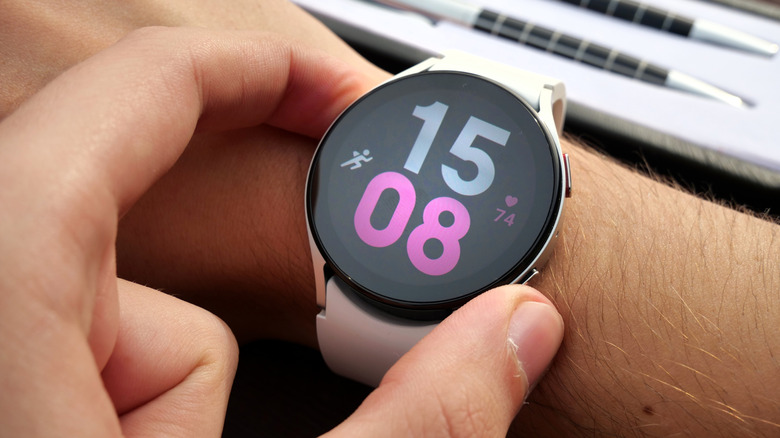
Like other Android accessibility features you may not have tried, a Galaxy Watch is packed with items that can help users interact with their device more easily. This can include features that help with vision accessibility, such as enabling high contrast fonts, but there are also hearing enhancement options. One feature that can be particularly useful is Universal Gestures, though users need to enable it to get the most out of it.
Universal Gestures gives users access to four movements that help them navigate their Watch: making a fist selects items; making a fist twice (opening and closing your hand twice) opens the Action menu or activates gestures; pinch (index finger and thumb together) moves to the next item, and a double pinch returns to a previous item.
Here are the steps:
-
From your Watch, navigate to Settings.
-
Choose Accessibility.
-
Scroll down and tap Universal Gestures. It's in the Interaction and dexterity section.
-
Enable the Universal Gestures toggle. Your Watch will then take you through a tutorial on using the features.
Once everything is set up, perform the make a fist twice action to engage Universal Gestures. The Watch's screen will have a colored outline when the feature is active. Users can also find more gesture shortcuts, including being able to quickly open apps and answer calls simply by opening the Settings menu on their watch and selecting Advanced features. Also, be aware that the pattern lock security method is unavailable when using Universal Gestures.
Snore detection
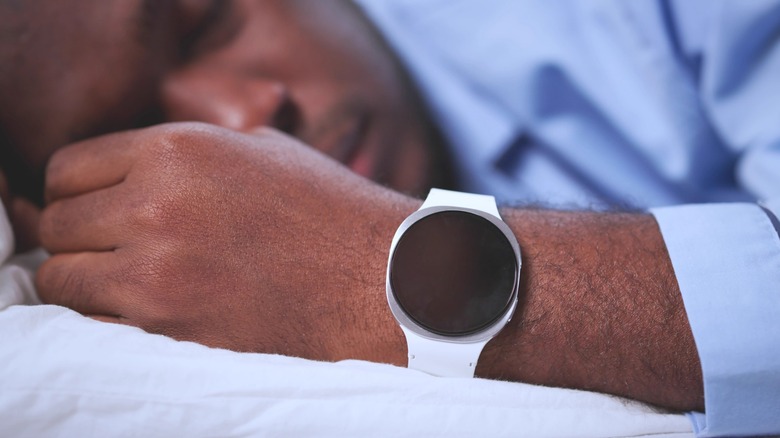
Tracking snoring can be a good way to help determine what causes it, or it can help determine if someone has obstructive sleep apnea. For frequent snorers, keeping tabs on it may even appease a partner. There are some things to know if you want to use Snore detection. The feature relies on your smartphone's microphone, so make sure your phone is charging and the mic is near your face before sleeping. You must also be wearing your Watch, and it needs to be paired to the Galaxy Wearable app on your phone.
Here are the steps:
-
Open the Samsung Health app on your phone.
-
Tap the top of the Sleep tile.
-
Choose the three vertical dots located in the upper-right corner.
-
Select Advanced measurement.
-
Choose Snoring.
-
Engage the switch at the top of the screen. You may be prompted to enable certain permissions.
-
Your phone may display a pop-up stating Snore Detection uses more battery power. Hit OK.
-
Under Detect snoring, choose either Always or Once for how often it should track.
-
There's also an option to record your snoring; simply enable Record audio.
-
The Days tab allows you to select how long to keep recordings.
Should you need to view your Snore detection information, it's available on your phone through the Samsung Health app — just open the app and tap Sleep tracker.
Automatic workout detection

A Samsung Watch can be a great way to track workouts through the Samsung Health app, but some users may not know that a feature known as Automatic workout detection can get things started for you. Once the feature is enabled and the workouts are chosen, a Samsung Watch just needs to detect a user working out for 10 minutes for the device to begin recording activities.
On a Samsung Watch, activities that can be automatically detected are walking, running, cycling, rowing, swimming, elliptical training, and high-movement activities. If you're the forgetful type, it can be pretty useful, and enabling it just takes a few steps:
-
Open the Samsung Health app on your watch.
-
Select Settings.
-
Choose Workout detection (or Activities to detect)
-
Tap the switch by On to enable the feature. You'll know it's on when it's blue.
-
You will also see a list of activities you can enable or disable individually.
For Galaxy Fit and Fit 2 owners, open the Galaxy Wearable app from your phone, and select Health settings. Choose Workout detection and ensure the switch is enabled. You will then enable each switch for the workouts you want automatically detected. A Galaxy Fit 3 will have automatic workout detection enabled from the start. Give it a try during your next workout, and remember that if you install Google Gemini on your Galaxy Watch, fitness integration would be one feature you would need to start using.