

Why There's A Briefcase Symbol On Your Android Phone's Screen (And How To Turn It Off)
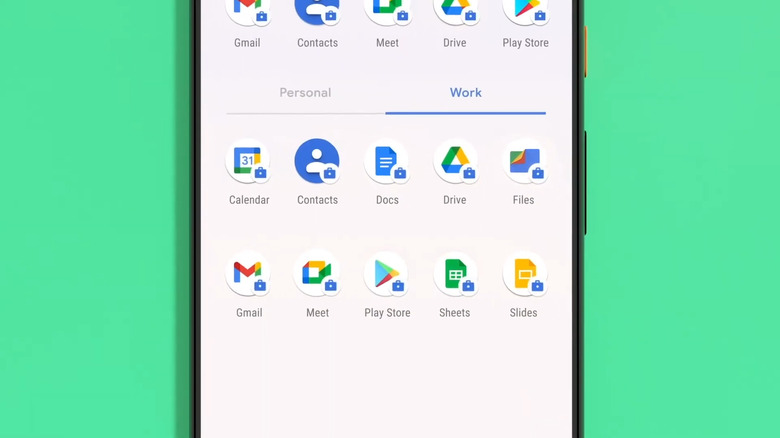
So, you just got your new company phone and are exploring the available work apps. As you look around, you notice something that you don't normally see on your personal Android phone: a briefcase symbol. It appears in several places, like the status bar, Quick Settings panel, and even app drawer.
This briefcase icon on your Android device simply means your phone has a Work Profile set up. An Android Work Profile is one of the best hidden Android features, especially for employees. It's specially designed to create a new workspace on your phone, exclusive to the apps you use for work. If you need the same app for both work and personal purposes, the Work Profile also allows you to have two separate versions of that app. For instance, you can install Gmail in your personal workspace even if there's already a Gmail app in your work workspace.
Privacy-wise, the data from both workspaces are kept separate and private from each other. The data in your Work Profile is fully encrypted and remotely accessible by your organization's IT administrator. But at the same time, they can't see your personal apps and data, whether the device is company-owned or not. To make sure you don't get your personal and work apps mixed up, a briefcase icon will appear in your Android status bar. This means you opened a work app. To turn off that briefcase icon, simply close the app. You can also temporarily pause your Work Profile and even delete it altogether to turn off the briefcase icon on your Android. Here's how.
How to temporarily turn off the Work Profile on your Android phone
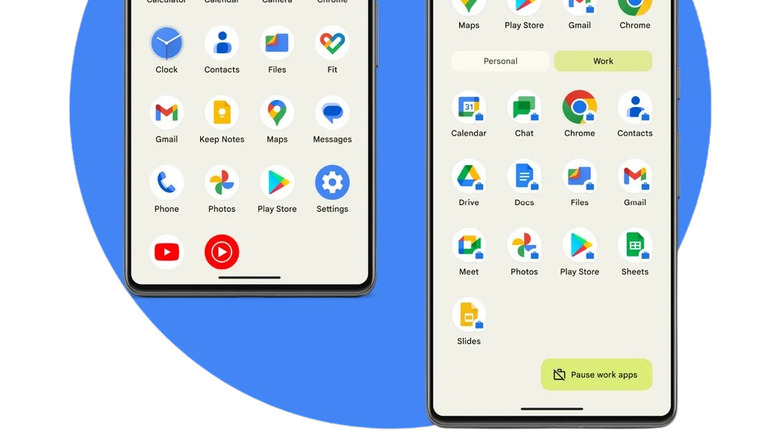
It's actually quick and easy to pause the Work Profile on your Android. Once you do, your work apps (those with a briefcase icon) will then disappear from the app drawer, and you won't get their notifications until you enable your Work Profile again. On some devices, these apps will still be visible but grayed out. A crossed-out briefcase icon might also appear in your Android status bar to tell you your Work Profile is paused.
To turn off your Work Profile temporarily, you can pick from one of two ways. From your Quick Settings panel (pull down from the top of the screen), just tap on the briefcase icon. If you can't find it, try adding it to your Quick Settings panel first. You can also pause your Work Profile from the app drawer. In the app drawer, go to the Work tab and hit Pause work apps in the bottom-right corner. If the button isn't there, swipe up from the bottom of the screen and choose Work. Once you're ready to start working again, just turn Work Profile back on from either the Quick Settings or the app drawer.
If you prefer to automatically enable and disable your Work Profile at certain times instead, you're free to do so from Android's Digital Wellbeing settings. Here's how:
- Launch the Settings app.
- Open Digital Wellbeing.
- Under "Ways to disconnect," select Work apps schedule.
- Switch on Schedule work apps.
- Pick a start and end time and days of the week, during which your Work Profile is turned on.
Outside of this selected schedule, your Work Profile will be paused, and you won't be able to access your Android work apps.
How to permanently disable the Work Profile on your Android phone
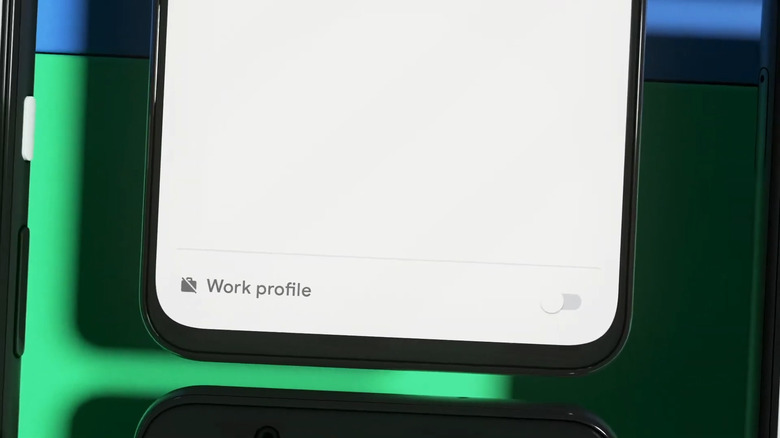
Pausing your Work Profile is handy for when your workday is done, or when you're going on vacation. But it only turns off the briefcase icon on your Android temporarily. What if you want to remove it forever? In that case, you'd have to delete the Work Profile from your Android phone. This removes not only the briefcase icon but also all the work apps and data stored locally on your phone.
Keep in mind, though, that you can only delete your Work Profile if the device was originally yours to begin with or the company turned the device's ownership over to you. If so, here's what you need to do next:
- Open the Settings app.
- Select Passwords and accounts.
- Navigate to the Work tab.
- Tap on Remove work profile.
- In the popup, choose Delete.
- Check whether the device policy app was uninstalled.
Another way to delete your Work Profile is to factory reset your Android (one of the easiest DIY Android phone fixes). Doing so deletes your personal apps and data too, though, so proceed with caution.