

5 Hidden Features Every Android Phone Owner Should Know About
Since Android is an open-source operating system (OS), there's almost no shortage of unique features Android phones can have. But what about the ones that are a little less flashy than Circle to Search or even Battery Saver mode? Many Android phones allow for screen pinning that ensures your phone stays private even when you hand it over to someone. Moreover, there are also entertainment options that let you cast your device's screen directly to your smart TV.
It turns out that these are all features you can easily access, but sometimes are slightly hidden away because menus change or become convoluted through updates. While your Android experience highly depends on the manufacturer, most of these hidden features should be present on modern phones. Though the names may differ slightly depending on the phone you're running, they should all function similarly, no matter if you're under the Samsung, Pixel, Motorola, or even OnePlus umbrella.
Cast your Android's screen onto a smart TV
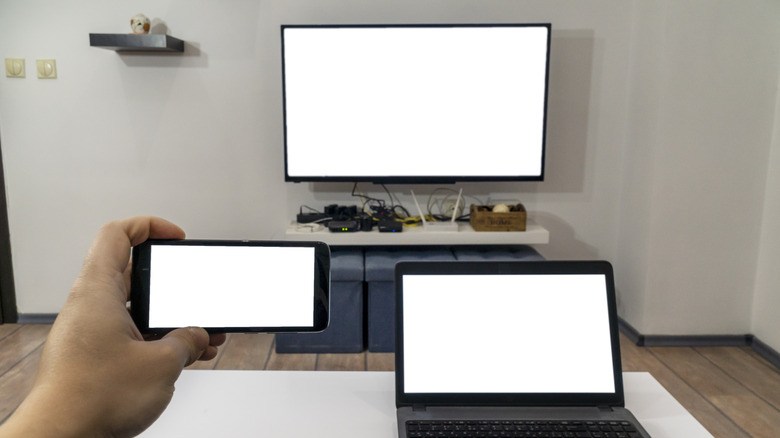
The built-in screen-casting feature is a bit of a fun one as it lets you cast anything on your screen directly to another device, like your smart TV. So when you spot a YouTube video or capture pictures of your puppy doing dorky poses, you can mirror it from your phone to a smart TV, instead of sharing a link or attachment with every family member.
You can also pretty much do this on most smart TVs, as long as your Android device is on the same network as your connected smart TV. The option should be listed in your quick settings as either "Cast," "Screen Cast," or "Smart View." You might also need to set something up on your TV to make your phone appear on it. If you're using a Fire TV Stick or Fire TV, you need to place it in screen mirroring mode. From here, your TV should appear on your phone, and you can choose what to display, whether that's just the app you're in or the entire phone display. Just note that this feature should work on most modern smart TVs across the pricing spectrum, but if it isn't built into the TV OS, you might need a device like Chromecast to make it work.
Manage your alerts with notification cooldown
Notification cooldown is a newer Android feature, so unless you keep up with Android updates and the slew of new features that come out, you might not know it exists. The notification cooldown was introduced in Android 15 and later updated to Android 16. It works by minimizing notification alerts and gradually reducing the notification volume if you receive too many of them in a short span. This can be helpful when you connect to the internet after a while or when there's a hot discussion in a group chat. That said, the notification cooldown feature does not work on calls, alarms, and other important notifications so you can safely turn it on.
On Android 16 devices, like a Pixel phone, open Settings > Notifications, then tap Notification cooldown under the "General" header. Toggle Use Notification cooldown on. Return to the same section to toggle it off when you no longer need to use this feature.
Enable app pinning for extra privacy
App pinning, sometimes called screen pinning, is likely a security feature you missed because its use case is a bit niche. Essentially, when you enable this option, you pin an app to your device's screen, locking you into using it and nothing else. You cannot switch apps, check notifications, or interact with anything else on your phone except that app. The feature is especially helpful if you are passing your phone off to someone else briefly — like another friend, or even a child who might accidentally open private apps or files. It gives you peace of mind if you're someone who has trust issues with sharing such a personal device.
To begin using the app pinning feature, open your Android settings, go to Security & privacy, then tap More Security & privacy. Remember that the UI will differ slightly depending on the Android version and the OEM skin, but the steps should be relatively similar. Turn on App pinning, if it's a toggle, ensure that it is on. Once you've enabled the option, open the app, then tap to switch apps. In the app card, next to the app you opened, you should find the three-dot menu at the top-right. Select that, then tap Pin. To unpin that active app, swipe up and hold, or tap and hold the back and recents buttons, then enter your PIN, password, or pattern to verify that you're the owner.
Use gestures to silence incoming calls
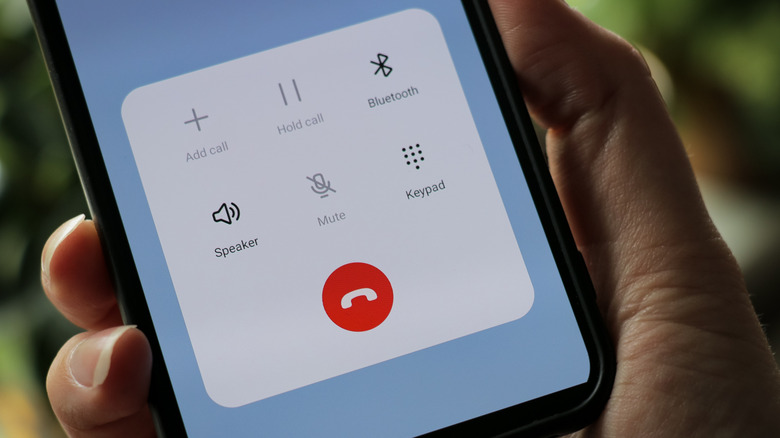
Gesture-related actions are quite helpful when you need to do something in a pinch but don't have time to fully unlock your phone. Flip to Silence is your best friend if you're that person who might've forgotten to turn on silent mode during an important work meeting or lecture, but wants to do that discreetly without interrupting.
On Pixel devices, the feature is called "Flip to Shhh" and can be found in System settings. It is also a bit more comprehensive than Flip to Silence on other models, as it activates Do Not Disturb to mute notifications. On other Android devices, it is usually located in the Phone app's settings. Once you've enabled it, all you need to do to silence your calls is place your phone face down. Overall, its use case varies by user, but it's still one of those awesome Android gestures you'll want to keep handy so you're not awkwardly fiddling with your phone in a crowded public space.
Try out secret short codes
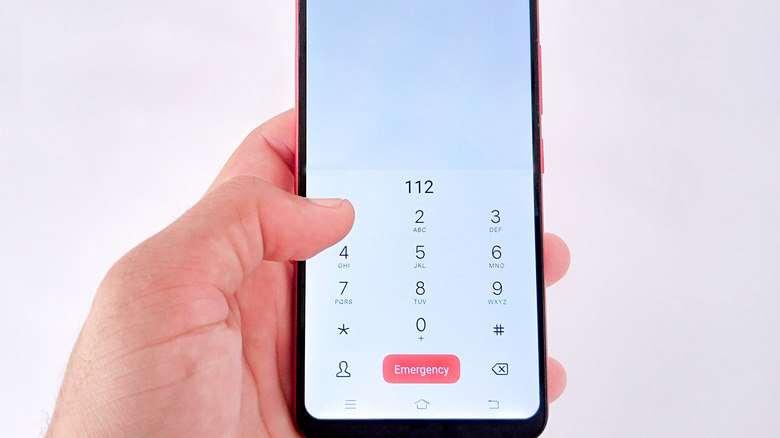
Android has a whole slew of short codes that you can access depending on your phone model and carrier. These codes can show you device information, such as your IMEI number, and some interesting diagnostics/statistics. If your carrier supports it, you can sometimes use short codes to enable or disable caller ID or even check call forwarding or waiting. These codes are accessed via your device's default dialer, and they vary by Android version since not all are compatible with newer versions.
But if short codes interest you, all you need to do is open the dialer and type a series of symbols and numbers, like *#*#7287#*#*. For example, this code, in particular, will open the repair diagnostics app on Pixel phones. The best way to find usable short codes is to search for your phone and the Android version you're using, then check a list.