

4 Common Problems With Dell PCs
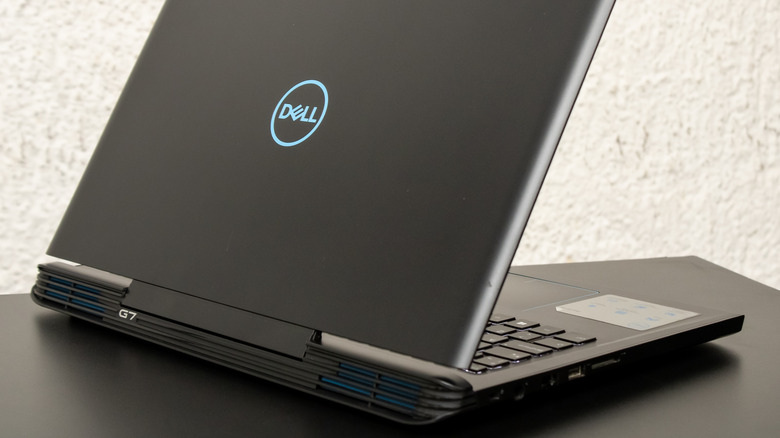
Despite first killing the popular XPS line and then resurrecting it from the dead and some healthy competition from a number of underrated brands, Dell continues to be one of the most popular and dominant brands in computing. According to a report over at Investopedia, the desktop and laptop PC manufacturer enjoyed a recent 33% rise in share value despite already trading at an all-time high, largely on the back of the AI boom. For context, that means that Dell now expects to make in the neighborhood of $165 billion (that's billion with a B) in 2026 alone.
Success doesn't mean perfection, however. While they may be selling a staggering number of machines, Dell computers run afoul of a number of common bugs, like boot problems or overheating. These aren't issues exclusive to Dell, of course. The modern PC is a Frankenstein's monster of components assembled by a huge number of different manufacturers and predominantly operated by Windows, an OS built on decades of tangled, convoluted, and antiquated code. On the upside, Dell is pretty good at monitoring and addressing issues with its platforms, so many of the most common bugs also have common fixes.
Slow performance

One of the most common PC issues across all manufacturers, not just Dell, is sluggish performance, which can be maddening. It can come in any number of guises: taking forever to boot, stuttering, lag, or frame drops in games, or even productivity problems like becoming nearly unusable when you open a handful of Chrome tabs. Causes are also myriad.
To juice up a slow Dell, start with the basics. Update all your drivers, particularly your GPU and CPU drivers, as well as your PC's firmware. You'll also want to do a hard, Marie Kondo-style audit of your startup apps. Pull up the Task Manager and go through that Startup tab with a merciless scythe: anything that doesn't spark joy needs to go.
Beyond that, you'll also want to run a deep malware scan (Malwarebytes offers a great free version), defrag any traditional platter-style HDDs you may still be using, and blast your vents with some compressed air. Heat buildup because of dust-clogged vents can be a major contributor to lackluster performance. If all else fails, it may be time for an upgrade, be it a speedy new SSD, additional RAM, or maybe even one of Nvidia's latest RTX cards on the desktop side.
Boot problems
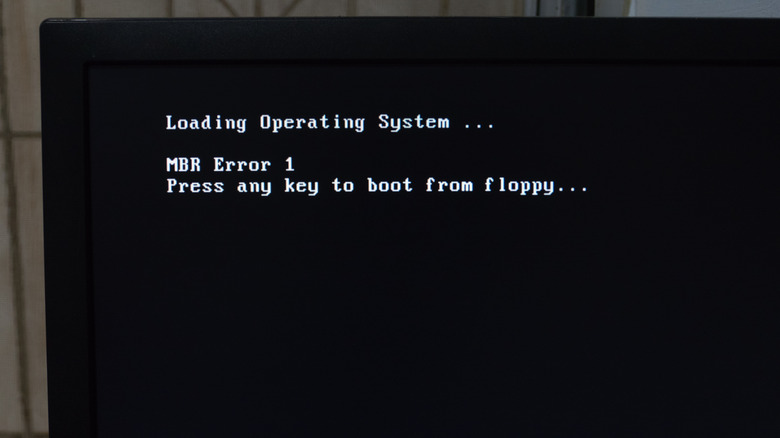
This category also covers a myriad of sins common to Dell machines, especially older models. You may find yourself occasionally stuck in a boot loop, requiring you to cold boot repeatedly before you can load the OS, or maybe your machine stalls during boot and just takes forever to deposit you on the desktop. Worst case scenario, your machine may refuse to boot at all, and it's impossible to make your way into Windows (or whatever Linux distro you're running).
Boot issues can be tricky to diagnose and resolve, but there are some common troubleshooting steps you can try. If you're just experiencing a very slow boot sequence, consider the advice from the first section and disable any unnecessary programs during boot and update your firmware and drivers (particularly for your mobo). You'll also want to make sure you're running the most up-to-date version of your BIOS/UEFI, and that the boot order in BIOS is correct.
Beyond that, most Dell machines include built-in diagnostic tools that may help. You can try SupportAssist if you're able to get into Windows, or the preboot diagnostic test from the boot menu if you can't. A full power drain can also help resolve some boot problems: unplug your PC, hold the power button for around 30 seconds, then plug it back in and try again.
Overheating
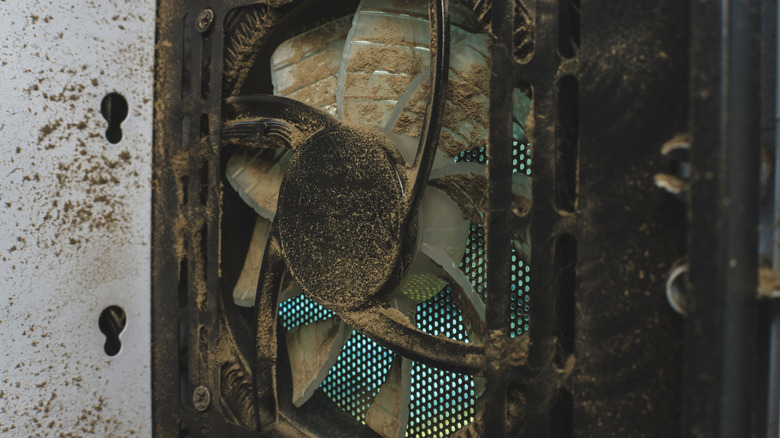
We touched on this briefly in the performance section, but heat is the great enemy of all personal computers. Heat buildup can lead to annoying fan noise, automatic performance throttling as components overheat, and even permanent damage to your system as internal components flex and break (see the Xbox 360's Red Ring of Death for a fun example of that phenomenon).
Every PC has some systems built-in to manage and mitigate heat, but some of them do a better job than others. That said, you can help out by ensuring the internals are as clean and dust-free as humanly possible, particularly around the vents and the blade faces and trailing edges of any cooling fans (including on components like the GPU). Compressed air is your best friend for this.
You also want to make sure airflow is as unrestricted as possible. Avoid putting your PC tower in corners or cramped spaces beneath desks if at all possible, and don't back your laptop up to surfaces or walls that block rear vents. A cooling pad is also a great investment for a Dell laptop that tends to go nuclear under load, though you can also help out by doing your best to reduce that load by killing unnecessary background processes or closing windows and tabs you don't need.
Hardware failure
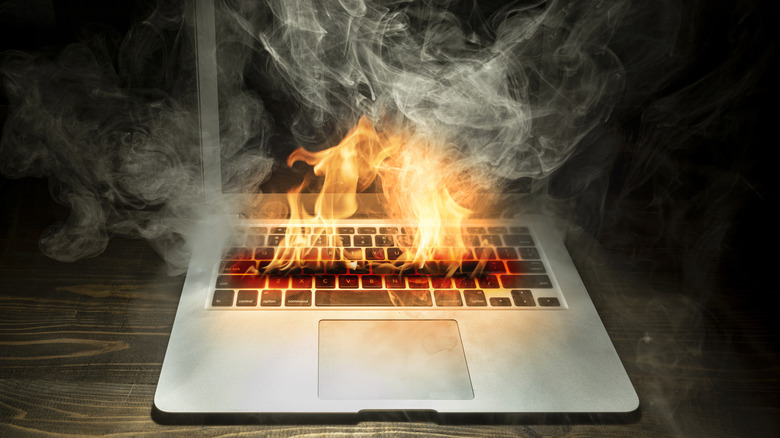
This one is the most troubling. Some Dell owners report that they've run into repeated hardware issues, and it's a complaint you see echoed across a lot of community threads. Issues often center on consumer laptops, and specifically their batteries, keyboards, touchpads, and Wi-Fi cards. The key advice here is to make sure you get a lengthy warranty at the time of purchase; while you may pay more upfront, it can actually save you significant money down the line.
Beyond that, this is also a good spot for a SupportAssist test if Windows loads, or a preboot diagnostic if it doesn't, to help figure out if the issue is actually hardware-related or a software problem. If a specific part is at fault, note the error code, document the symptoms, and back up your data as soon as possible. It's often possible to replace an individual part, which in most cases is a lot more affordable than having to shell out for a completely new PC.