

Here's How Your Phone Screen Affects Battery Life
Turning off location services and closing apps that drain your iPhone or Android battery can certainly help extend its life, but your screen brightness setting may be another culprit behind the battery drain. According to SamMobile, the display brightness "typically accounts for 30–50% of total battery consumption under normal usage conditions." Basically, the brighter you keep your screen, the more energy your phone consumes to keep it that bright throughout the day. However, this does not mean you should set your brightness level to an uncomfortably dim setting just so you can save a few hours of your battery life. Depending on your display preferences, there are many settings that can help extend battery life while retaining a clear visual, such as turning on adaptive brightness (or auto-brightness), manually setting an optimal brightness level, or by using dark mode instead of the default light mode display setting.
Older devices were built with LCD screens which emitted light even when a display seemed to look dark. Now, a good majority of smartphones are built with OLED screens, which actually reduces battery consumption in dim or dark display settings, therefore extending your phone's battery life. With this battery-friendly feature in mind, you'll just need to find a comfortable brightness setting that'll both extend your battery life and save your precious blinkers from eye strain.
Fix your screen brightness setting to improve battery life
A good way to improve your phone's battery life is by turning on Adaptive or Auto Brightness — easily accessible within the Settings app on both iOS and Android devices. Some people may think that this automatic setting can be an intense battery consumer, however, the sensors don't consume much power — they merely detect the level of lighting present in the room you're in. Manually adjusting the brightness yourself using the sliders found in your OS's control center can be just as effective, as long as you keep brightness levels between 50% and 75% to preserve battery life, and remember to recalibrate in between bright or dimly-lit areas.
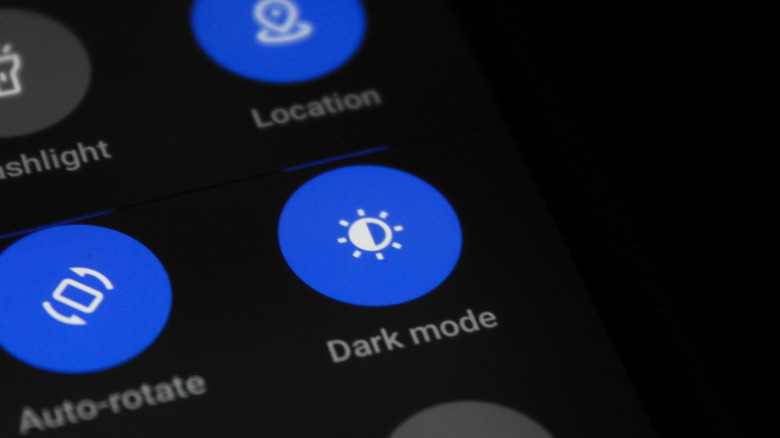
Another setting worth checking is Dark Mode, which can be toggled on for both iOS and Android phones within the Display and Brightness section, too. If you have the default Light Mode setting, which is dark text on white or light background, this simply applies light text against a dark background through your home interface, and most of your installed apps. One of the known downsides of Dark Mode, though, is that the darker UI may make it harder to see whatever's displayed when you're under harsh sunlight. However, this is a great, battery-saving option to enable, especially for phones with OLED displays, as any black pixel on your screen won't emit any light nor consume energy. If you're not too keen on embracing the dark side (of your screen, that is), you can always switch back to Light Mode.