

Why There's A Flashing Red Light On Your iPhone Screen
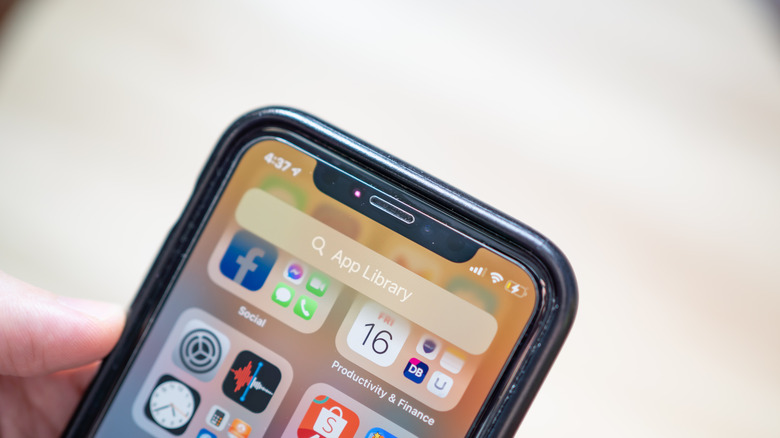
If you have ever seen a red light flashing at the top of your iPhone's screen, you are not alone. The flashing red light, usually visible when you are using an iPhone in a dark room, is tied to the device's Face ID TrueDepth camera. The technology uses infrared sensors to recognize who is using the device, and it's one feature that makes iPhones worth their price.
Face ID uses those infrared sensors to identify who you are by mapping your face. Once set up, Face ID can check a user's face against the map it has saved. If they match, Face ID can then automatically unlock access to the device.
The infrared sensors also support an iPhone's Attention Aware feature, which change a device's behavior when it knows you are actually looking at the screen. Face ID is also used to approve purchases, authenticate apps, and access passwords. It's available across most iPhones released after the 2017 iPhone X and on newer iPad models too.
Don't confuse the infrared sensor's flashing red light with the on-screen microphone indicator, which is a big privacy upgrade too. The latter appears as an orange dot near the top-right corner of the screen when an app turns on the microphone, such as to record a voice memo. The microphone indicator can also appear in the space around the front-facing camera, called the Dynamic Island. That feature can do many things as well.
Disabling the infrared sensor's flashing red light on iPhones
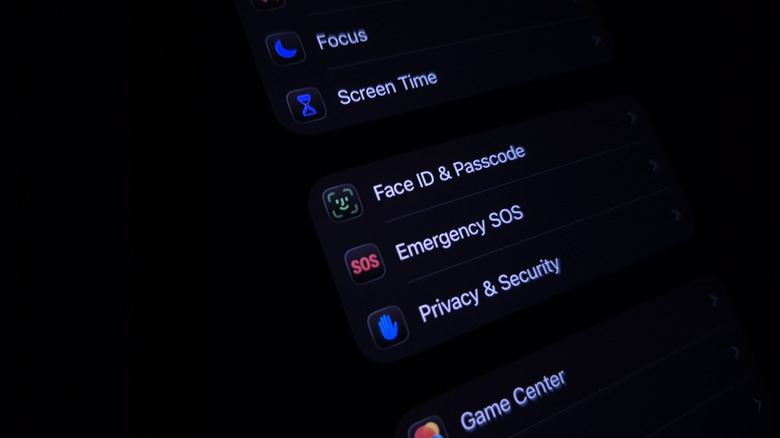
You can't completely disable the flashing red light, since it's tied to several features, including attention awareness, Face ID, and the phone's proximity sensor. But you can minimize its frequency by disabling settings that constantly scan for your face.
To turn off the iPhone's attention awareness technology, for example, open your iPhone's "Settings" app, tap on "Face ID & Passcode," and enter your device's passcode to proceed. Finally, toggle off the "Attention Aware Features." Your iPhone will no longer regularly check whether you are looking at the screen, but this also means that you will lose out on features like the phone automatically lowering alert notifications when you are using the device. Attention awareness can drop an iPhone's brightness by itself, too.
Another attention awareness-related feature you can disable is "Require Attention for Face ID." When toggled on, the feature requires you look at the phone screen in order for Face ID to activate.