

Why Your iPhone's Brightness Suddenly Drops By Itself (And How To Increase It Again)
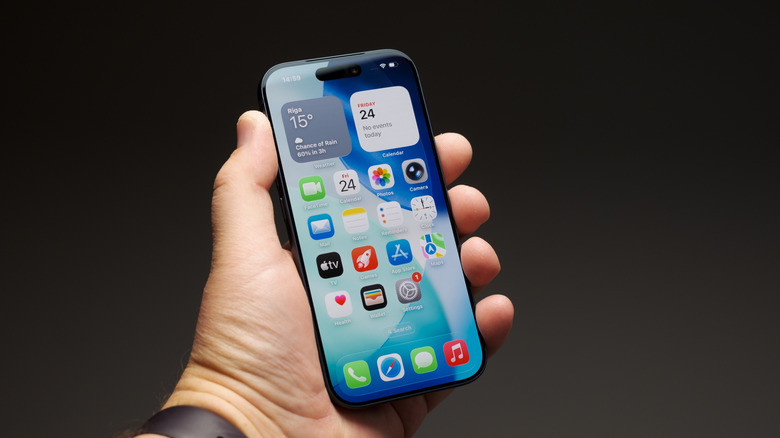
The newer and more expensive your iPhone, generally the better the display experience, including the screen brightness. For example, the standard iPhone 17, the iPhone Air, and the iPhone 17 Pro models offer the same brightness capabilities: 3,000 nits (peak outdoor), 1,600 nits (peak HDR), and 1,000 nits (typical brightness), while the iPhone 17e supports 1,200 nits (peak HDR) and 800 nits (typical brightness). That said, factors beyond device capabilities may impact the iPhone's display, and you may experience sudden brightness drops under specific conditions. You shouldn't be surprised if and when it happens, as this is normal behavior for the iPhone. Two important factors impact screen brightness, and understanding what they are will also help you take measures to restore brightness levels to your desired values.
The first factor is the Auto-Brightness Accessibility setting, which allows the iPhone to continuously adjust the brightness level based on the light conditions in a room or area. Second, the iPhone display may automatically get dimmer when the handset gets too warm, which can happen when using it in the sun.
While these are the main reasons why the iPhone display may get dimmer on its own, there are other settings that can impact brightness. When the brightness drops, you can take steps to adjust it to the desired level, but it's important to understand that simply disabling Auto-Brightness or adjusting the brightness slider in Control Center may not immediately work. If your iPhone is responding to excessive heat when dimming the display, you'll want to cool down the device before you can restore the screen brightness. That may involve removing the handset from the sun and turning the screen off.
When Auto-Brightness is enabled
Depending on your preferences, you may have Auto-Brightness enabled or disabled on your handset. But regardless of that setting, you will likely use the handset both indoors and outdoors, in various lighting conditions. To fix any brightness issues you may experience, you should understand the possible combinations of settings and ambient light that can impact your screen brightness.
First, when Auto-Brightness is enabled, the phone dynamically adjusts its brightness based on the light in your immediate surroundings. If you're indoors and the screen has dimmed, that means that the light sensor is reacting to ambient light. Maybe the sunlight is temporarily blocked by passing clouds, so the room gets darker and the display also dims. If you have the True Tone setting enabled on the handset, it may also react to ambient light to adjust its colors and intensity, which can make the screen feel dimmer, even if the brightness level hasn't changed. If you're outdoors, Auto-Brightness will raise the screen brightness automatically in response to the brighter environment. However, if the phone is under direct sunlight, it may start to overheat. When the temperature rises, the display will be dimmed to allow the phone to cool down. The screen can even go black if the temperature is too high.
Other factors can impact the display brightness when Auto-Brightness is enabled, regardless of ambient lighting. Features like Low Power Mode and Adaptive Power can lower the display brightness. Charging the phone and using it at the same time can also raise its temperature. Wireless charging can also make it warmer. Other specific use cases, like graphics-intensive games, extended camera use, streaming high-quality video, and navigation apps, can make the phone warmer.
When Auto-Brightness is disabled
If Auto-Brightness is disabled, display brightness will not react to your environment in real time. If you're indoors, the screen should stay at the same brightness level, but the factors mentioned above can still dim it. For example, enabling Low Power Mode to conserve battery life will reduce the screen brightness. When Adaptive Power is enabled, the iPhone can also lower screen brightness on its own. Increased temperature from the scenarios above can also affect display brightness. Other iPhone features may temporarily lower the screen brightness, like Attention Aware or the Auto-Lock feature. Other Accessibility features, including Dim Flashing Lights, Color Filters, and Reduce White Point, can also affect screen experience and may make the display look less bright.
If you're outdoors and the iPhone screen dims while Auto-Brightness is disabled, environmental heat may be the main culprit. The phone will still reduce screen brightness on its own to cool the device, even if you have disabled Auto-Brightness.
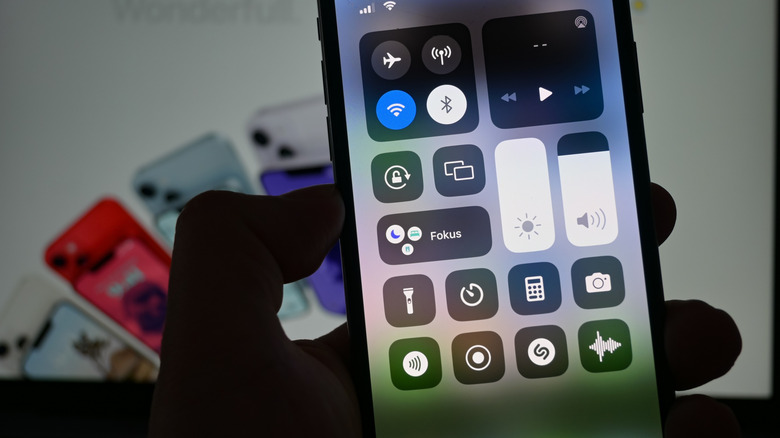
To fix your brightness issues, you can start from the Control Center. Raise the brightness manually and see if that fixes it. You can disable Low Power Mode, Adaptive Power, and the Accessibility settings mentioned above to ensure these aren't impacting the brightness levels or your perception. You should also give the handset time to cool off after extensive use, battery charging, and exposure to direct sunlight or heat before readjusting the brightness level to your desired settings. Separately, you can also try cleaning the front region of the handset to prevent anything from blocking the ambient light sensor, which may impact brightness. Also, you should ensure you use a genuine iPhone display when replacing a broken screen to prevent ambient light sensor issues.