

How To Change Your Home Location On Google Maps
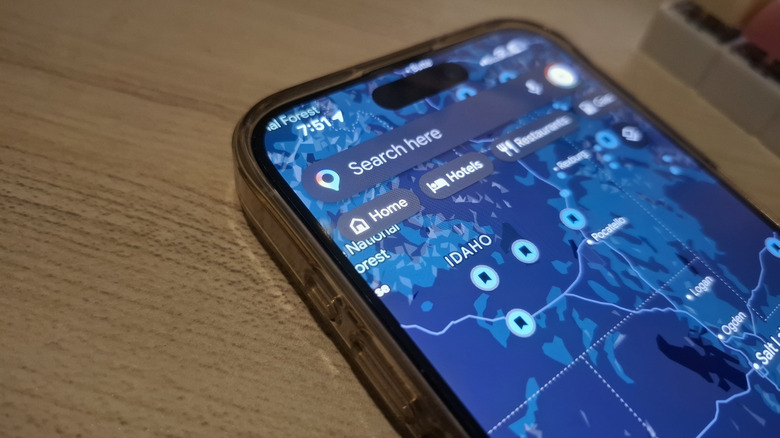
Every time you're heading home from an unfamiliar location, you always have to type your home address in Google Maps. It's like a routine by now, but that doesn't mean it isn't still a hassle. Thankfully, there's a Google Maps feature that can make your trips better: setting a home address.
With this information saved to your account, all it takes to find your way back is a single tap. Simply press the Home button at the top of the screen, and a navigation route should automatically appear — no more repeatedly entering where you live.
The thing is, this home address might not stay the same forever. If you move to a different house down the street or an entirely new city, you'll naturally want to change your Google Maps home address too. We'll walk you through how to do so on your Android and iPhone (which is especially handy if you made Google Maps your default iPhone navigation app).
Method 1: From the Google Maps app
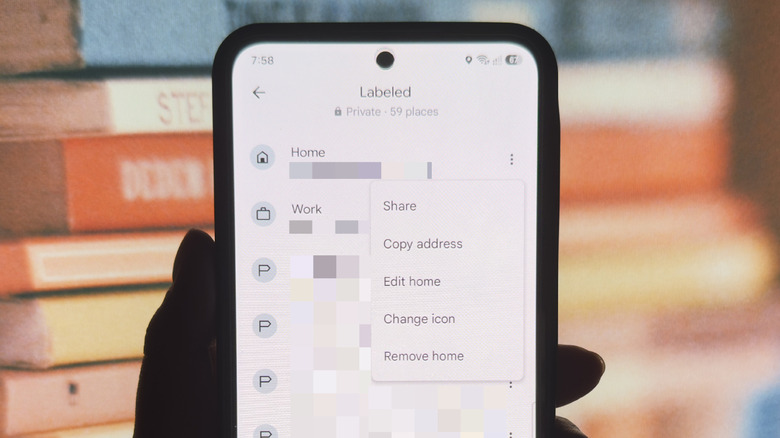
Conveniently, both your Android and iOS device support changing your Google Maps home address right from the app. Here's what you need to do:
- Launch Google Maps.
- Tap the You tab at the bottom.
- Under Your lists, open Labeled.
- Find the Home entry.
- Press the three dots next to it.
- Choose Edit home from the popup menu.
- For Android, drag and drop the home pin to your new home address.
- For iOS, clear your home address at the top and search for your new address. Alternatively, tap on "Choose on map" to drop the pin on a location on the map, or "Choose from Contacts" to use the home address saved to one of your contacts.
- Hit Done to save your changes.
If you no longer need the current home address at all, you can delete it completely with another useful Google Maps setting in the Labeled list. Go to the Labeled list again and click on the three dots next to Home. This time, select Remove home. Don't worry, though, as this doesn't delete the Home label itself, only the address. You can still set a new home address from the Labeled list by tapping on Set home.
Method 2: From your Google Account page
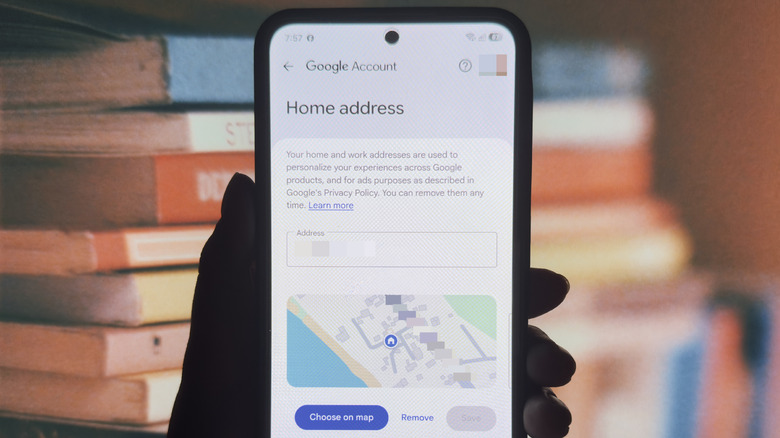
If you find it hard to change your Google Maps home address from the app, especially on Android, you can also update it from your Google Account page. The steps to access this page are different on Android and iPhone, though. Here's how to do so on Android:
- Launch your Settings app.
- Open Google (or Google services).
- Tap on your profile at the very top of the page.
- If you want to change the home address on a different Google Maps account, select the account, then tap on your profile again.
- Press Manage your Google account (or simply Google Account).
Meanwhile, on iPhones, you have to go to a browser to view your Google Account:
- In your browser of choice, visit myaccount.google.com.
- Log in to your Google account by tapping on Go to Google Account and type in your credentials.
- If you're already logged in but want to update the home address on another Google account, go to your profile picture in the top-right corner and switch account.
Once you're on your Google Account page, you should then find the Home address in the Personal info option. Simply type your new address in the Address field. Alternatively, tap on Choose on map, drop the home pin on your current residence, and hit Save. If you want to delete the home address instead, select Remove. From your Google Account's Personal info page, you can also edit and delete your work address and other saved addresses.