

What Does The Bed Symbol Mean On Your Android Phone?

Bedtime mode is part of Google's Wellbeing initiative and toolset. You can check whether you set up bedtime mode correctly by seeing if your Android phone has the bed icon next to the battery and Wi-Fi indicators at the top of your phone. The icon indicates that bedtime mode is on and will disappear once you turn it off. Plus, when you use bedtime mode, the display may change depending on which settings you've enabled to prevent distractions.
The idea behind bedtime mode's configurable settings is to keep you from staying awake from smartphone usage while the restrictions are in effect — or, at the very least, to improve your eye health at night by forcing you to rest them. Features like grayscaling your screen, an alarm clock, do-not-disturb mode, and a dark theme are available to help reduce the time you spend viewing the screen.
You can enable each of them if it helps you put your phone away, or disable them if you don't find them effective. While the Google Pixel has a built-in bedtime mode, it is actually available on any Android smartphone, including those with custom-heavy UI skins like Samsung and OnePlus. You can either manually turn on bedtime mode or configure it to use a set schedule so it automatically kicks in at the time you've set until you manually turn it off or remove the condition.
How to turn on and off bedtime mode on your Android phone
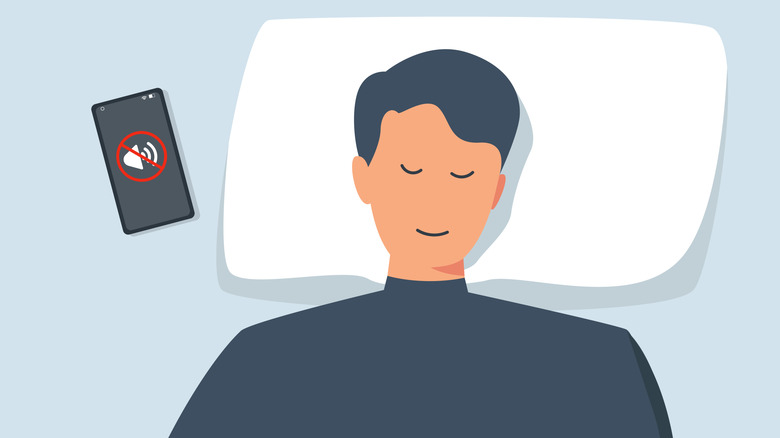
Google Pixel has two places where you can set up bedtime mode. The first is through "Digital Wellbeing" in the main settings: scroll down, and the "Ways to disconnect" header will include a dedicated "Bedtime mode" tile. Tap "Bedtime mode," then either tap "Turn on now" or scroll down to tap "Customize in Modes." If you want to add a dark theme, dim wallpaper, or grayscale, visit the "Customize in Modes" section or go directly to "Settings" > "Modes," then select "Bedtime." Turning it off is even simpler, since you can do that through the "Modes" or "Digital Wellbeing" settings.
The "Digital Wellbeing" menu also lets you pause bedtime mode for 30 minutes instead of disabling it completely — if you wish to turn it off, choose "Turn off for now." Alternatively, you can open the notifications panel by swiping from the top to access both options. Conversely, if you do this through the "Modes" menu, select the "Bedtime" tile and tap "Turn off."
Samsung phones with the latest One UI installed will have only one reliable way to access bedtime mode and make relevant changes, since the "Digital Wellbeing and parental controls" settings menu primarily focuses on screen time, app timers, and content restrictions. So if you want to make changes to bedtime mode, or turn it on or off, navigate to "Modes and Routines," scroll down to find "Sleep," then tap "Turn on" or make changes by tapping on the "Other actions" section to include changes like dark mode or grayscale when bedtime mode is enabled. Finally, disabling the mode is even easier: return to "Modes and Routines" > "Sleep" and tap "Turn off."