

Is Google Maps Not Talking To You? This May Be A Solution
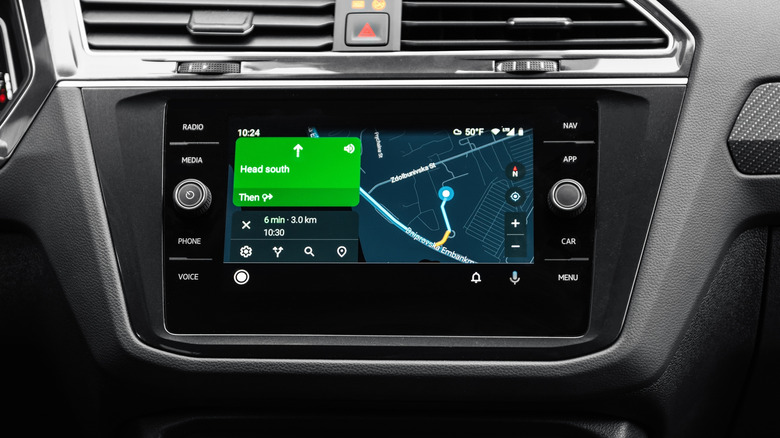
A huge boon of using navigation tools and mobile apps, like Google Maps, is that they will audibly call out directions to you. That's especially useful for keeping your focus on the road ahead, your hands on the steering wheel, and everyone in your vehicle safe. "Keep left at the fork," "after the next light, turn right," and "your destination will be two miles on the left," are all voice callouts that give important context and help you stay informed about your current trip without staring at the screen or the list of directions. Actually, many of the hidden Google Maps features that make your trips better rely on the built-in audio. At least, that's how it is if the voice navigation feature is working correctly.
Running into a situation where Google Maps isn't responding aloud can get really frustrating. Luckily, some quick fixes can help you get it running smoothly again. From the Google Maps home screen, tap your profile icon and go to Settings > Navigation. Under Sound & Voice, ensure the Mute State is set to Unmuted. You can also adjust Guidance Volume to Louder if you want louder responses. Additionally, with Google Maps open and a trip planned, tap the volume icon in the bottom right. Make sure the volume up icon is active; that's the one with the speaker and a sound wave coming out.
If your phone is connected to your vehicle via Bluetooth, make sure the Play Voice Over Bluetooth Toggle at the bottom of that section is active. Tap Play Test Sound to hear a demonstration. If you still hear nothing, you might need to dig into your phone's system settings to fix the problem.
Additional phone settings to try
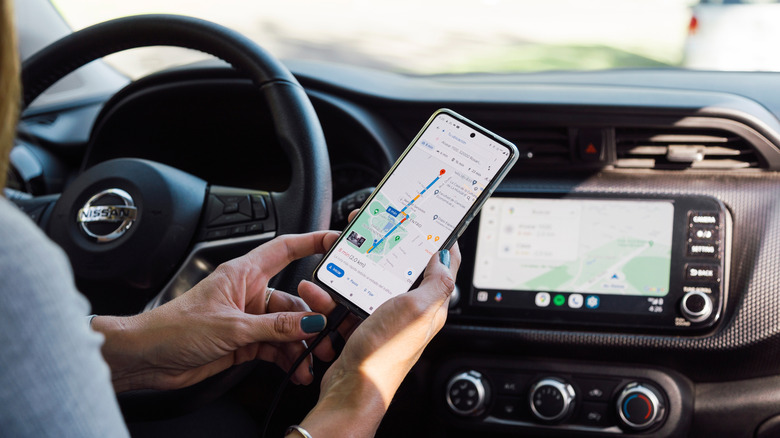
The new traffic intelligence and predictive routing is, hands down, one of the best new features added to Google Maps recently. But if you can't hear sound in the app, you won't get to experience it. The good news is there are a few more fixes you can try. Start by making sure your phone is not on silent or that Do Not Disturb mode is not on. Next, if you're using an external device, like your vehicle's speakers via Bluetooth, try playing some music, putting on a video, or playing media to test if you can hear it properly. If you can't hear anything, you might need to reset the Bluetooth connection by disconnecting and re-pairing or re-plugging the USB cable you're using if wired.
If you're relying on offline maps you have stored locally, which is both a handy and really simple trick to save you from getting lost in strange places, that could also be excluding you from voice support. Sometimes those data packages don't include voice data for navigation, so you'll only hear chimes, especially if your phone isn't connected to a mobile network. Try reconnecting if possible.
Still not getting audio? Check for an app update for Maps in the Google Play Store, accept it, and download if there is one. You can also clear the Google Maps app cache under Settings > Apps > All Apps > Google Maps > Storage & Cache. Tap the Clear Cache option to clear the temporary files, and for good measure, back up one menu to the main app window and tap Force Stop and OK to the prompt. That will force Google Maps to restart. If all else fails, restart your phone to see if that helps.