

Why Does Windows Explorer Use So Much Memory?
Since Microsoft launched Windows 11 in October 2021, Windows Explorer has been known to cause memory leaks. A memory leak happens when a program or process "forgets" to release RAM after it's done using it. One thing's for sure, though: if you leave Windows Explorer alone after it's started leaking memory, it'll continue to consume RAM to the point it can balloon past 2GB.
Sounds extreme, right? But someone posted on Reddit that Windows Explorer was using over 21GB of memory. Luckily, the user seems to have a high amount of RAM (their memory utilization was at 52%), but for a computer that has less than 8GB of RAM, even 2GB can make it slow or unresponsive. To prevent Windows from getting to that point, it's worth solving whatever is causing Windows Explorer to behave this way.
There are several ways to stop Windows Explorer's RAM hogging, but if you don't have time to investigate the root cause of the memory leak, right-clicking "Windows Explorer" in Task Manager and selecting "Restart" usually offers temporary relief. You can also restart your Windows PC if that doesn't help. If you have a little more time, try updating your computer, as this can fix bugs that cause Windows Explorer to become unstable and cause memory leaks. While memory leaks aren't the only cause for Windows Explorer's high memory usage, they're by far the biggest that keeps it recurring.
Getting to the bottom of File Explorer's memory leaks
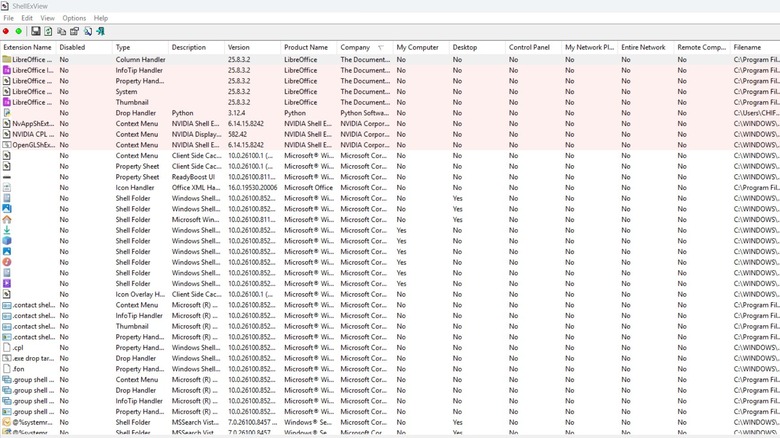
One of the biggest causes of Windows Explorer's memory leaks is third-party shell extensions. Shell extensions are programs that add custom functionality to File Explorer. Badly written shell extensions tend to request memory from Windows without giving it back after they're done. You can confirm third-party shell extensions are the cause by booting into Safe Mode and monitoring the Windows Explorer process for about 10 minutes. If it runs normally, the shell extensions are the problem since they don't load in Safe Mode, and you can find them using a shell extension manager called ShellExView.
After booting the PC normally, create a system restore point, which allows you to revert changes if you need to. To do that, follow the steps below:
-
Press Win + R.
-
Type systempropertiesprotection.exe.
-
Click Create.
-
Enter a description.
-
Click Create.
To find the problematic shell extension, follow the steps below:
-
Go to the ShellExView download page.
-
Scroll to the bottom and click Download ShellExView in Zip file.
-
Extract the ZIP file.
-
Double-click shellexview.exe.
-
Launch it and go to View > Export to HTML to create a backup of the shell configuration.
-
Click the Company column to group the extensions by vendor.
-
Right-click a suspicious third-party extension (cloud services and antiviruses are usual suspects).
-
Select Disable selected items.
-
Restart Windows Explorer.
-
Monitor memory usage for about 10 minutes.
-
If memory usage doesn't spike, that's the culprit.
-
Update it or switch to an alternative if you can't.
Gigantic caches also cause Windows Explorer to use too much memory
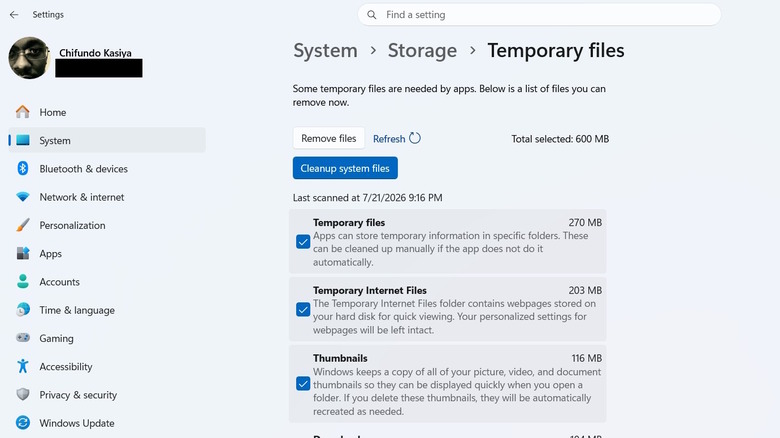
Explorer usually stores temporary data, such as thumbnails and file previews, in memory so that it can retrieve them faster. However, it doesn't always clear them, leading to a large cache that shrinks the amount of available RAM. Also, if these caches become corrupt, they can significantly slow down File Explorer and lead to high CPU usage, further slowing down your PC. The first thing you should do is clear your computer of any temporary files. After applying any of the fixes below, monitor Windows Explorer during normal usage to see if it's behaving normally.
Follow the steps below:
-
Press Win + I.
-
Go to System > Storage > Temporary files.
-
Tick Temporary files, Temporary Internet Files, and Thumbnails.
-
Click Remove files.
-
Click Continue.
Next, clean up the thumbnail and icon cache manually. Here's how.
-
Press Win + R.
-
Type %localappdata%.
-
Click OK.
-
Find the IconCache.db file and delete it.
-
Delete files starting with thumbcache_.
-
Restart Windows Explorer to force it to rebuild them.
Corrupted system files can also cause Windows Explorer to act buggy, leading to high memory usage. Two tools can help. First is Deployment Image Servicing and Management (DISM), which makes preparations to fix the corrupted system files. The second one is System File Checker (SFC), which finds the corrupted files and repairs them.
Follow the steps below:
-
Right-click Start.
-
Select Terminal (admin).
-
Run DISM.exe /Online /Cleanup-image /Restorehealth.
-
Run sfc /scannow.