

Why Did Apple Remove The Home Button From iPhones?
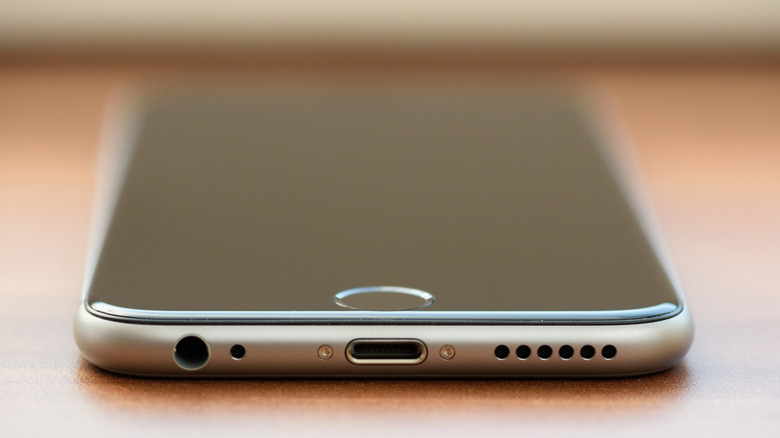
Long live the iPhone's Home Button. It began life on Apple's original iPhone in 2007. Its death started in November 2017, when the company announced its iPhone X, which used a full-size, top-to-bottom screen with a cutout at the top for its Face ID scanner. The final iPhone with an included Home Button was the iPhone SE (2022). Now all iPhones have Face ID, and it looks like the Home Button is never coming back. While many people embraced the removal, others hated it because it removed great features like Touch ID, provided tactile feedback, and was easy to learn. So, why did Apple get rid of it?
Ditching the Home Button created many opportunities to improve the iPhone, despite the tradeoff of losing one of the most recognizable elements of its devices. Apple wanted to achieve an edge-to-edge display, for example, and removing the Home Button freed up space both outside and inside the iPhone to do just that. By that time, the iPhone's rectangular screen design was starting to look outdated, as manufacturers like Samsung were already moving toward edge-to-edge designs, starting with the bezel-less Galaxy S6 Edge in 2015.
Apple removing the Home Button didn't just change the screen, it also created more space inside the iPhone for a larger battery and an upgraded Taptic Engine vibration mechanism, since it no longer had to simulate the Home Button's clicks. The move also allowed Apple to create a whole new way to interact with the iPhone through new gestures everyone had to learn. For instance, to minimize an app, you just had to swipe up instead of clicking the Home Button.
Bringing back the Home Button
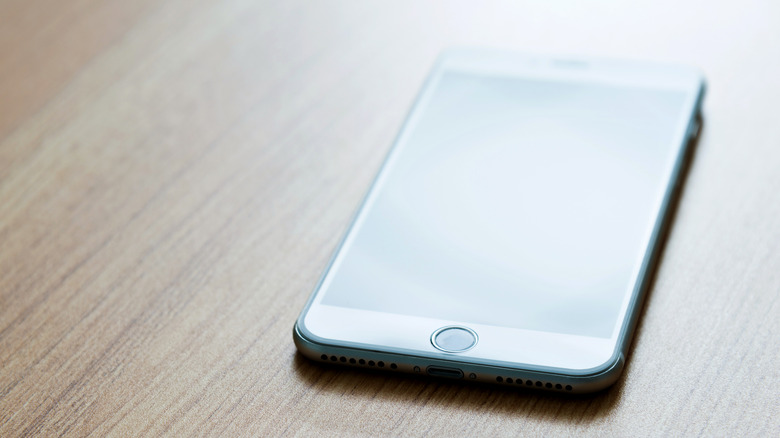
If you're one of the people who hate that Apple removed the Home Button, there's a software trick that some people use instead. The technology is called AssistiveTouch, and it's one of the iPhone's most overlooked features. It's not a new physical button, and it won't provide tactile feedback or bring back Touch ID, which is arguably worse than Face ID for security anyway. What AssistiveTouch does is place a virtual Home Button on the screen.
To use AssistiveTouch, follow the steps below:
-
Open "Settings."
-
Tap "Accessibility."
-
Tap "Touch."
-
Tap "AssistiveTouch."
-
Toggle on "AssistiveTouch."
At this point, you should see a solid white circle appear on the screen, acting as a tappable Home Button. It will only appear when your iPhone is unlocked, and you can press and drag it anywhere around the screen if it bothers you. You can even place it at the bottom center of the screen to mimic the position of the Home Button.
But before you use it, you will have to customize it to make it feel more like the Home Button.
Here's what you can do:
-
Still in "Assistive Touch" settings, tap on "Single Tap" under the "Custom Actions" heading.
-
Tap "Home."
-
Tap the back arrow in the top-left corner to go back.
-
Tap "Double Tap"
-
Select "App Switcher."
Now it's just like the old Home Button. There's a Long-Press action you can set as well, to open features like the Control Center or Notification Center.