

11 Of The Most Overlooked iOS Features, According To Users
It might be hard to believe, but the iPhone is now almost 20 years old. In that time, iOS has evolved from a simple communication platform to a complex operating system that runs apps, automations, productivity systems, and, of course, AI. Even after adding new features annually, Apple has somehow managed to keep things quite simple. If you like, you can continue with the out-of-the-box iPhone experience. Use it for video calls, messaging, gaming, and watching videos, with a bit of email work now and then.
But underneath the surface, there's a lot more going on. Hidden behind accessibility menus, long-press gestures, and seemingly blank spaces are dozens of overlooked features, missed even by certified tech enthusiasts.
To unearth the hidden gems, we scoured the web, looking through countless "I was today years old when I learned this" threads. We hunted for features that even power users were surprised to discover. We combined the insights from passionate Reddit communities, social media platforms, and our own extensive Apple coverage to finalize the list. Whether you're an iPhone beginner setting up your new device or a veteran seeking some new features, you will surely find something new in this list.
1. Perform actions using the Back Tap gesture
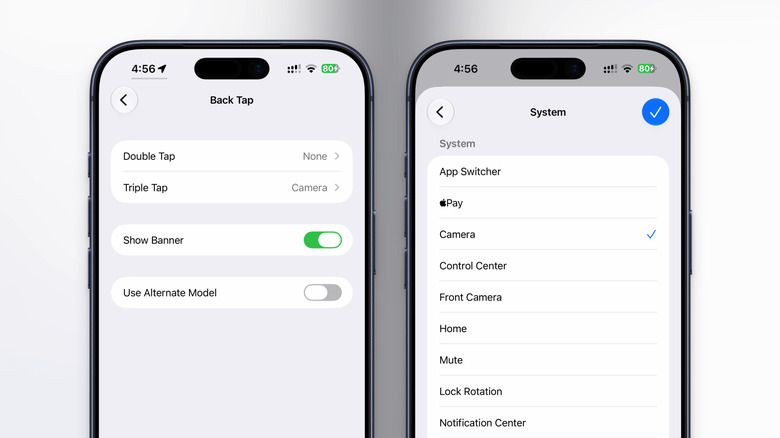
The iPhone has a hidden button on the back. At least, if you use an accessibility feature. The Back Tap feature turns the middle part of the back of your iPhone into a haptic button. You can double-tap or triple-tap to perform actions such as taking a screenshot, turning on the flashlight, opening the Camera app, or even triggering a Shortcut.
Open the Settings app on your iPhone and go to Accessibility > Touch > Back Tap. Here you will see two options: Double Tap or Triple Tap. You can go in and assign an action to each of them. You'll find actions categorized into Device, Accessibility, Scroll, Shortcuts, and System.
Here are some ideas for a Back Tap gesture that would be useful for an iPhone power user: Lock Screen, Home, Flashlight, Screenshot, Volume Control, Scroll Up/Down, Control Center, Notification Center, and more. If you're a Shortcuts user, you'll find all your pre-configured shortcuts in the Shortcuts section. When a Back Tap action is triggered, the iPhone will show a banner notification. If you don't like it, disable the Show Banner feature during configuration.
2. Assign shortcuts to Action button
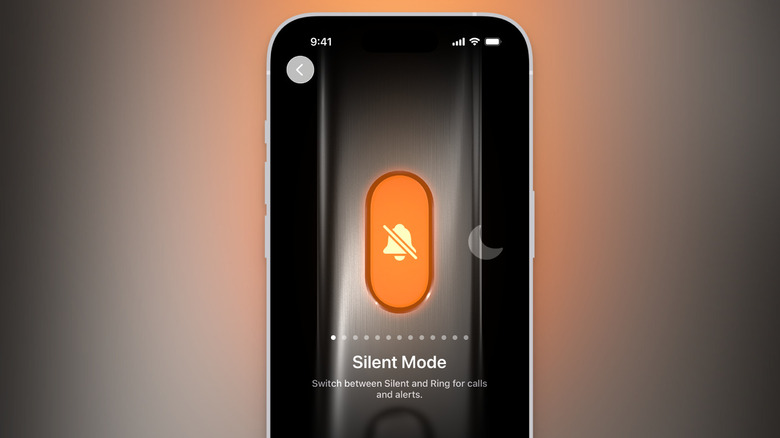
The Action button on the iPhone is an incredibly powerful shortcut that hardly anyone ever uses. Apple replaced the Mute/Ringer switch with a haptic button that's infinitely customizable. If you're willing to let go of the Silent Mode switcher, you can turn the Action button into a camera launcher or a flashlight, or assign any Control Center control to an app. Plus, you can trigger and run any shortcut, including a custom shortcut that shows you a launcher for multiple apps or actions.
If you have an iPhone 15 Pro or higher, go to Settings > Action Button. You will see a visual slider for selecting an action. Swipe through them (you'll find options like Camera, Shazam, Focus, and more) until you find the last two options: Controls and Shortcuts. From the Controls option, you can assign any Control Center control directly to the Action button, which will directly perform an action in an app. This can be something like adding a quick reminder in the Reminders app, or starting a Calendar entry.
If you're an iPhone power user, you can also assign a frequently used iOS shortcut to the Action button. Just make sure that the shortcut is already built and configured according to your needs.
3. Only see relevant content in apps when you're in Focus mode
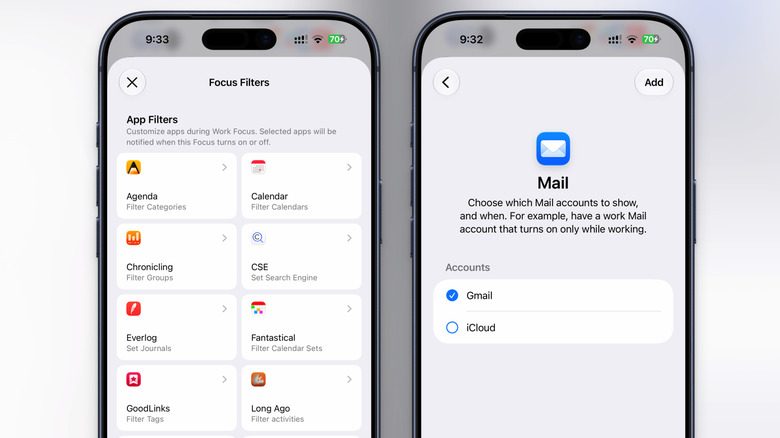
Apple's pre-set Focus modes like Do Not Disturb, Sleep, and Workout are quite handy. But you're just scratching the surface there. Focus modes on iPhone are incredibly customizable, down to which app or person can send you notifications. You can even customize Focus mode to show only specific information. For example, you can set your work focus to show only emails from your work inbox.
First, go to Settings > Focus and choose a Focus mode to customize (you can create a new Focus mode from scratch or use Apple's pre-built Focus modes). When you're customizing the Focus, scroll down to the Focus Filters section and tap Add Filter. You will now see a list of all supported App Filters (including third-party apps). Choose an app, then select the information to view. As mentioned above, you can use the Mail app to only see emails from a particular inbox. The Calendar app can be customized to only show events from your work calendar. Even the Messages app can only show conversations from people who are allowed to contact you in Focus mode. Once you're done customizing, tap Add to add the filter to the Focus mode.
4. Hide distracting items from a webpage in Safari
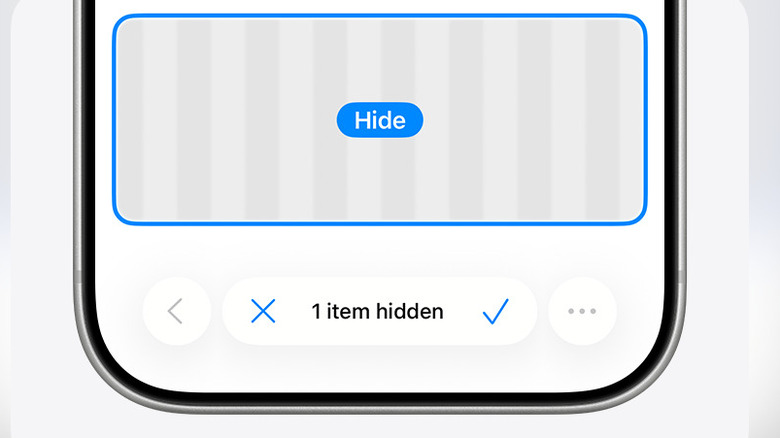
Safari on iPhone is a treasure trove of hidden features. You might be familiar with Safari extensions, which let you customize the web pages and add extra features. But Safari also has a built-in feature called Hide Distracting Items that lets you Thanos-snap any element of a page. And it's gone forever, even when you reload the website weeks later.
This can be a great way to remove pop-up ads, or banners that get in the way of your browsing experience, or auto-playing videos that you can't disable otherwise. You can also use it to hide parts of a website that you just don't want to see. After opening a website, tap the Page Menu button on the left-hand side of the address bar. Here, choose the Hide Distracting Items feature. Now, just tap on the boxes that you want to remove. Safari will show a live preview of them disappearing from the webpage, along with a distinct border. Tap the Tick (Done) button to save your customized web page. If a webpage isn't functioning properly, you can restore any item or disable the entire feature on the webpage using the Page Menu.
5. Use Text Replacement to quickly expand text snippets
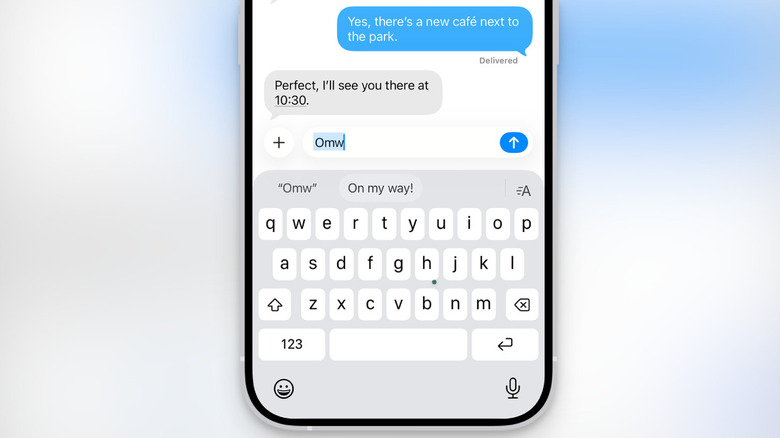
The iPhone has a built-in feature that can save you a lot of time when you're typing on the small keyboard. It's been there for years and is overlooked by many iPhone users. Apple's Text Replacement feature (which can also be found in iPad settings) lets you create text shortcuts (like "omw") that automatically expand to a longer phrase or sentence (like "On my way!").
That's the structure, but the implementation is completely based on your imagination and needs. For example, you can create a shortcut for expanding your home address, making it easier when you're placing orders online. If you need to use the same email template or message for work, you can turn it into a snippet as well.
Press and hold the Globe/Smiley button on the keyboard and choose Keyboard Settings. Here, go to Text Replacement and tap the Plus button in the top-right. In the Shortcut field, type the text shortcut you want to assign to the phrase. In the Phrase field, type the expanded phrase or the sentence. And that's all there is. Now, when you type the shortcut anywhere on your iPhone, it will expand to your chosen phrase. And if you have iCloud sync enabled on all your Apple devices, Text Shortcuts will automatically sync between your Mac and iPad as well.
6. Ease motion sickness using Vehicle Motion Cues
People with motion sickness find it difficult to do anything when they're in the car. They have to look out the window, and using the phone becomes a trigger in itself. If you tend to get motion sickness in the car, a hidden iPhone setting might just help. When you're looking at an iPhone screen, your eyes perceive a fixed motion, but your inner ear is feeling the car turn, accelerate, and slow down. The effect is especially severe when you're on mountainous roads.
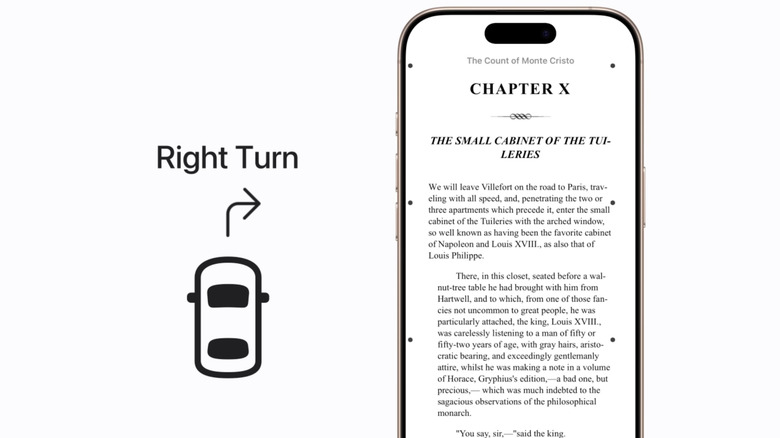
The Vehicle Motion Cues feature solves that problem. It uses precise sensor data from your iPhone to figure out how your car is moving and turning. Then it shows you this real-world car movement on your iPhone screen as moving dots on the edge of the screen. This way, your brain can still connect with the surrounding movement, while you focus on reading or working on your iPhone.
Go to Settings > Accessibility > Motion > Show Vehicle Motion Cues. Here, you can turn it on when you want to use it, or you can use the Automatic option to automatically enable the feature whenever the iPhone detects that you're a passenger in the car. From here, tap the Customize Appearance option to change how the dots appear on-screen. You can choose between a stable pattern and something more visually dynamic. You can also choose the color of the dots and make them larger, so they'e easier to visualize in the moving car.
7. Use background sounds to focus and sleep
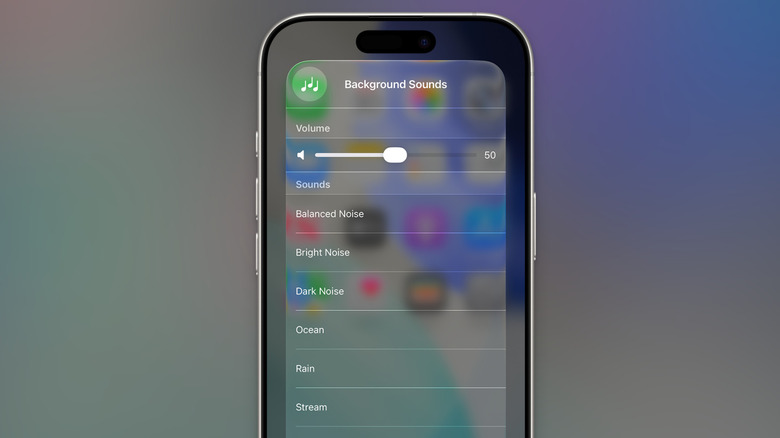
Background sounds can help you focus during work, relax in the afternoon, and even help you sleep. And you don't need to pay for a third-party app to listen to rain sounds as you work. Your iPhone can do the job for you. First, add the Background Sounds control to the Control Center. Tap and hold the empty part of the Control Center and choose Add a Control. Search for and add the Background Sounds control. Move the control where you want and save your setup.
Now, simply tapping on the control will start playing a background sound. Tap and hold on the control to see options. Here, you can adjust the volume and choose the sound. Apple has a large selection with all the usual suspects like Rain, Ocean, Stream, White Noise, Dark Noise, and more. From here, you can tap Background Sound Settings for more customization options.
Background Sounds can work even when you're playing media on your iPhone. You can choose a different volume for this feature. There's also an option to stop the background sounds with a timer (handy if you're using it to help you sleep). You can also customize the sound profile by going to the Equalizer feature. Simply move the tone equalizer to change the contour of the sound. Here, Apple offers two distinct options: Broad and Focused. Choose the broad option to hear a wider frequency range and a rich sound. The focused range will let you hear specific frequency ranges of your choice, with reduced audio distortion.
8. Get alerts for sounds like dog barking and smoke alarms
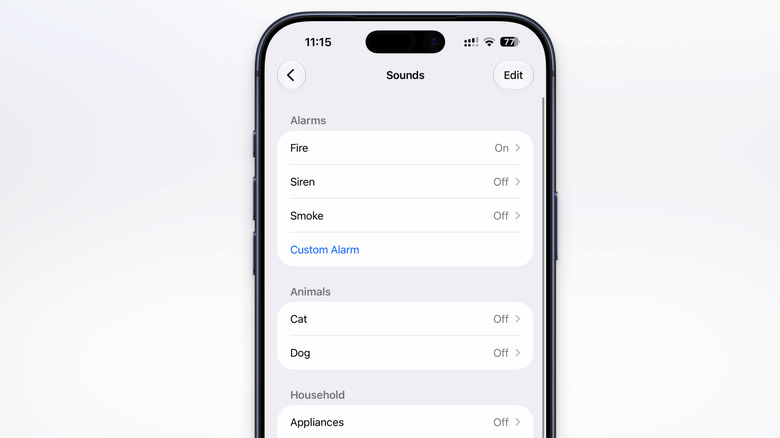
The iPhone has a built-in system that can recognize sounds for the hard of hearing. It can hear sounds like a doorbell, a dog barking, a fire alarm, and more, and alert you with a notification. To enable this feature, go to Settings > Accessibility > Sound & Name Recognition > Sound Recognition and enable the Sound Recognition feature. Once enabled, you'll find a new Sound Recognition toggle in the Control Center to quickly enable or disable the feature.
Once the iPhone downloads the sound files, tap on the Sounds option and enable the sounds you want to listen out for. If a sound isn't recognized automatically, or if it's not on the list, you can even record and add a custom sound. In the Sounds section, tap the Custom Alarm or Custom Appliance option, and add a name. Then, place your iPhone near the sound source and record the sound (making sure to minimize background sounds). Tap the Start Listening button and follow the instructions to add the custom sound.
9. Protect your email privacy using Hide my Email
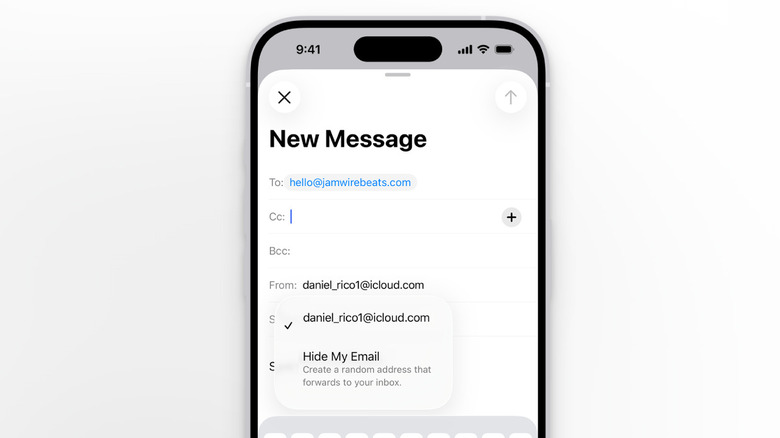
If you subscribe to any paid iCloud+ plans, you already have access to Apple's Hide My Email feature. As the name suggests, Apple will create a random email address that's still linked to your account. You can use this email address to email someone, create a new account in an app, or to sign up for a website where you want to keep your real email address private.
The Hide My Email feature is built into the Mail app. When you write a new email, tap the From button and choose Hide My Email. When you're signing up for a new app, your iPhone will give you an option to sign up using a hidden email address instead.
You can create new hidden email addresses on the fly and manage all your addresses together from the Settings app. Here, tap your name at the top and go to iCloud > Hide My Email. From here, you can create a new address, deactivate an address you no longer need, and change the personal email address that the virtual email addresses are linked to.
10. Turn your iPhone keyboard into a trackpad
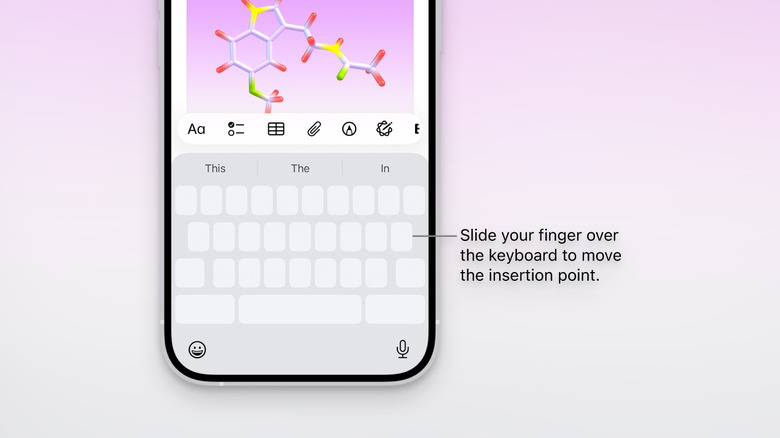
You might use your iPhone keyboard dozens of times a day, but you may not be aware of this hidden feature that transforms the keyboard into a macOS-style trackpad. Press and hold the spacebar on the iPhone keyboard and watch as the entire keyboard blurs. Now you can slide your finger left or right to move the cursor precisely, wherever you want.
You can also use this feature to quickly select some text. When you're in trackpad mode, touch and hold the keyboard with a second finger, and then move the first finger (the one you used to navigate the cursor) around to select text from the original cursor point. It's a bit finicky, but it does let you select text without using the cursor's drag gesture.
Once the text is selected, you can use some gestures on the text area itself to manipulate it. For example, pinch in with three fingers to copy the text, and then pinch out with three fingers to paste it.
11. Share Wi-Fi password with a QR code
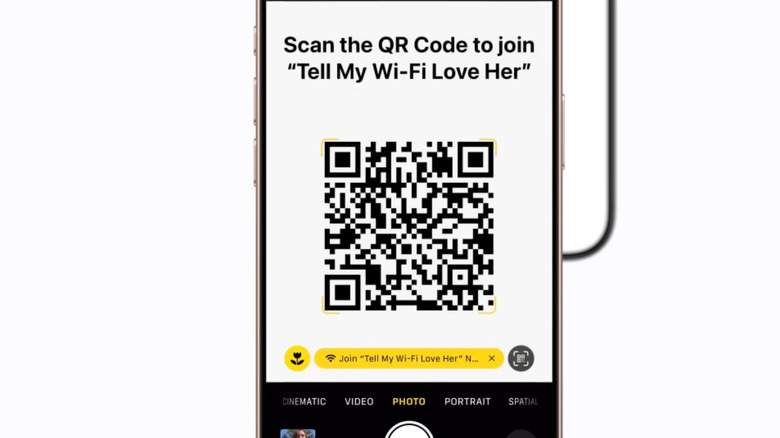
Here's a small quality-of-life upgrade that extends Apple's Share Password feature to anyone who doesn't use an Apple device. If someone with an iPhone wants to join your home Wi-Fi network, you'll automatically get a prompt to share your password wirelessly. But what if they're using Android, or the wireless feature isn't working?
You can now generate a QR code for sharing the Wi-Fi password to help anyone reliably connect to your Wi-Fi network. On your iPhone, go to the Passwords app and open the Wi-Fi section. Choose the network you want to share and choose the Show Network QR Code option. The iPhone will display a full-screen QR code. Ask your friend to scan the code using the camera on their device. Once they tap the link from the QR code scan, they should be able to join your Wi-Fi network directly. No passwords needed.