

If Apple Maps Can't Find Your Location, Try This
Apple Maps has been the default mapping app on the iPhone since its release in 2012, and despite an initial rollout fiasco, the service has become the biggest competitor to Google Maps as the best navigation app you should use. Apple offers a variety of features for its maps app in various locations, including step-by-step navigation, cycling information, and directions to EV charging points. However, if you're having issues with the app, there are settings you can toggle to fix when it can't find your location, and there are ways to send in corrections when a map has mislabeled or outdated information.
When it comes to fixing its ability to find your location, Apple says to check three settings to make sure the Maps app is working correctly:
- Make sure the Location Services feature is turned on and active. Open Settings > Privacy & Security > Location Services and check that the toggle is green. Then, scroll down to the Maps app, and tap into its settings to ensure location services access is set to "While Using the App or Widgets."
- Having correct date and time on your device can play a role in working with GPS signals. Navigate to Settings > General > Date & Time and toggle to Set Automatically.
- Make sure you have an active data connection by checking Settings > Wi-Fi or Settings > Cellular and selecting your network or active mobile plan. Toggling them off and then on can also sometimes help.
Once location permissions, network connectivity, and system time work as expected, Maps should be able to display your location. Apple also recommends users to close the Maps app and reopen it, or even restart the phone to ensure that everything is back into place, as sometimes these settings might not get into effect immediately. (You can even restart an iPhone without using the power button, if you wish.)
Here's what you can do if you can't find a proper business info
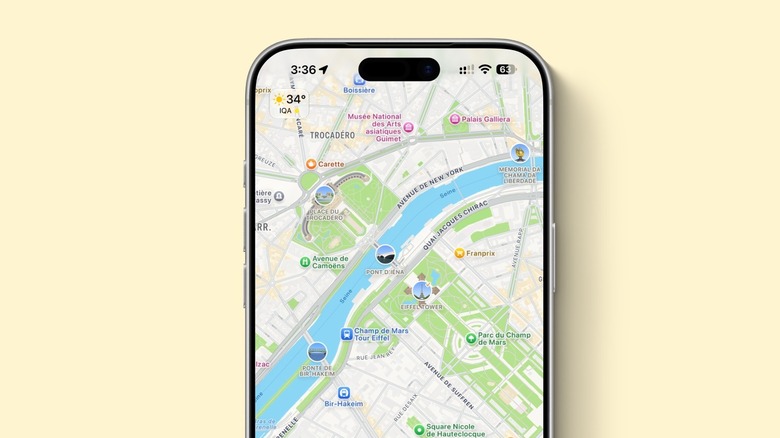
If you realize a location in Apple Maps is incorrect or even not displayed at all, you can alert Apple in several ways. For businesses, there's the Apple Business Connect page, where a company can claim its physical location, upload high-quality images, showcase promotional offers, and keep accurate operational details. That information will be updated in Apple Maps, and apps that connect to it, like Siri, Safari, Calendar, and Wallet.
For establishments with outdated information, it's easy to claim the listing. Launch the Maps app on your device, search for your business name, and tap the corresponding card. Scroll down to the bottom of the location sheet and select Claim This Place. From there, follow the guided onscreen instructions to sign in with your Apple Account credentials and complete the official business verification process directly within Apple Business Connect.
Finally, if you are a user who needs to correct general map inaccuracies, Apple offers a built-in feedback tool. Open Maps, swipe down to the bottom of the interface, and tap Report an Issue. This menu allows users to submit specific corrections regarding street names, navigation routes, sudden traffic incidents, or missing local businesses. After selecting the category, they can complete the onscreen prompts to submit their report.
How to quickly come back to your location and other tips
If you're ever lost in Apple Maps, you can always tap the blue arrow on the right corner of the map, and it will instantly reposition the screen to where you are. You can even tap the arrow a second time to reorient the map based on which direction you're facing. You can also use two fingers to rotate the map however you'd like.
Apple also recommends users to tap the blue arrow when planning a route or the overview button while navigating. What's interesting is that Apple only shows you the compass when you're not perfectly positioned in the North, as once you tap the compass icon, it faces North and then disappears.
Apple Maps also lets you choose between 2D and 3D views of your location. You can also Look Around, the best Apple Maps feature, if it's available in your region. This can be especially helpful to understand your surroundings wherever you're headed, before you actually arrive.