

How To Enable Schooltime On Your Kid's Apple Watch
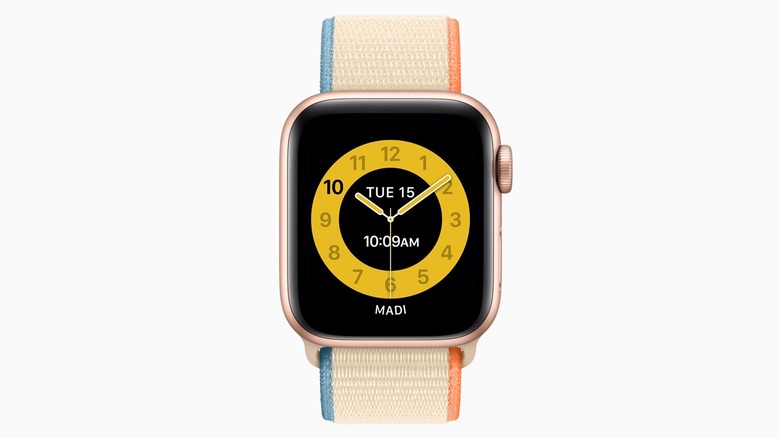
With watchOS 7, Apple introduced Family Setup (now Apple Watch For Your Kids), which was a way to make it easier for adults to better communicate, look at health and fitness, and protect the privacy of their kids or older family members without an iPhone. At the time, Apple promoted it as a way that kids could "... connect with family and friends through phone calls and Messages, stay motivated with personalized Activity Goals, and express their creativity through custom Memoji." Alongside this feature, Apple also added Schooltime, which is a way to prevent the kid from checking their notifications while on school time, and it can easily be activated by the parent's phone.
While one could say Apple created a solution for a problem kids without phones didn't have, the company also promotes it as a less addictive solution to a phone, as the watch's capabilities are more limited. With watchOS 26, you can enable Schooltime both for your kid or independently on your kid's iPhone — even though, in that case, they're the ones controlling the functionality. Apple says that the Schooltime feature also allows kids to deactivate it in case of an emergency or if they need to check a message. In those cases, parents receive a message whenever Schooltime is briefly paused, and once the kid lowers their wrist, it's activated again. That said, here's how to set up an Apple Watch for a kid and have Schooltime on.
Setting up an Apple Watch with Schooltime
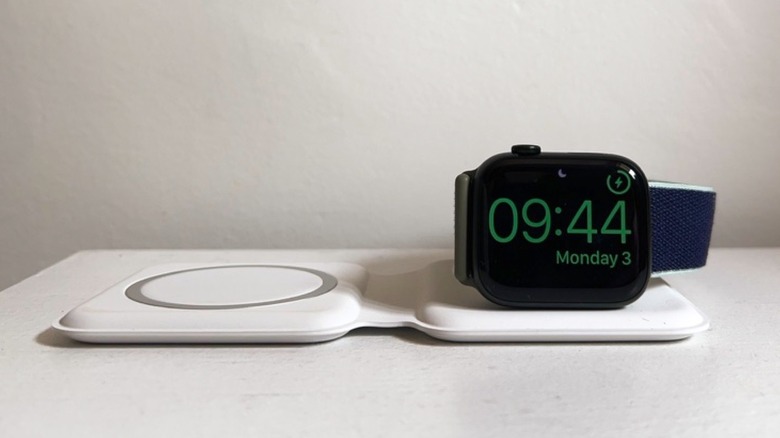
To start using Schooltime on an Apple Watch, you need to ensure you have a cellular Apple Watch Series 6, Apple Watch SE 1, or Apple Watch Ultra or later with at least watchOS 7. For the parent, they are required to have an iPhone 6s or later with at least iOS 14 for the watch initial setup. Apple says that although a cellular watch is required, a cellular plan doesn't need to be set up for a family member.
To pair this watch, just turn it on and get it close to the parent's iPhone. Follow the on-screen guidance and select Set Up for a Family Member. After the process is finalized, you need to go to the Apple Watch app on the parent's iPhone, tap My Watch, and then Family Watches. From there, tap Schooltime, turn this feature on, and select Edit Schedule.
After choosing the schedule with the school days and hours – you can even set multiple schedules during the day — everything is ready to go. The kid can briefly dismiss Schooltime by pressing and holding the Digital Crown, but Schooltime will continue to be displayed until the scheduled time ends. Parents can go to the Apple Watch app on their iPhone to take a look at Schooltime reports to see the days, times, and duration Schooltime was unlocked. Kids can also manually enable Schooltime on the Control Center if they join a school-study group outside the planned schedule.
Understanding the difference between Do Not Disturb and Schooltime
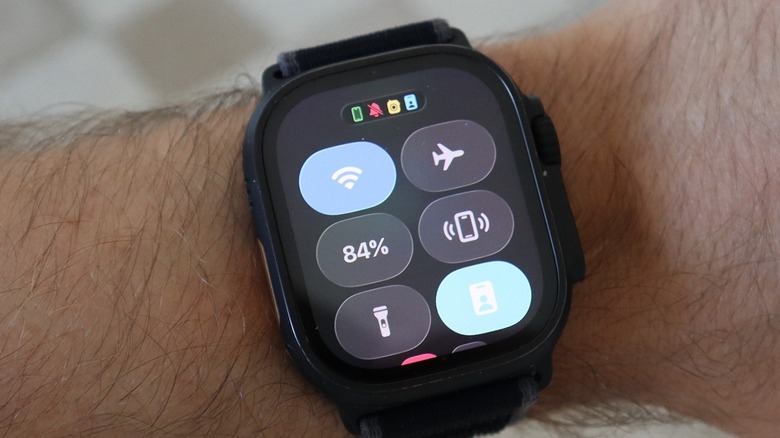
Even though both features work similarly, as they remove notifications and other distractions from the Apple Watch display, they have different purposes and levels of lockdown. After all, Do Not Disturb is all about silencing calls, alerts, and notifications so you aren't interrupted during a meeting, dinner, or sleep. Schooltime, on the other hand, is designed for children and classroom environments, as it's not just about silencing alerts, but restricting children from using their Apple Watch entirely during learning hours.
With Do Not Disturb, you can still allow some specific people and apps to buzz your watch, whether by getting a message or a call. Besides, you can scroll your watch's notifications, apps, and other controls at any time. Schooltime displays a locked yellow watch face that only displays the current time and date. While a kid can break Schooltime momentarily, the parent always gets notified when that happens.
That said, if you want to have a way to communicate with your kid, but you don't think they're ready for a smartphone, an Apple Watch can be a great device to start with. Your child will only be able to access basic functions, and you'll know how they're doing, where they are, and can quickly reach out to let them know you're picking them up from school, and so on. For yourself, a better way to concentrate is to learn how to set different Focus Modes.