

You Can Mirror Your Android Phone To A MacBook - Here's How
Mirroring your iPhone to a MacBook is a very seamless experience. If both devices are connected to the same wireless network, you can easily start an unlimited mirroring session using the iPhone Mirroring app on the MacBook. It allows you to put your iPhone aside (it goes into sleep mode once mirroring starts) while still being able to interact with it using the mouse pointer and clicks. The iPhone and MacBook communicate so well because they both use AirPlay, which is Apple's wireless communication protocol. Android phones, on the other hand, don't use AirPlay, making the iPhone Mirroring app useless. But there are ways to get the same experience or close to it.
To mirror your Android phone to a MacBook, you will need the help of third-party apps. They allow you to mirror your Android phone both with a USB cable and wirelessly. With the wired method discussed here, you'll be able to use mouse controls to control your Android device, and it's completely free. The app for mirroring your Android to a MacBook uses the freemium model and is akin to screen mirroring an iPhone to a MacBook using the control panel (you won't be able to control it on your MacBook).
Mirroring Android to MacBook via USB Cable
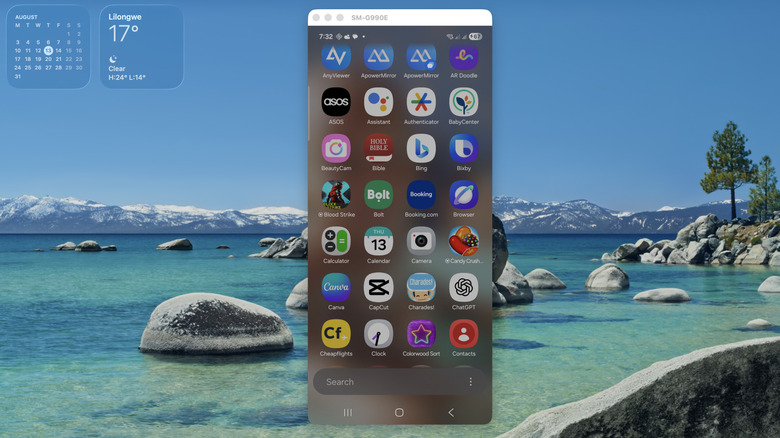
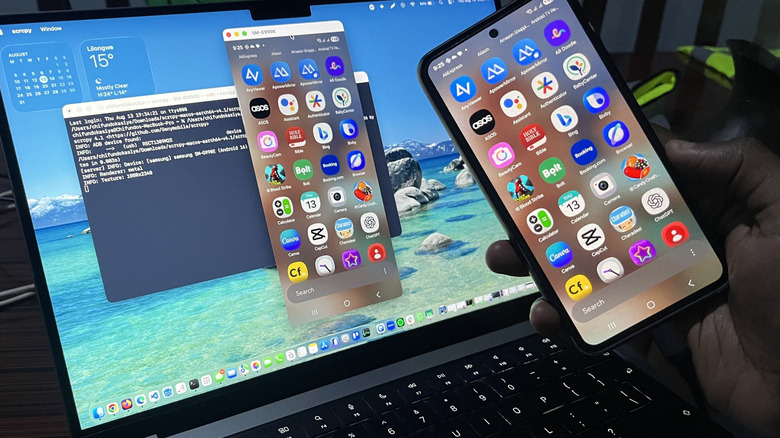
Of the options to mirror your Android phone's screen to your MacBook, Scrcpy is the completely free option. It's an open-source app that requires no root access to your Android device. You just need to go to its macOS GitHub page and download the archive file of the right version for your MacBook — aarch64 for Apple Silicon MacBooks or x86_64 for Intel MacBooks.
Before using Scrcpy, you will need to enable USB debugging on your Android device. While the steps will be different for each manufacturer, here is how you generally do it:
-
Go to Settings > About phone > Software information.
-
Tap Build number seven times.
-
Enter your device's PIN number.
-
Tap OK in the prompt asking you to enable Developer options.
-
Go back to Settings.
-
Tap Developer options.
-
Toggle on USB debugging.
With that out of the way, you can now run Scrcpy on your MacBook. You might run into the macOS security warning that the app doesn't come from the App Store, but after you bypass it, you will be able to run it without issue afterward. Follow the steps below:
-
Extract Scrcpy and double-click the executable.
-
If you get a warning message from your MacBook, click Done.
-
Go to System Settings > Privacy & Security.
-
Under Security, click Open Anyway next to Scrcpy.
-
Enter your Mac's password to confirm.
-
Double-click the scrcpy executable again to start mirroring.
-
Control your Android using the mouse pointer.
Mirroring Android to MacBook wirelessly
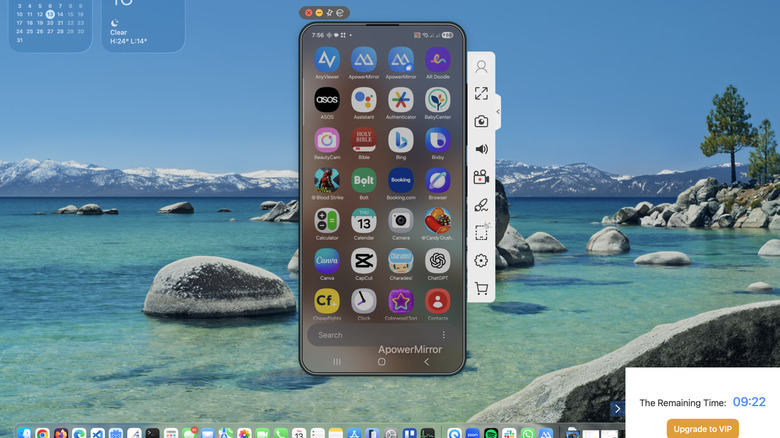
If you want to mirror your Android phone to the MacBook wirelessly, there are several apps that let you do that as well. A good one is ApowerMirror, which you can download from the App Store. Then you'll have to install ApowerMirror on your Android device as well by downloading it from the Google Play Store. Once you have these two apps in place, they will allow the Android phone and MacBook to communicate over the air.
However, since you'll be using the free version of ApowerMirror, you will be limited to 10 minutes per mirroring session, a resolution of 720p, and one device at a time. There will also be a watermark in the bottom-right corner of the screen. When the session ends, though, you can start another session (as many times as you like). If you want something like unlimited mirroring and 2K resolution, you'll have to create an account and upgrade to the higher tiers.
To mirror your Android's screen to a MacBook using ApowerMirror, connect both devices to the same Wi-Fi network (you don't need internet) and follow the steps below:
-
Open the ApowerMirror app on your MacBook.
-
Click Wireless Connect.
-
Open the ApowerMirror app on your Android device.
-
Tap Cast.
-
Under Castable Devices, tap the device that shows up — it will start with "Apowersoft".
-
Set the dropdown to Share entire screen.
-
Tap Share screen to begin mirroring.