

How To Unpair Your Apple Watch
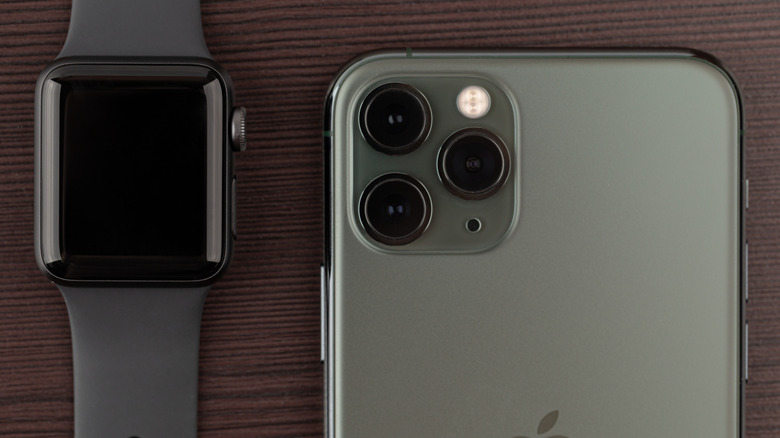
There are many reasons you might want to unpair an Apple Watch. It could be because you have upgraded to a new model. Maybe you are handing it over to a friend or family member or planning to sell it used. Whatever the reason, unpairing your Apple Watch will also erase its data and restore its factory settings, so it's important not to go through this process unless you know your Apple Account password as well as the watch passcode. In fact, you'll need to know the password to complete the process anyway, so have it handy if you don't know it by heart.
When you have all your ducks in a row, it's time to proceed. This will also require the iPhone that you have paired with the Apple Watch. Using the iPhone and the Watch app, the unpairing process is quick and simple. From there, you can do what you like with the watch, as it has now basically been reset to be as it was when you first bought it, ready for the next person to enjoy.
How to unpair your Apple Watch
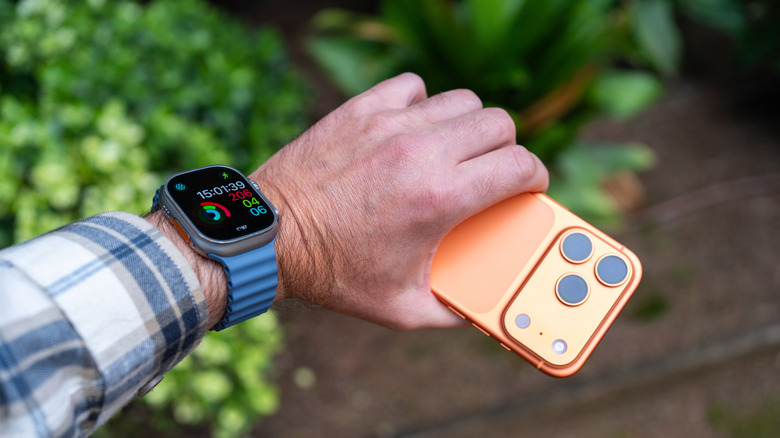
With the Apple Watch and paired iPhone close to one another (both with sufficient battery), open the Watch app on your iPhone. Navigate to the "My Watch" tab and select All Watches. Select the Info button (a small "i" symbol) next to your Apple Watch. You will see model details. Scroll down to Unpair Apple Watch and select it. Select Unpair [Apple Watch name] a second time. If you have a model with LTE and an active plan, you will be asked if you want to keep this cellular plan or remove it. If you plan to pair the watch again with the same plan, like if you're giving it to your teen, select the option to keep your plan. But if you won't be using it within the family anymore, remove it. Note that the plan will remain active until you contact your carrier to officially cancel it.
To complete the process and disable Activation Lock, a Find My feature that ensures someone can't use your Apple Watch if it's ever lost or stolen, you'll be asked to enter your Apple Account password. Once confirmed, select Unpair. From there, the watch has been cleared of all historical data and is like new again. Note that if you're setting up a new Apple Watch, you can choose Make This Your New Apple Watch during setup, which will deactivate the old one. It transfers your data to this new watch but it does not erase the old one, so, you'll still need to unpair it.
Unpairing without an iPhone (and other options)
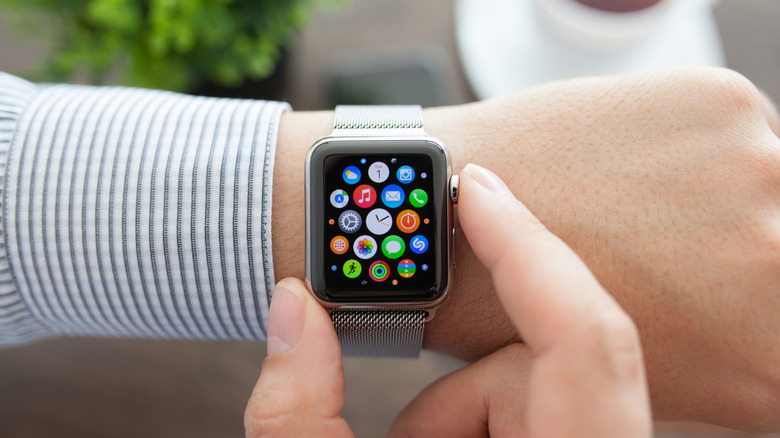
You can technically erase an Apple Watch without having your iPhone. Open Settings from the Apple Watch itself, select General, then Reset, and Erase All Content and Settings. Enter your passcode, choose to keep or remove a cellular plan if you have one, and select Erase All. But this does not remove Activation Lock, so if you plan to sell or hand down the Apple Watch, you will need your iPhone to complete the entire process so someone else can use it.
If you're keeping the device but having issues with your Apple Watch, don't unpair it. Instead, try restarting the Apple Watch, a different process that doesn't completely wipe it. Reasons to restart Apple Watch might include difficulty pairing, sluggish performance, or a frozen screen. Hold down the side button, select the power icon, and slide the power off toggle to the right — alternatively, go to Settings > General > Shut Down. Wait a few seconds, then long-press the side button to turn it on again.
If the screen is unresponsive, you can force restart by holding down the Digital Crown and side button together for about 10 seconds until you see the Apple logo. Unpairing is a more permanent solution and should only be used if you're no longer going to be using the Apple Watch, and especially if you're giving it away or selling it. If you're keeping it as a backup, you can re-pair it at any time.