

Nvidia Shield Owners Don't Recommend Changing This Setting
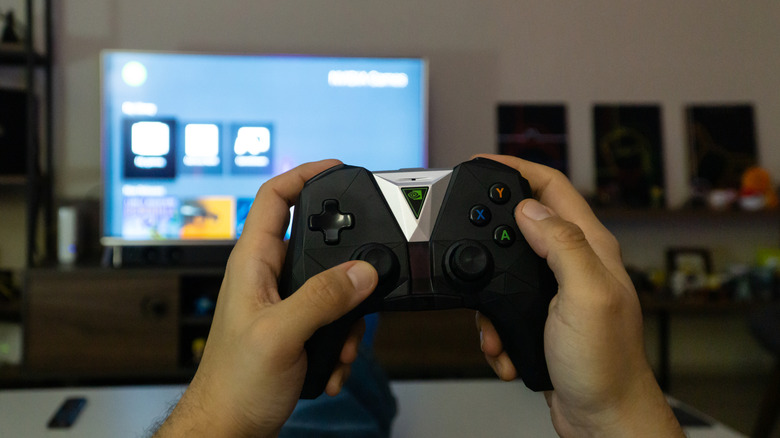
The Nvidia Shield TV is Consumer Reports' top-rated streaming device, but the platform is not perfect. Shield owners can run into several common problems, and some can only be fixed by installing a patch or changing a few settings. However, if you activate the "Developer options" menu, there's a setting you might be tempted to enable that could cause more problems than it solves.
Like with other Android-based devices, Nvidia Shield TV models have a hidden "Developer options" menu that can be enabled by navigating to Settings > Device preferences > About, then clicking the Build number entry seven times. This grants access to dozens of advanced settings for the device, including the ability to speed up animations for a snappier feel and use ADB for even more customizations. While many owners advocate for enabling Developer Mode when looking to get more out of the device, there's a setting that Shield TV users almost unilaterally recommend against changing, and that's the one labeled Don't keep activities.
Roughly three-quarters of the way down the Developer options menu under the "Apps" header, you'll find the Don't keep activities toggle disabled by default. A caption describes what will happen if you enable the setting — the system will "Destroy every activity as soon as the user leaves it." On Android, activities are primary functions within apps, including the main app window itself. So, while enabling this setting may preserve a bit of RAM, that comes at the cost of app functionality. This includes background apps no longer working, smart home commands failing to execute, and updates not being installed. As a result, users say the Shield TV actually runs worse with this setting enabled.
Better ways to speed up performance on your Nvidia Shield TV
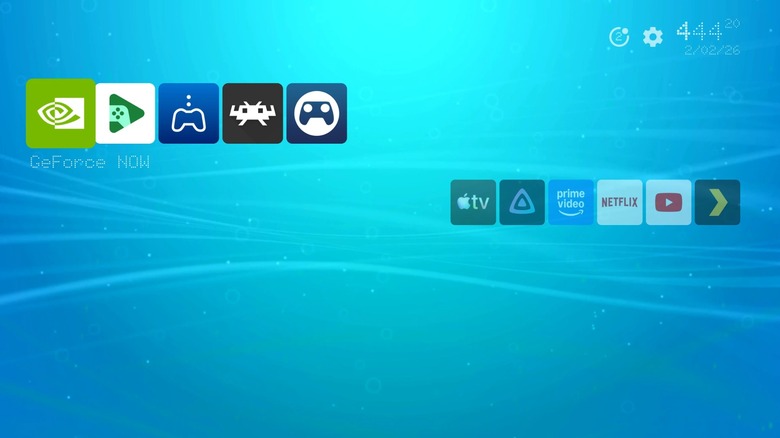
Chances are, if you've considered enabling the Don't keep activities toggle, your Shield TV hasn't been as snappy as you'd like it to be. Thankfully, there are other, less destructive ways to boost performance on Android TV devices. Bloatware is one of the leading causes of poor device performance, so you might want to consider removing some of the Android apps you can safely uninstall. Most apps can be uninstalled or disabled under Settings > Apps.
If you really want to speed up your Shield TV's performance, some people recommend installing home screen replacement apps like Wolf Launcher or Projectivy Launcher. These programs offer customizable entertainment hubs that cut down on bloatware, screen clutter, and ads. Not only can they free up processing power, but they let you get to the streaming apps you want faster. However, certain features (such as wallpaper customization) are locked behind paywalls, but they are hardly critical.
Installing a home screen replacement app is easy. Simply install the launcher you want from the Shield TV's built-in app store, then follow the on-screen instructions. You'll have to allow certain permissions and customize accessibility settings, but the launcher should walk you through that. However, if you want your Nvidia Shield TV to default to one of these launchers, you'll need to open the device's main Settings menu (first open any app and then close it to return to the standard launcher), then head to Device Preferences > Accessibility. Scroll down until you see your preferred launcher, then select it and toggle the Enable option to the "On" position. From there, hit OK on the message that pops up, then you will have replaced your Shield TV's launcher with a faster, sleeker third-party model.