

5 iOS Accessibility Features You Should Try (Even If You Don't Need Them)

The iPhone's accessibility features are for everyone, even if there isn't a permanent disability getting in the way of you comfortably using your device. They also help when you encounter a temporary injury or a situational barrier that prevents you from fully using your iPhone like you normally would. But even if it's not that serious and you just need to perform certain actions faster or experience your iPhone in a different way, the platform's accessibility features can accommodate your needs. You just need to know which ones to try.
For instance, you can customize the iPhone's Back Tap feature to perform actions that you find inconvenient with normal gestures or don't want to navigate several menu options to find what you want. If you want a snappier iPhone, you can disable animations. There's even a way for the iPhone to alert you when it hears a particular sound or play sounds that help you focus or relax. So, if you've already been exploring some of iOS's useful settings, do not skip over these accessibility features ... even if you think you don't need them.
Customize the back tap
Taking a screenshot on the iPhone can sometimes lead you to accidentally lock your iPhone. Some people also find it inconvenient to move their thumb all the way to the top of the iPhone to open the Control Center or Notification Center. But with Back Tap, any of those actions can be done by tapping the back of your phone two or three times. Back Tap was introduced as an accessibility feature to help people with motor challenges perform actions on their iPhone, eliminating the need to reach for a distant button or part of the screen to perform a gesture. For someone who doesn't have any physical limitations, it's still a fast way to do all kinds of actions.
Here's how to customize the iPhone's Back Tap feature:
-
Open the Settings app.
-
Tap Accessibility.
-
Tap Touch.
-
Tap Double Tap or Triple Tap.
-
Select the action you want it to perform.
One thing to note is that Back Tap can be inconsistent sometimes. For it to work smoothly, ensure your taps have enough pressure and that they aren't too slow. Also, the double tap can be too sensitive, triggering false activations when doing something as simple as putting your phone down, for example. If that happens to you frequently, try mapping that action to the triple tap instead and disabling the double back tap.
Use AssistiveTouch
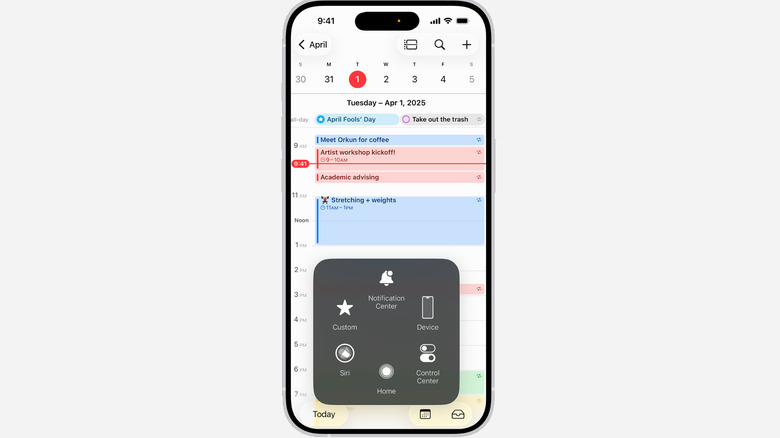
With AssistiveTouch, you can add a button to your iPhone's Home screen that opens a menu containing various actions that you can trigger with a single button tap. It's overlaid on top of everything else on your phone, even the lock screen, so you can always access it. Many people use this feature to bring back some of the functionality of the Home button, which Apple retired several years ago. But once you explore this feature, you'll find that you can even perform complex gestures with a single tap, which can be very convenient. Here's how to enable AssistiveTouch:
-
Open Settings.
-
Tap Accessibility.
-
Tap Touch.
-
Tap AssistiveTouch.
-
Toggle on AssistiveTouch.
At this point, the AssistiveTouch button will appear on screen. When you tap it, you will see a menu containing several icons, such as Screenshot, Control Center, and Device, all of which are actions. You can also further customize this menu. To do that, go to the AssistiveTouch screen and then:
-
Tap Customize Top Level Menu.
-
Tap the plus icon to add more icons (there can be a maximum of eight icons).
-
Tap an icon to see the available actions.
-
Select one of the options to assign it to the icon.
Maybe you don't want the AssistiveTouch button to bring out the menu but instantly perform an action instead. If that's the case, you can tweak what a single tap of the AssistiveTouch button does. Back on the AssistiveTouch screen, do the following:
-
Tap Single-Tap
-
Choose an action.
-
Repeat those actions for the Double-Tap and Long Press as well.
Enable Reduce Motion
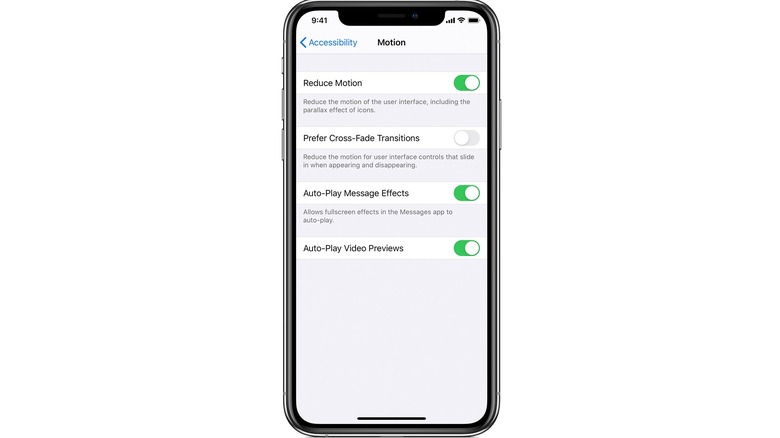
Not everyone reacts to motion the same way. For instance, some people are prone to motion sickness when in a moving car. Looking at a phone during a car ride can make it worse, but enabling Vehicle Motion Cues can help. Even so, some people can even feel motion sickness from the zoom and slide animations when opening apps or the parallax effects of the background. That's why Apple includes a toggle in the Accessibility settings that reduces the intensity of these motions so people who are sensitive to motion can use their phone comfortably.
When toggled on, Reduce Motion replaces these effects with something much simpler. For instance, instead of zooming in and out, apps fade in and out when you open and close them. The same thing happens when you open the App Switcher (there are no sliding animations). So even if the iPhone's slide and zoom animations don't make you sick, it can make the phone feel snappier since you aren't looking at laggy animations. It can also be easier on the eyes.
Here's how to enable Reduce Motion on your iPhone.
-
Open the Settings app.
-
Tap Accessibility.
-
Tap Motion.
-
Toggle on Reduce Motion.
Enable Sound Recognition
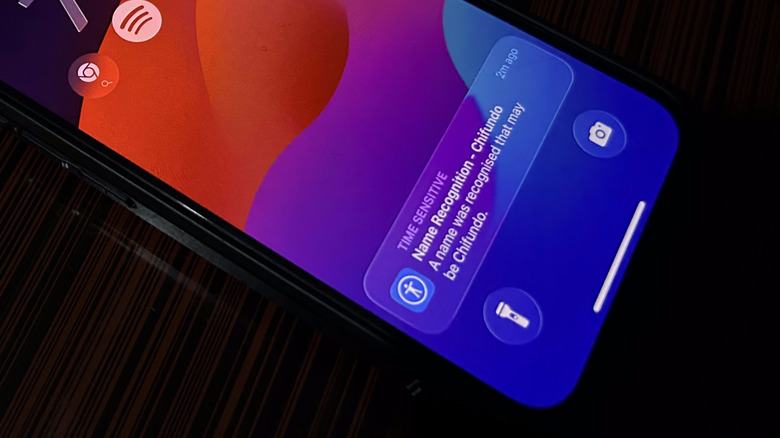
You can set up your iPhone to alert you when it hears sounds you want it to listen for. It's meant for those who are hard of hearing, but it can serve you well if you're hyperfocused on a task or wearing headphones that might cause you to miss important environmental sound cues. There are plenty of sounds you can set up your iPhone to continuously listen for, including a doorbell, door knock, siren, dog barking, or baby crying. To enable Sound Recognition on iPhone, do the following:
-
Open the Settings app.
-
Tap Accessibility.
-
Tap Sound & Name Recognition.
-
Tap Sound Recognition.
-
Toggle on Sound Recognition.
-
Tap the sound you want to select.
-
Turn on its toggle.
The iPhone will now download the available sounds on the device. It's important to remember that this is not a feature that you should rely on in an emergency situation. But during a non-critical situation, it doesn't hurt to have an extra pair of ears. You can also set it so that Sound Recognition alerts you when your name is being called. From the Sound & Name Recognition screen, do the following:
-
Tap Name Recognition.
-
Toggle on Name Recognition.
-
Tap Set Up Name Recognition.
-
Follow the instructions to train the iPhone to recognize your name.
Turn on Background Sounds
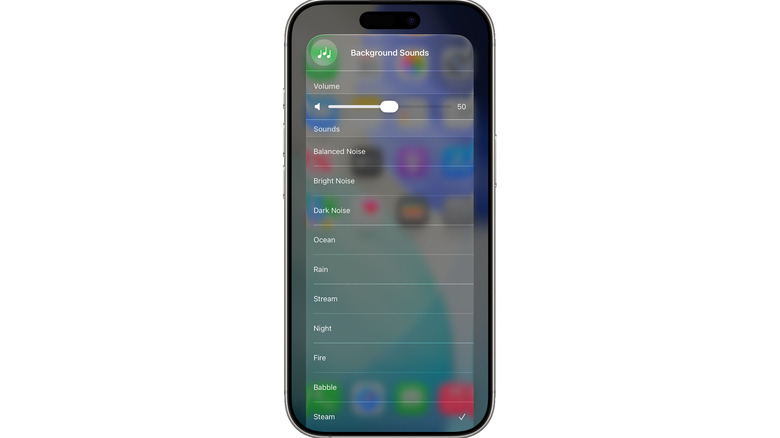
Having a soft and continuous sound in the background can help with focus. It often offers enough of a focal point to distract you from sudden noises that can break your concentration. Your iPhone also has the ability to counteract these aural distractions by playing ambient sounds. These are the types of background noises we hear all around us depending on the environment. They can be wind blowing, rainfall, birds chirping, or ocean waves. They can help you focus because your brain gets attuned to them, blocking out everything else.
The iPhone's Background Sounds feature might even help with sleep. For some people, silence can be uncomfortable for various reasons, including triggering anxiety and overthinking. Ambient noises from your iPhone can offer a distraction from what can be a deafening quiet so that you can peacefully transition into a sleeping state. To enable Background Sounds on iPhone, do the following:
-
Open Settings.
-
Tap Accessibility.
-
Tap Audio & Visual.
-
Tap Background Sounds.
-
Toggle on Background Sounds.
-
Tap Sounds.
-
Choose one of the available sounds, such as Rain, Stream, Aeroplane, or Fire.
If you're using the Background Sounds to aid with sleep, you can set a timer for them to stop at a specific time since playing them all night can drain your phone's battery. From the Background Sounds screen. Here's how to do it:
-
Tap Stop Sounds with a Timer.
-
Toggle on Timer.
-
Tap At a specific time or After an amount of time.
-
Set the Stop at or Stop after time.