

This Hidden Feature Lets You Sign Documents On Your Mac

macOS is chock-full of helpful and exciting features, from hidden settings to boost your productivity to tweaks that will make your MacBook perform better. However, the sheer number of features can sometimes result in some getting more visibility than others. One such less visible feature is macOS's built-in ability to sign your documents. Instead of hunting for third-party apps or using random online PDF tools that can't always be trusted, you can simply use the Preview app on your Mac to sign a PDF.
Preview is a pretty handy image and PDF viewer that has been part of macOS since day one and is pretty feature-rich. Besides allowing you to view your images or open PDF files, it has a few powerful functions for which people often look for third-party utilities, such as the ability to remove the background from an image, encrypt a PDF, and extract single pages out of multi-page documents. Of course, as mentioned, you can also use it to sign a PDF document. Notably, you can also use Preview to sign documents on your iPhone or iPad.
How to sign a document using Preview on Mac
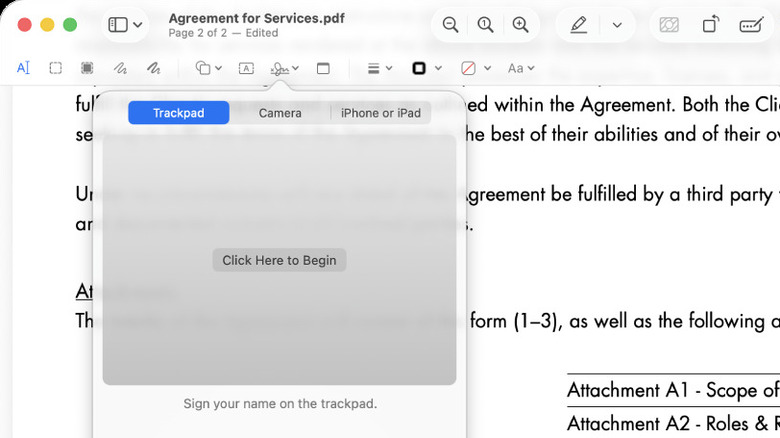
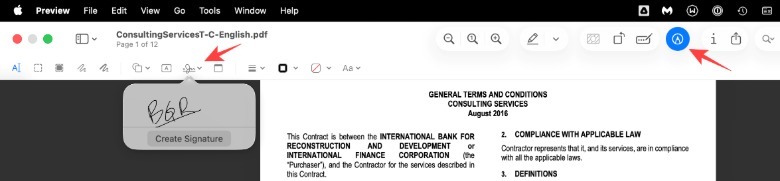
When you want to sign a PDF file, open it in the Preview app on your Mac. Once the file is open, make the Markup toolbar visible if it isn't already. You can click on an icon showing a pen in a circle to unhide it. You will then notice a small icon featuring a signature in the toolbar; this is the option you'll use to create and add a signature to your PDF document. When you click on it, Preview will show any already available signatures or give you the option to create a new one.
 Gaurav Shukla/BGR
There are three primary ways to create a new signature in Preview. You can either use your MacBook's trackpad to draw a signature or use your iPhone to draw one. You can also sign on a white sheet of paper and present it in front of your Mac's camera. Choose the option you want to use and capture your signature. Once you have successfully captured your signature, click on Done, and it'll appear in the list. Then, you can simply click on it, and it will appear as an object on the document page currently open on the screen. You can use the trackpad or mouse to drag it to the position you want and resize it as needed using the handles. Save your file, and it's ready for whatever you want to do next.
You can also delete any signatures that you have added to Preview by simply opening the Sign option again and using the cross button next to the signature.