

5 Xbox Series X Features You'll Need To Manually Enable
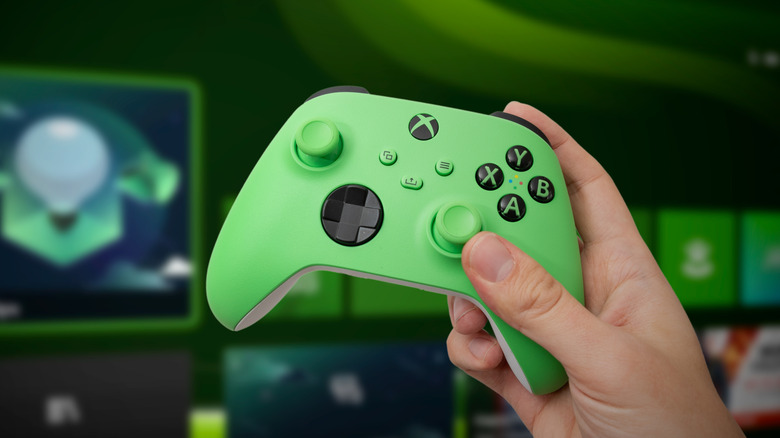
The Xbox Series X is an excellent console with a ton of fancy features to set it apart from the PlayStation 5 and Nintendo Switch 2. Microsoft's flagship gaming machine can run all the latest titles without many trade-offs, and services like Xbox Game Pass make sure you'll never run out of new games to play. There's also the less expensive Xbox Series S, which has all the same features as the Series X, just with less horsepower and weaker graphical performance.
Most of this console's exclusive features, like Quick Resume and backward compatibility, are well-known and enabled by default, but there are a few cool things that you'll need to turn on in the settings menu yourself. Some of these features are nice to have, like Auto HDR, but others like FPS Boost can seriously improve your gaming experience, especially with older titles.
1. Calibrate HDR settings and enable Auto HDR

The Xbox Series X supports HDR for movies and games, but you'll need to manually calibrate the console's HDR settings to match your display's capabilities. Otherwise, you might end up with clipped highlights, crushed blacks, or a washed out image.
To calibrate HDR settings on an Xbox Series X, go to the system settings menu. Then, navigate to Settings > General > TV & Display Options. There, you'll find the option to calibrate HDR. Each screen will show you a pattern with a brightness slider. Follow the instructions, and HDR will look punchier and more vibrant than before.
There's also Auto HDR, a special Xbox Series X feature that upgrades older games with HDR functionality. It's not a universal toggle, but a wide range of games support it. Auto HDR is enabled by default on a lot of those games, but you may need to manually enable it for certain titles. Just find the game in My Games & Apps, press the menu button, and choose Manage Game and Add-Ons. There, you'll see the toggle for Auto HDR.
2. Log in with your favorite controller
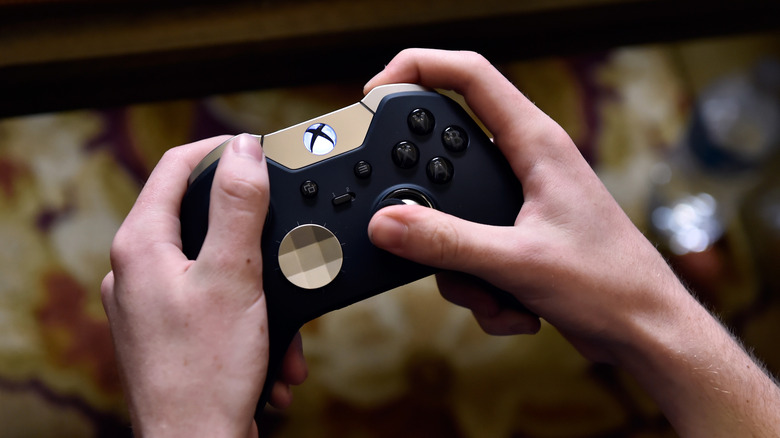
If you're sharing your Xbox with family members or roommates, you can automate the login process by linking your account to your favorite Xbox controller. By doing so, you can bypass the login screen entirely. As long as everyone has their own dedicated controllers, it'll make it even easier to jump in and start playing.
To set up controller-based logins on your Xbox Series X, press the Xbox button to open the guide. Then, navigate to Profile & System > Settings > Account > Sign In, Security, & Pin. There, you'll see an option to use your controller to sign in. It'll link the controller you're currently using, so make sure you've got the right one.
Once this is enabled, your Xbox Series X will automatically detect which accounts are linked to each controller when powered on. It'll sign you in as soon as your controller connects.
3. Set up remote play
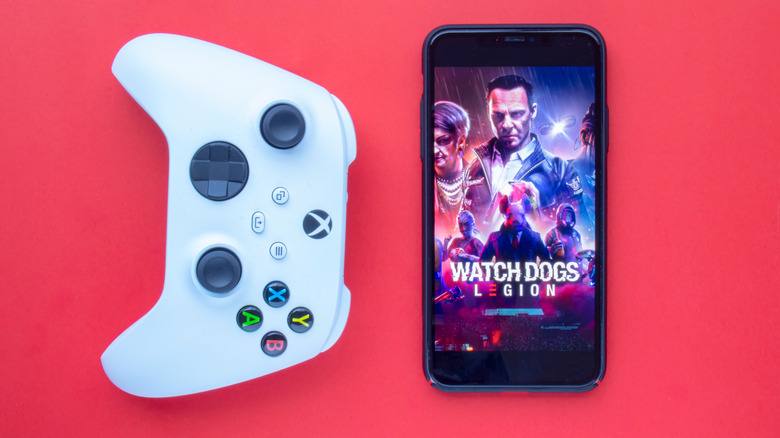
While it may not be as well-advertised as PlayStation's remote play, the Xbox Series X lets you stream your games to other devices as well. Xbox's remote play supports a much wider range of devices too, including smart TVs and Meta Quest headsets. You can essentially take your games anywhere.
To set up remote play on Xbox Series X, press the Xbox button on your controller to open the guide. Then, navigate to Profile & System, Settings, Device & Connections > Remote Play. Make sure the "Enable Remote Features" box is checked. Then, select "Sleep" under Power Options to make sure your console doesn't fully power down.
To stream your games, either download the Xbox app on a Windows device or smart TV or visit xbox.com/remoteplay on a mobile device. Once you log in, just select the console you want to connect to. You'll then be able to access your home Xbox and all your installed games from any device.
4. Play older games with FPS boost

Just like the fancy Auto HDR feature, your Xbox Series X can also improve older games with its FPS Boost feature. This can double the framerate of older original Xbox games, and even Xbox 360 games, to 60 fps. Some games even support 120 fps output as long as your TV is capable of displaying 120hz.
FPS Boost is enabled by default for some games, but quite a few games in the FPS Boost catalog must be manually enabled. Just find the game in My Games & Apps, then press the menu button and select Manage Game and Add-Ons. From there, select Compatibility Options. If the game supports FPS Boost, you'll see a checkbox that'll turn it on.
Enabling FPS Boost can lower the resolution of some games pretty significantly, which is why Microsoft has chosen to leave the feature disabled by default in some cases. You can always turn FPS Boost back off if you don't like the result.
5. Control your console with digital assistants
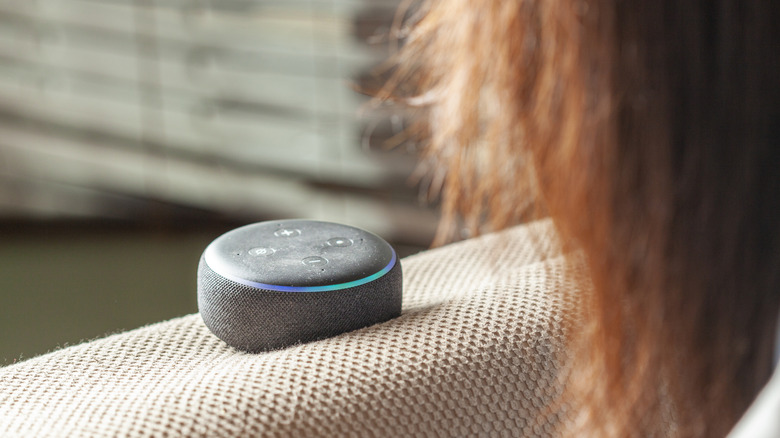
The Kinect may not be a core part of Xbox's strategy anymore, but voice commands are actually still supported on Xbox Series X. Instead of a Kinect, you can use popular digital assistants like Alexa and Google Assistant with devices like the Amazon Echo or Google Home.
To set up digital assistants on Xbox Series X, press the Xbox button on your controller to open the guide menu. Then, navigate to Profile & System > Settings > Devices & Connections > Digital Assistants. Use the checkbox to enable digital assistants on that page. You'll also need to set your Xbox's power options to Sleep (Profile & System > Settings > General > Power Options).
Next, you'll need to add your Xbox to your digital assistant's list of devices. This can be done in either the Alexa app or Google Home app depending on which devices you own. Once connected, you can control your Xbox's volume, game launches, screenshots, and more with voice commands.