

4 Ways To Use Google Nest While You're Away From Home
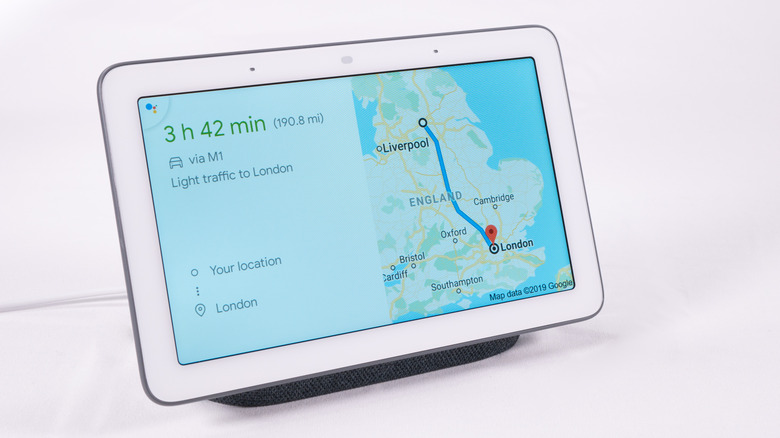
Smart homes are becoming more and more common these days, and Google Nest is one of the leading smart home hubs on the market right now. While it's nice to use your Google Nest at home to control lights or play music, you can actually get a lot of use out of your Google Nest while you're away from home as well.
Since Google Nest lets you control everything from a mobile device, you're always in control of your smart home features — no matter where you are. You can adjust your thermostat while you're away to save on your utilities bill, for example. You can also view camera feeds to check up on family members and pets while on the go.
Google Nest also has some lesser-known features, like the ability to lock or unlock doors remotely to keep your home safe or let visitors in if you're running late. You can even chat with delivery drivers to make sure they leave your packages in the right spot. These are some of the best ways to use Google Nest while you're out of the house.
1. How to set up Home/Away Assist
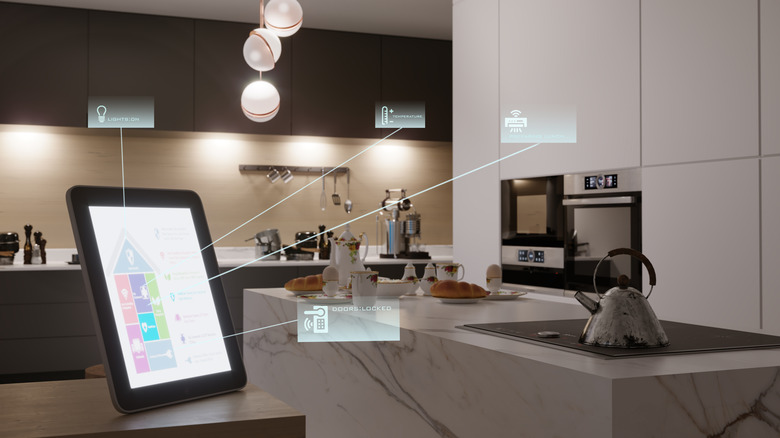
To make the most of Google Nest while you're away from home, you first need to set up Home/Away Assist. This feature automatically detects when you're home and when you leave, adjusting your smart home devices accordingly.
You can manage Home/Away Assist settings in the Nest app or Google Home app. In the Google Home app, tap either Home or Away in the search bar in the top left to manually choose your mode. In the Nest app, just tap Home, and then select Home or Away. The app's settings will help you configure everything to your liking.
To automate Home/Away Assist, open the Nest app and navigate to the settings menu. Then, tap Home/Away Assist. The app can either use your phone's location to tell when you've left the house, or it can monitor the activity sensors in certain Nest products. If things aren't working correctly, check the Activity History section of the app to see what your Nest products are detecting.
2. Monitor your cameras remotely
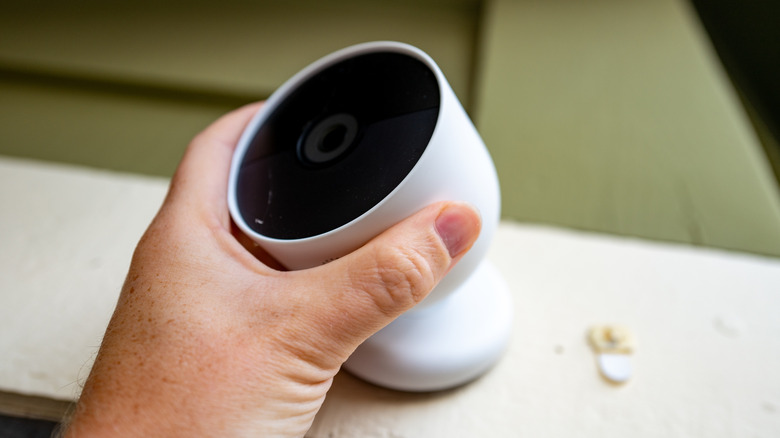
Google Nest supports both indoor and outdoor cameras, and the newer camera generations include fancy features like 2K resolution and support for Google's Gemini AI. All of this can be managed from the Google Home app with notifications pushed directly to your phone for important events.
Once your camera is set up, you can view the live Google Nest camera feed from the Google Home app. The latest Nest Cameras have a wide field of view to capture large rooms, and they have built-in intelligence alerts when people or vehicles are spotted. If you're using a camera outdoors, it can even detect animals in your garden.
Some Nest Camera features require a Google Home Premium subscription, however. You'll be able to view live feeds and event video previews for free, but a subscription is required for continuous video history and full event recordings. Even then, those event recordings are only saved for 60 days, while the 24/7 video history is only viewable for up to 10 days.
3. Adjust your thermostat on the go
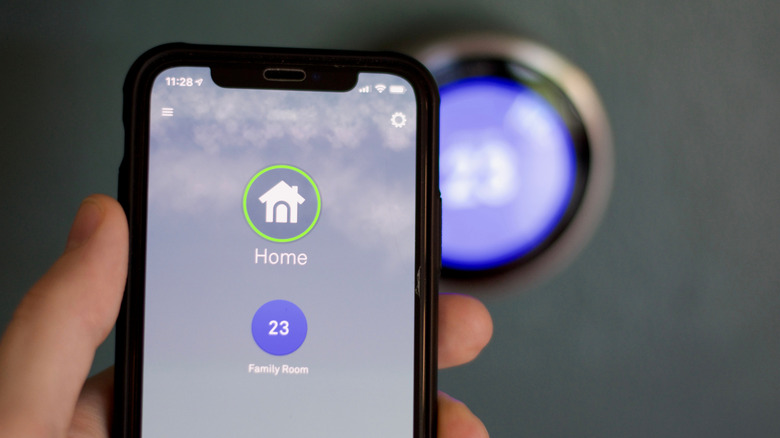
The Nest Thermostat is one of the earliest Google Nest products, and they've only gotten more and more features over the years. You can control your home's temperature from your mobile device, and the more advanced Google Nest models have learning features that can adjust the temperature on the fly based on external factors like humidity and outdoor weather.
Once you've set up a Nest Thermostat in your house, you can control the temperature manually from the Google Home app. Just open the app, tap Favorites or Devices, then select Climate. You'll see your thermostat listed there. On this menu, you can set the Nest Thermostat to heat or cool mode and adjust the temperature by tapping the plus and minus icons.
In the Climate settings on the Google Home app, you can also set up schedules so your thermostat can change the temperature for different scenarios, like being away from home or surviving the summer heat. Nest Thermostats also work with smart humidifiers, and you can find the humidifier settings in the Climate section of the app as well.
4. Lock or unlock your doors with your phone
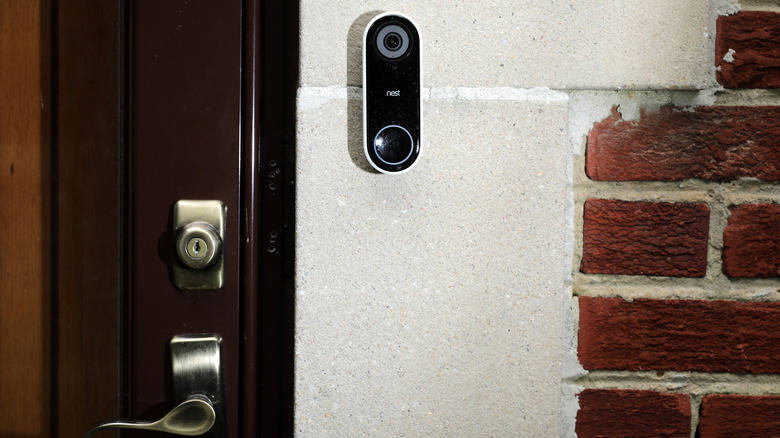
Security is one of the biggest reasons people start investing in smart home technology, and Google Nest takes its safety features one step beyond cameras. You can remotely control locks from your phone with Google Nest, letting nearby family in or locking intruders out with a few taps.
You can also automate your front door's security in the Google Home app. If you're expecting someone like a plumber or electrician, you can schedule guest access so they can get inside. The door will be unlocked during the specified window, then it'll automatically lock afterward.
You can also create custom passcodes for friends, family, and trusted guests. Assigning names to each code will let you see exactly who is coming and going in real time. You can manage access from the household menu in the app, including temporary guests who need to get into your home for whatever reason.
5. Check on packages and deliveries
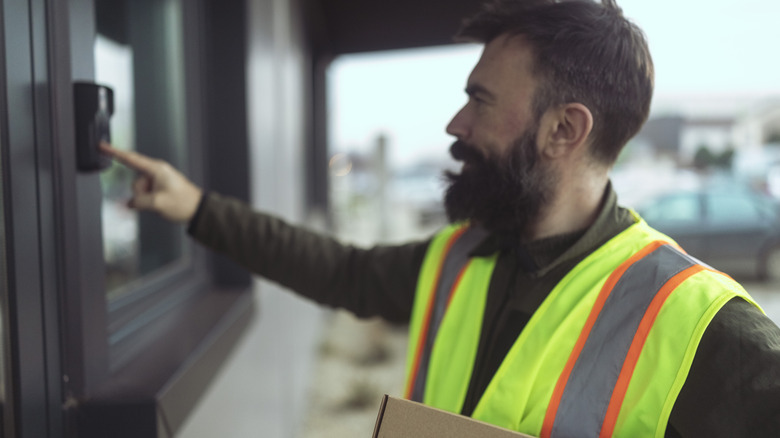
With a Google Nest Doorbell, you can keep track of all your incoming packages and deliveries to ensure they arrive safe and sound. You can customize your doorbell's alerts to show you packages and delivery drivers, and you can also set specific activity zones so you don't get notified about random people or cars passing by.
When you get a delivery notification, you can open the Google Home app to talk to them from your phone. Just open the Google Home app, tap Home, and then select All Devices. Tap your camera, then tap the microphone and turn it on. The doorbell will play a chime to let the person know you've connected. You can also speak to them from a Google Nest Hub if you're home as well.
Nest Doorbells also save video footage, just like Nest Cameras, so you can see exactly where your delivery driver left your package — or if an opportunistic thief made a move on your porch. You'll need a Google Home Premium subscription to get full video recordings and 24/7 video history, however. Otherwise, you'll be stuck with 10-second previews of recorded events.