

What Does 'Crossfade' Mean On Apple Music?

Listening to music can be an inherently personal experience, especially if you have a long list of favorite artists and albums. One of the best ways to indulge in a massive library of streamable, high-quality tracks is with an Apple Music subscription. No worries if you're not an iPhone or MacBook person, Apple Music is a great platform that plenty of Android devotees can get behind. The app offers an intuitive interface for building playlists, sharing songs, and adjusting playback settings. Regarding the latter, Apple Music even lets you customize transitions between songs with a feature called Crossfade.
When enabled, Crossfade gradually fades out toward the end of a song and fades in to the next track in your queue. Crossfade is available for both the iOS and Android versions of the Apple Music app, and turning it on is pretty simple. For iPhone users, open Settings, then tap Apps > Music > Song Transitions > Crossfade. For the Android crowd, you'll first need to launch Apple Music, then tap the three vertical dots icon > Settings > Audio > Crossfade.
Should you want longer or shorter song transitions, you can use the in-app slider for more or less segue time. There's one other type of Apple Music transition that's actually enabled by default for iOS 26 users: AutoMix. It's a feature worth delving into, but this one is locked to iOS devices because it uses Apple Intelligence to emulate a live DJ.
Crossfade and AutoMix are great for long listening sessions, but the latter is exclusive to Apple devices
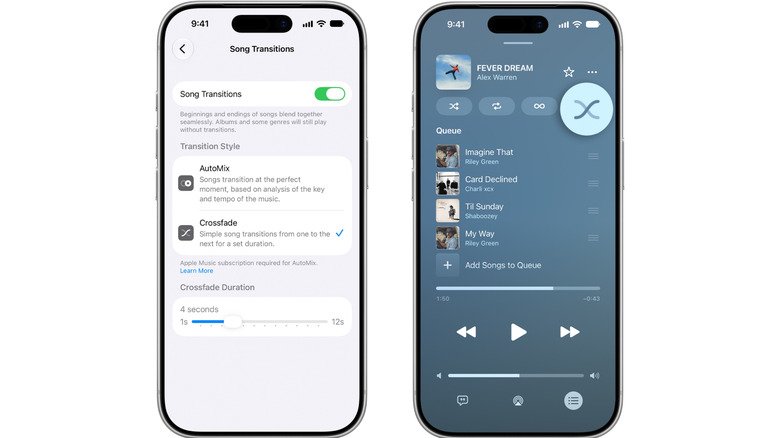
Apple's iOS 26 proved to be one of the most significant software updates that the iPhone had ever received. In addition to the new Liquid Glass UI overhaul, the update introduced the AutoMix feature. Cut from the same cloth as Crossfade, AutoMix is an iOS-exclusive transition that seamlessly jumps from one track to the next. AutoMix likes to keep your toes tapping, and often does so by removing silent passages and longer fade-out/fade-in segues. The feature isn't available for all albums and genres, but it's a lot of fun to use.
If you want to turn off AutoMix on an iPhone, simply launch Apple Music, then tap the MiniPlayer, followed by the Up Next button. Tap AutoMix to turn it off (or back on again). If you'd prefer to use Crossfade, tap the icon that looks like an X (that's the Crossfade button). You can also opt not to have any transitions between songs, which may be preferred by those who don't want tracks to be altered.
It's also worth mentioning that Spotify supports the same kind of music transitions; the features even have the same names as they do in Apple Music, albeit with a lowercase "m" in Automix (Apple had to be all Apple-ey about AutoMix's capitalization).