

Protect Your Privacy On Discord By Changing These Settings

With age verification rolling out to a host of online platforms, including Discord — it might even restrict your account if you don't comply — now's a good time to consider some of the data privacy options you have available to protect your account and your information. Lots of people use Discord as an open chat platform, not just while they game, but to stay in touch with friends and communities they frequent. That also means a lot of personal and sensitive data is tied to those communications and your use of the platform. Of course, there are a few other aspects to consider, as well, such as information visible on your profile, who can private message you or send friend requests, and what apps you've authorized to access your account.
Every once in a while, it's a good idea to take a beat, review your data and privacy settings, and change anything that might give you pause. It's actually fairly easy to do that on Discord, and you can do it from the desktop app, the web or browser version, and the mobile app. Open whichever version of Discord you prefer and find the settings icon — a cog. Navigate to Data & Privacy in the left-hand menu. Here, you'll find a wide variety of data settings to adjust, lock down, or interact with.
If you scroll all the way down to 'Profile Privacy ', you can restrict what others see when they look at your username in a server or your direct profile. You can also adjust what activity others see, either overall or per server. You can even stop servers and other users from seeing when you come online.
What Discord privacy settings should I review?
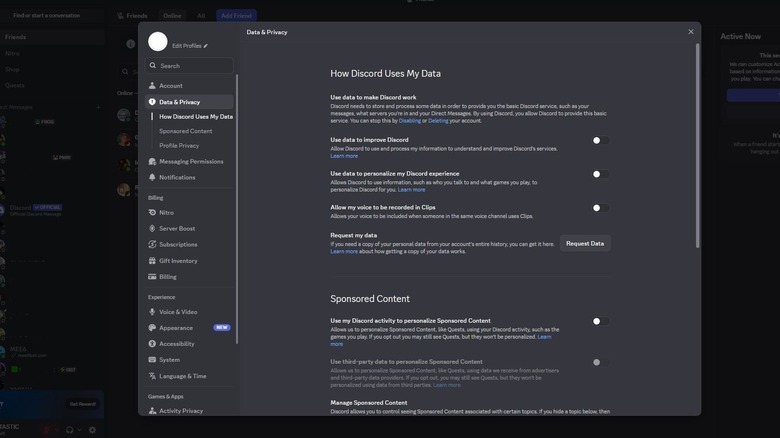
To adjust how Discord uses your account data, go back to the Data & Privacy settings menu. Under the section 'How Discord Uses My Data,' review the settings and disable any toggles you don't want active; disabling all of them isn't a bad idea. You can stop the platform from using your data for analytics, personalizing your experience and marketing, and recording your voice in clips. Disabling some settings may change your interactions and experiences on Discord, especially when it comes to content specific to your interests.
You can also disable the toggles under the 'Sponsored Content' section to prevent personalized marketing content and the use of third-party data. If you turn them off, you'll still get Discord Quests so that you can participate, but they won't be specific to you. Granted, none of these toggles or settings stop Discord from collecting your data. They merely change what the platform does with it. Understandably, some folks don't like how data-collection-heavy the platform is. Its eye-opening privacy policy is one of a handful of reasons why users ditch Discord for alternatives.
We're not done yet. Under 'Messaging Permissions,' you can adjust spam filters, disable friend request permissions you'll likely want to turn those off from "everyone," and adjust in-game messages. At the top, you'll see 'Content Filters,' where you can adjust whether graphic or mature media is allowed; you might want to change that. You can block graphic content from being sent in direct messages and from showing up in servers you've joined. The blur option lets you choose whether you want to see it, giving you a buffer to decide, while block stops it from showing up at all.
Authorized apps, payment methods, and disabling your account
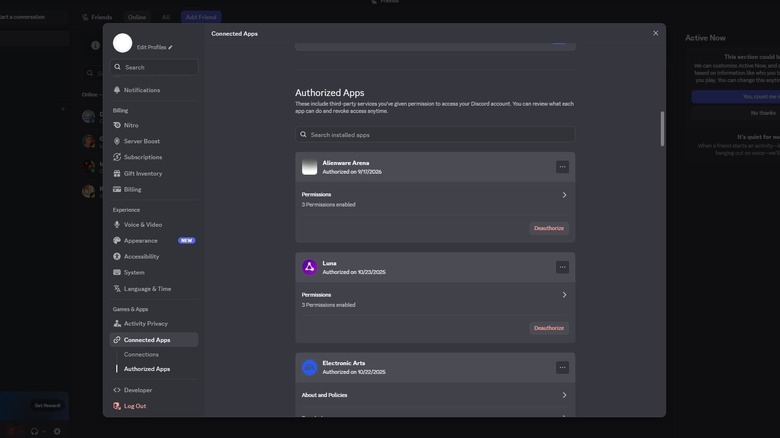
Other settings to check include authorized apps that can access your account and data. You may have authorized an app or two in the past and then forgotten about it. Removing permissions, especially for apps you no longer use, helps improve security. You can adjust those under Connected Apps > Authorized Apps. Scroll through the list, click the red Deauthorize button for any you want to remove, then confirm.
Additionally, if you have any payment methods connected to your account, old or new, you can remove those under Billing > Payment Methods. Removing expired cards or accounts you no longer use is a solid start. It's inconvenient, but you can also remove your primary payment method to keep it extra safe and enter it only when you need to make a purchase or renew your subscription (if you have Nitro).
If you want to stop using Discord, you can either delete your account entirely or temporarily disable it if you know you're coming back or might want to—Discord just got a huge glow-up with new features and is likely to get more in the future. You can find both options under Account in the settings menu. To delete your account, click the big red button; to disable it temporarily, click the transparent button right above it.