

Can You Mix And Match HDMI And DisplayPort Monitors?
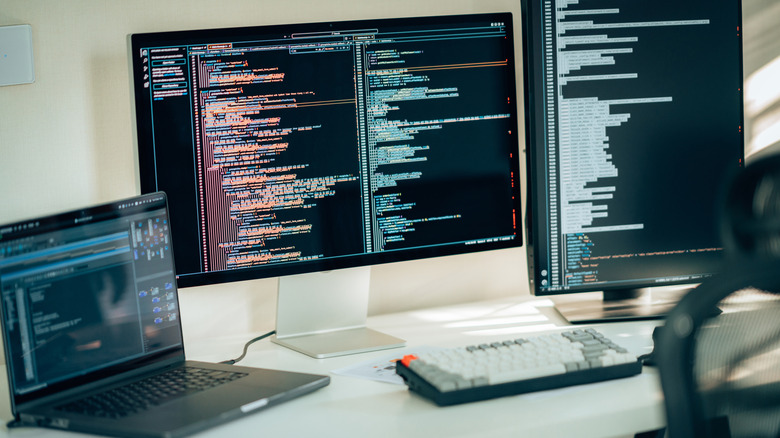
Yes, as long as your motherboard or graphics card has both HDMI (High-Definition Multimedia Interface) and DisplayPort (DP) connections, you can mix and match monitor types. This is true regardless of your operating system; Windows, macOS, and Linux all support combined display types. HDMI and DisplayPort are simply two different technologies for transmitting audio and video signals between your GPU and monitor, and using one doesn't prevent your computer from using the other. DisplayPort is typically associated with higher-end displays, whereas HDMI is a great affordable option that is still capable of solid visual fidelity and fairly high refresh rate support.
Even if you only have one port type or the other, you can always pick up an HDMI to DP adapter or vice versa — though this method comes with some technical disadvantages that we'll touch on more later. It's also important to note that, while most modern options will, not all computers support multi-display setups; before you go out and purchase more monitors, check your device's manual for multiple display support.
It's not at all uncommon to see PC setups with both monitor types; most modern graphics cards provide multiple ports, often including both HDMI and DisplayPort, specifically so you can connect more than one display. Each connection carries its own video signal, and setting them up is a cinch if you have the proper ports.
How to set up mix and match monitors
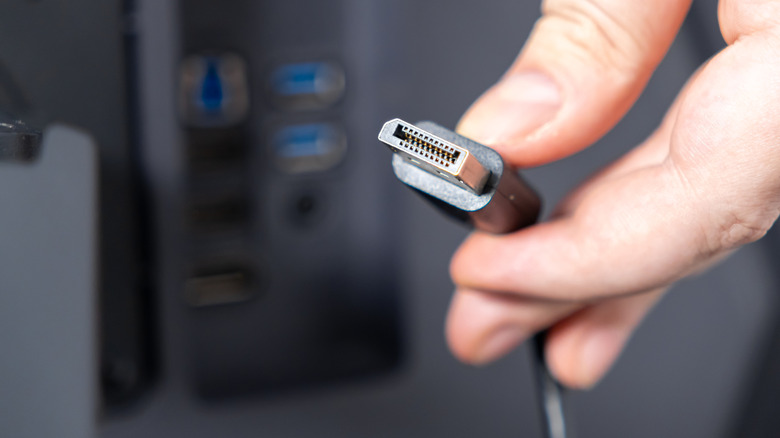
First things first, identify whether you're connecting your displays to your motherboard or graphics card. If you have integrated graphics — which is common in gaming laptops and entry-level desktop PCs — you'll be connecting your displays to the motherboard. In this case, look on the sides and back of your laptop for the HDMI and DP ports. If you're using a tower PC with integrated graphics, check the back and top sides of the case for the ports you need.
For those using an external graphics card — like an AMD Radeon RX 7600 XT (which, by the way, is more powerful than the GPU in the Steam Machine) — you'll be connecting your monitors directly to the ports on the graphics card. Double-check that your monitors are not connected to your motherboard if you're using an external graphics card, because then you're not utilizing the most expensive component in your setup. With the ports identified (HDMI has two angled sides, DP has one flat and one angled side), simply plug both the HDMI and DP monitors into adjacent slots on your motherboard or graphics card.
Once both monitors are connected, your operating system should recognize each of them as independent displays and allow you to edit various settings (in Windows, you'll find this under System > Display). If your computer doesn't recognize both displays, try connecting one at a time to verify that each works independently. If they do, double-check that your system supports more than one display at a time and you're connecting both monitors to the same place (motherboard or graphics card).
Pros and cons of mixed monitors
With a mixed monitor setup, you have a greater degree of versatility. If you're a gamer, graphic designer, video editor, or similar tech hobbyist, you can strategically build around it by spending a bit more on a quality main monitor (DisplayPort), then picking up an affordable HDMI display as your secondary screen for offhand activities like communication apps, music, and more. Plus, doing so can free up the limited video ports you may need for other devices (if your graphics card features two HDMI and two DisplayPort slots, using one of each keeps both options open).
As for cons, HDMI and DP have different levels of support for aspects like data bandwidth, refresh rates, and HDR capabilities. This means if you have two monitors at a 144Hz refresh rate each, one of them may be bottlenecked by an HDMI port that only supports 60Hz. The same is true of adapters; if you have to use an adapter to make the setup work, it can significantly dig into the display's performance. It can also quickly turn into a major troubleshooting headache between various cables, ports, monitors, and adapters.
But the cons shouldn't necessarily deter you. A mix-and-match monitor setup makes a lot of sense from both economic and strategic standpoints, and once you learn the essential tips and tricks for dual monitors, you'll be a regular power user. Plus, it's nice to know the option is there if it becomes a necessity.