

How To Get Siri AI After Updating To iOS 27
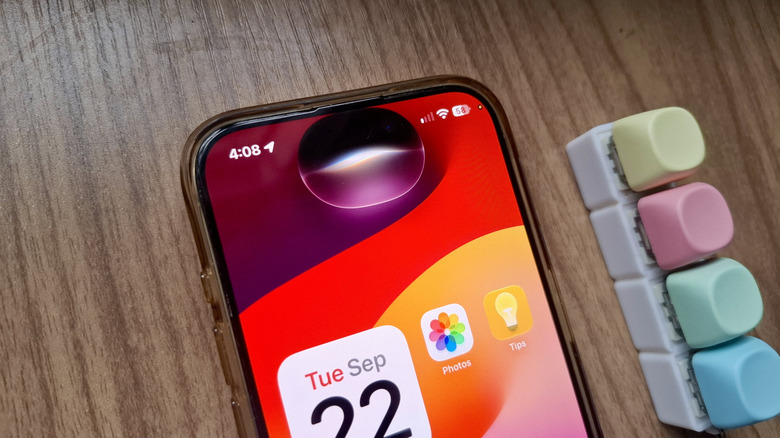
So, you've finally upgraded your iPhone to the latest software and are very eager to try the widely-talked-about Siri AI, one of the biggest highlights of iOS 27. Unfortunately, it's not that easy. When you long-press the power button to activate the voice assistant, the glassy pill-shaped bubble near the dynamic island won't pop up. Instead, you'll get the old colorful lights around the screen. That's because iOS 27 runs on the old Siri by default. Siri AI is still in the Beta phase, so it isn't automatically enabled on your iPhone even after upgrading to iOS 27. To access it, you need to manually turn it on from the Settings first.
Before you do so, though, it's important to note that there are a few requirements to get Siri AI. First is your device. Siri AI is exclusive to iPhones capable of running Apple Intelligence, which only includes models starting from the iPhone 15 Pro and Pro Max (not the base or Plus version). Next, you also need to be in a supported region. As of this writing, Siri AI has launched in most regions across the globe, except for the European Union and mainland China. Since Siri is only offered in English at the moment, your device language and Siri language are required to be in English too.
Before getting Siri AI, you also need to join the waitlist. You might not have immediate access to the feature, and the wait time can last between a few minutes to a couple of days, based on user reports. If you don't mind waiting and your iPhone meets all the requirements mentioned, here's a step-by-step guide on how to get Siri AI on your compatible iPhone.
How to turn on Siri AI
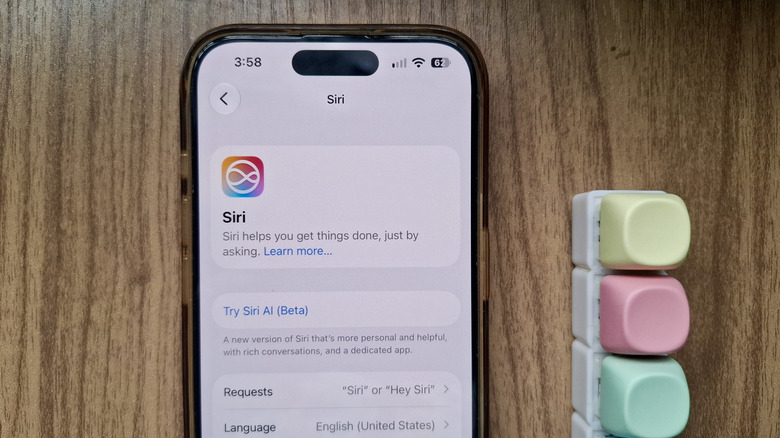
Before you can activate Siri AI on iOS 27, make sure your device language and Siri language are both in English. To check, follow these steps:
- Open Settings.
- Navigate to General > Language & Region.
- Under Preferred Languages, see if English is the first option on the list.
- If it isn't, select Add Language.
- Choose English (US).
- Tap on Use English (US) to set it as the primary device language.
- Go back to the main Settings page.
- Choose Siri.
- Tap Language.
- Verify that English (United States) is selected.
- If not, tap on English (United States) to set it as the Siri language.
From here, you're ready to turn on Siri AI. Follow these steps:
- Go to Settings.
- Select Siri.
- Tap on Try Siri AI (Beta). If you don't see this option at the top of the screen, then your phone likely doesn't support Siri AI.
- Hit Join Waitlist.
- Tap Continue.
- When prompted to share audio and text with Apple, select Not Now.
You should now see a "Joined Waiting List" label next to Siri AI (Beta). When it finally becomes available to your device, you'll receive a notification saying Siri AI is ready, and a "Siri is Ready" message will also appear at the very top of your Settings app.
If you want to customize how Siri AI sounds, head over to Siri in the Settings and open Voice. For the iPhone Air, iPhone 17 Pro and Pro Max, iPhone 18 Pro and Pro Max, and iPhone Duo, you have the option to set the pace and expressivity of Siri AI to your liking.
What you can do with Siri AI on your iPhone
Once your device gets Siri AI, you can start enjoying its upgraded capabilities. There are a couple of things you can use it for. For instance, you can ask Siri AI all sorts of questions like "Where are the best places to eat in London?" or "How is a meteor different from a meteorite?" It can also fulfill personal requests, such as "Give me the Gmail address of Lisa from finance," or "Find my photos of fireworks from last New Year."
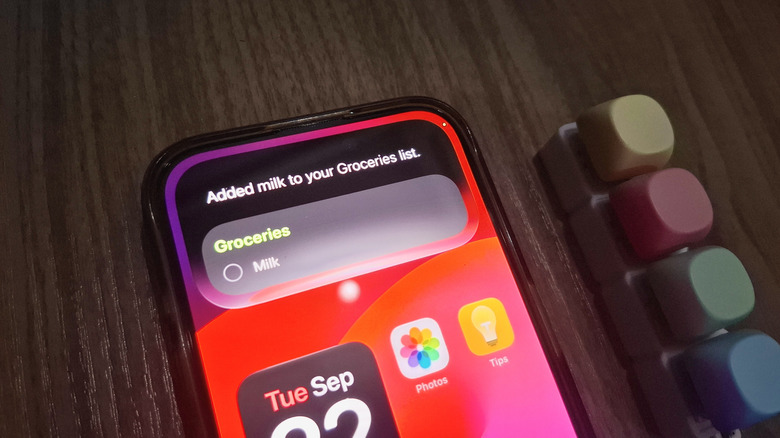
If you want, Siri AI can interact directly with certain apps too. You can ask it to send a text, list down grocery items in Reminders, or create new events in the Calendar. Conveniently, Siri AI is available inside the Camera app for real-world interaction. It works like Gemini Live's visual guidance feature, where you point your rear camera at what's in front of you and ask the voice assistant relevant questions. If you show Siri AI a receipt, you'll even get a suggestion to split the bill with Apple Cash.
Additionally, Siri AI is designed with on-screen awareness. That means it can use what's on your screen to handle the given task, including extracting the ingredients from an online recipe or saving a phone number from a text to your contacts. Just like any other AI-powered assistant, Siri AI can also be used for writing emails, summaries, and more.