

You're Wasting The Potential Of PlayStation 5 Headphones Without Trying This Feature
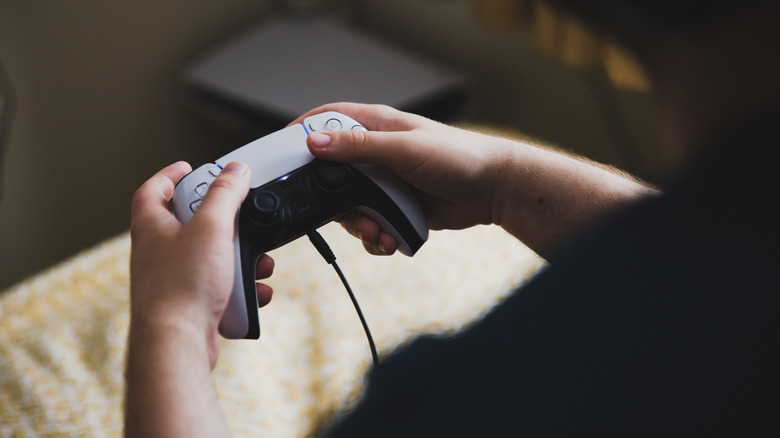
If you're like me, then you've been using stereo sound when you connect your headphones to your Sony PlayStation 5. This is something I started doing when I wanted better immersion when playing "Resident Evil 7." When 3D audio was introduced with the PS5, I didn't care about it because I remember thinking it was something that needed high-end headphones. After finding out that pretty much any headphones compatible with the PS5 can take advantage of it for even more immersion, I decided to try it with "Horizon Forbidden West," and it was a revelation. It's easy to enable 3D audio in settings and create a personalized profile based on your preferences. It won't work with every game, but a lot of major titles support it, especially Sony's first-party games.
Using 3D audio simulates the sensation of sound coming all around you, so if an enemy is moving to your right, only the right speaker will output the audio, giving you a hint of its direction. If a bomb goes off in the distance, the sound will be lower to emulate that distance. For these reasons, it's a no-brainer to use headsets with 3D audio when playing games like "The Last of Us: Part 1" and "Resident Evil Requiem," where 3D audio can enhance the immersion. While you don't need fancy equipment to enjoy the PS5's 3D audio, having a great pair of gaming headphones can make for a better experience.
How to enable 3D audio on your PS5
What's responsible for the PS5's 3D audio is the Tempest 3D AudioTech engine, which is Sony's specialized audio processing technology that leverages the power of the GPU. It's an object-based audio engine, meaning it treats each sound in the audio's final mix, such as footsteps, gunfire, and dialogue, as individual objects with properties like direction, motion, and distance. All this makes the final mix sound like it's happening in a 3D space. It's all a sonic trick based on advanced algorithms, but it's one way to get the best experience out of your PS5.
The fastest way to enable 3D audio is to use the presets. Here's how:
-
Go to Settings > Sound > 3D Audio (Headphones).
-
Toggle on Enable 3D Audio for Headphones.
-
Select Create Personalized 3D Audio Profile.
-
Press the Options button.
-
Select one of the available presets or heights depending on what sounds better to you.
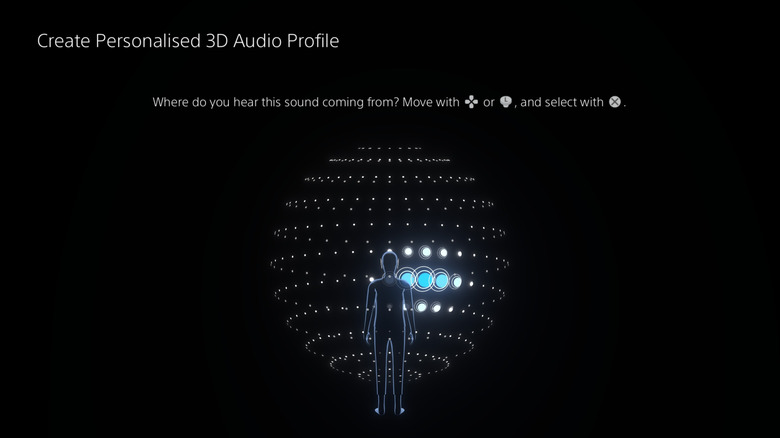
For a more personalized 3D audio experience, you should create your very own profile. This will be more tailor-made to how your brain experiences 3D audio. Here's how to do it:
-
Go to Settings > Sound > 3D Audio (Headphones).
-
Toggle on Enable 3D Audio for Headphones.
-
Select Create Personalized 3D Audio Profile.
-
Select Get Started.
-
Follow the instructions. You will go through a series of audio tests where you pick the direction and angle of where the sound is coming from.
-
Toggle on Apply Personalized 3D Audio Profile to use it.