

4 Ways To Get The Most Out Of Your PlayStation 5

Being a console gamer has its perks. You can sit back, relax on the couch after a long day of work or school, and enjoy some game time. Owning a Sony PlayStation 5 also means that you don't have to stress about security, keeping up with the times with proper hardware, or buying a lot of peripherals to enhance the experience.
When you set up your console, you have the full rig ready to go. Any owner then only needs to worry about maintaining the controller and keeping the firmware up to date.
While the default PS5 options do plenty already, you might still want to explore everything that your PS5 console can do. Plus, you might not even realize that you're not even close to pushing its limits, since there are still tweaks you can make to upgrade the visuals, responsiveness, and even preserve the battery on your controller.
Make full use of backward compatibility
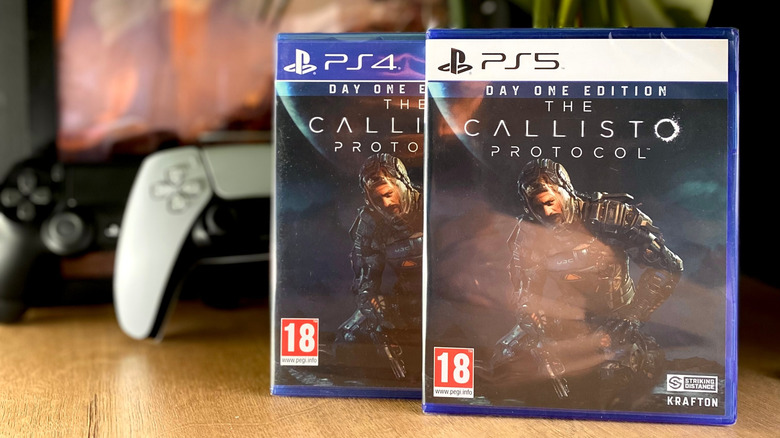
One cool feature that the PlayStation 5 possesses is backward compatibility with PlayStation 4 games. When setting up your PS5, you're prompted to transfer your PS4 data, including saved data, applications, and downloaded content. If you skip this step during setup, you can re-initiate it — to do that, go to Settings > System > System Software > Data Transfer on your PS5. You'll need to have your consoles on the latest update and on the same network, whether you're wirelessly transferring or using an Ethernet cable. You can also copy data over via a USB drive if you'd prefer.
But that's not all you should look into concerning backward compatibility. Some PS4 titles have PS5 enhancements that are either free or cheap. For example, Square Enix offered owners of the PS4 version of Final Fantasy VII Remake a free next-gen upgrade. You just had to own the PS4 version, either digitally or physically, and navigate to the PlayStation Store to receive the upgrade.
There are many other games that have this feature too, like Cyberpunk 2077, Horizon Forbidden West, and Elden Ring. However, some titles do require a small fee in order to upgrade from PS4 to PS5. If your games can be upgraded for free, this will be offered as an option on that game's page in the PlayStation Store or the PS5's main menu after inserting a PS4 disc into the console). PS5 Pro owners can also take advantage of a setting called "Enhance Image Quality for PS4 Games," which attempts to further upscale the graphics of PS4 titles, on top of the "Game Boost" feature the standard PS5 already uses to upgrade their graphics and performance.
Streaming your games instead of downloading them
Managing storage space can be a bit of a nuisance. Unless you've bought the highest-tier model (2TB on a PlayStation 5 Pro) or replaced your internal SSD, then you're probably scrambling for space when installing new games. A cost-effective solution is to simply buy an external USB drive and use that to move games to and from while you're playing. However, you can avoid management altogether (or at least reduce it) by streaming your games rather than downloading them.
To do this, you need to have a PlayStation Plus Premium membership. The game must also be a supported title from the PlayStation Plus Game Catalog or from your digital library. Eligible games will display a "Stream" option with the PlayStation Plus logo next to the standard "Play Game" option.
Cloud streaming has some performance limitations because it depends heavily on your network's upload and download speeds. If you plan to use this option frequently, you'll want a solid Ethernet cable, like a CAT6a, to ensure a reliable connection. Sony recommends 5 Mbps minimum, but if you plan to stream in 720p, you'll need 7 Mbps, and for 1080p, 13 Mbps. Resolutions should also be automatically adjusted, but if the one you prefer isn't available, you can select a different one in the quick menu while streaming your game.
Up the graphics fidelity and visual experience

A standard PlayStation 5 console can support 4K resolution, provided the TV it's connected to is a 4K-capable panel. To do so, go into Settings > Screen and Video > Video Output, then select 2160p. The next setting to enable is HDR on your Smart TV and console, which gives you a crisper picture with deeper blacks and brighter whites. To do this, open Settings > Screen and Video > Video Output. From there, choose HDR and make sure that it's set to on.
Another option worth enabling is VRR. It's the setting that syncs your TV's refresh rate with your console's frame rate output, keeping your games looking smooth and responsive without any noticeable issues, like screen tearing. VRR can be set in the same menu as HDR, under Settings > Screen and Video > Video Output. From that menu, select VRR and then choose Automatic. You can also apply to unsupported games, though you may get mixed results.
The final option involves choosing a preferred preset while gaming. You can pick between two modes: Performance Mode and Resolution Mode. When selecting a mode, the PS5 will prioritize that over the other. For the best visual experience, select Resolution Mode, which sacrifices frame rate for more detailed visuals. If you need to maintain a game's FPS, pick the performance profile, instead. You can choose the mode by going to Settings > Saved Data and Game/Apps Settings, then selecting Game Presets. In that menu, select Performance Mode or Resolution Mode, and select the option that gives you the best experience. As you might expect, owning a PS5 Pro provides some additional visual enhancements, such Sony's exclusive PSSR upscaling tech, and advanced ray tracing.
Preserve your DualSense controller's battery life

You don't want to wear out your PlayStation 5's DualSense controller too fast, considering how expensive they are to replace. Good PS5 controller charging habits can go a long way, but you can also slow down battery depletion and maintain your hardware elsewhere. While haptic feedback is awesome, consistently using it with the intensity settings on high could actually do irreversible damage, potentially ruining the controller forever. There are a few settings that can help keep your controller from depleting unnecessarily. The first one is turning down the trigger intensity and haptic feedback. To do this, navigate to Settings > Accessories. From there, select Controllers (General) > Vibration Intensity, then choose "Weak" or "Off." Follow the same steps with Trigger Effect Intensity.
The second one is lowering the brightness of those flashes in the outlines of your controller. You can do that by going into the Controllers (General) menu and selecting Brightness of Controller Indicators. You'll find an option to dim it, choose that, and it should reduce the light bar's brightness.
The final easy option is to enable the auto-shutoff feature. What that does is turn off your PS5 controller after a period of inactivity. This is really helpful if you accidentally stepped away or had to pause a game longer than planned. Instead of wasting the charge while idling, it can turn itself off if the gyroscope detects that you're not holding it. The setting lets you choose from a few preset options: 10, 30, or 60 minutes. To change this setting, navigate to Settings > System > Power Saving. From that menu, choose Set Time Until Controllers Turn Off and pick one of the options.