

How Long Do Offline Maps Last On Google Maps?
Google Maps is an incredibly important tool for navigation, but you won't always have the reliable internet connection you need to access the app. Thankfully, Google Maps also supports offline maps that you can download ahead of time.
When you download a map on Google Maps, it will stay saved on your device for a full year. Everything in the selected area — including businesses, gas stations, and other addresses — can be searched for as if you were online. The offline map experience is identical and offers the same Google Maps features as long as you don't leave the downloaded border.
You can also keep tabs on your downloaded maps in the Google Maps app. It'll give you an expiration date for each of your offline maps, letting you know exactly how long the info will remain on your device. The app will also try to automatically update any downloaded maps when they reach their last 15 days as long as you're connected to Wi-Fi.
How to download offline maps on Google Maps
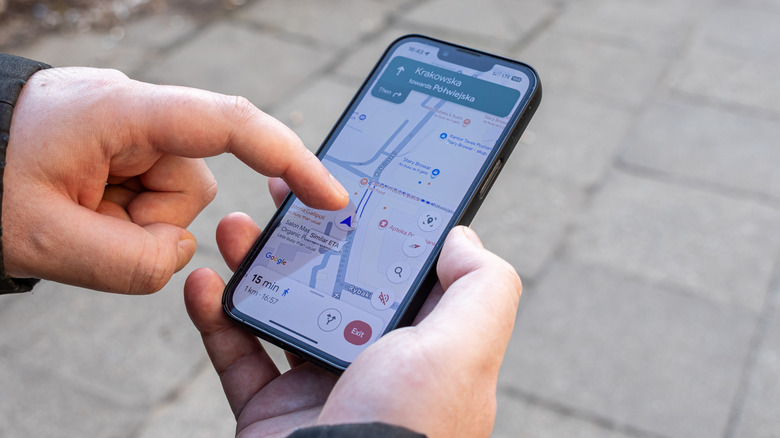
To download an offline map on Google Maps, open the app and tap your profile picture in the top right corner next to the search bar. From there, tap the Offline Maps button below Location Sharing.
On this menu, you'll see all of your downloaded maps. If you don't have any, the app will recommend a Home map with the area surrounding your Google Maps home location. You can tap the button at the bottom of the screen to select your own area to download. Small areas will take up less than 100 megabytes of storage space, but you can zoom out and download even larger maps if you have enough space.
Depending on your Wi-Fi speed and the size of the designated area, your offline map should only take a few minutes to download at most. You can access your downloaded maps from the Offline Maps menu in the app at any time, even if your phone is in airplane mode.
How to manage offline maps on Google Maps
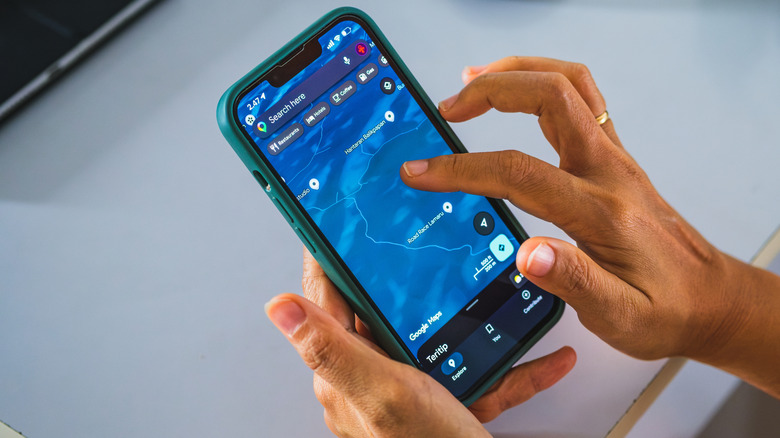
Once you've downloaded an offline map on Google Maps, you can customize and tweak the settings to your liking. In the Offline Maps menu, tap the three dots next to any map to either update or rename it. You can also delete maps this way once you're done with them.
If you want Google Maps to automatically check for new updates whenever you're connected to Wi-Fi, tap your profile picture and navigate to the Offline Maps menu again. From there, tap the Settings icon and enable Auto-Update Offline Maps. This menu also lets you change your download preferences if you'd like to download maps using cellular data.
The app will recommend maps based on upcoming destinations it detects from Gmail, Google Travel, and other places. They'll show up just like the Home map recommendation in the Offline Maps menu. You can download them as is, or you can pinch and drag to adjust the download area. You can also enable a setting to automatically download recommended maps if you'd rather have the app handle everything for you.