

These iOS Features Can Work Seamlessly With Your TV
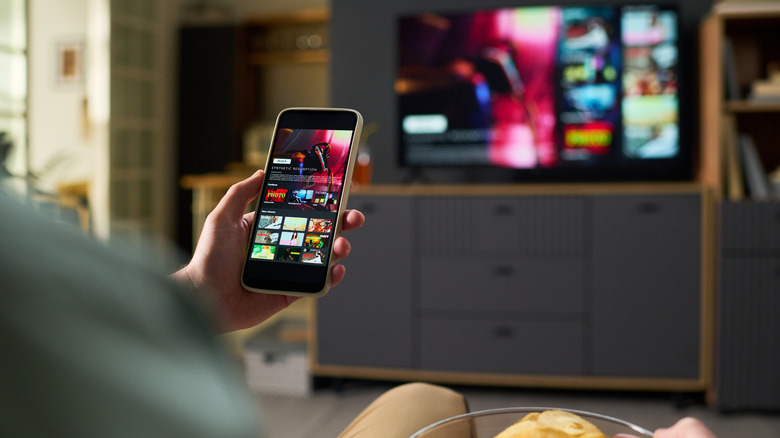
There are so many ways to enjoy an Apple iPhone both on its own as well as with other devices, especially thanks to the latest AI-driven iOS 27. I have my iPhone paired with my Apple Watch to sync health and wellness stats, vitals, and activities with the Health app, and to track Apple Fitness+ workouts. I also pair my iPhone with my MacBook Pro so I can access iMessages on the computer. Occasionally, I even use iPhone Mirroring to access functions of my phone from my laptop while the device is charging in the other room. But did you know you can also use iOS features with a TV and take things to the big screen?
This is something I do daily by leveraging AirPlay to cast workout videos from my phone to a basement TV that has the feature built in. I also use it for screen mirroring, as an Apple TV remote, and many more things. There are quite a few iOS features that work seamlessly with a compatible TV, even if you don't have an Apple TV device connected to it.
AirPlay and mirroring
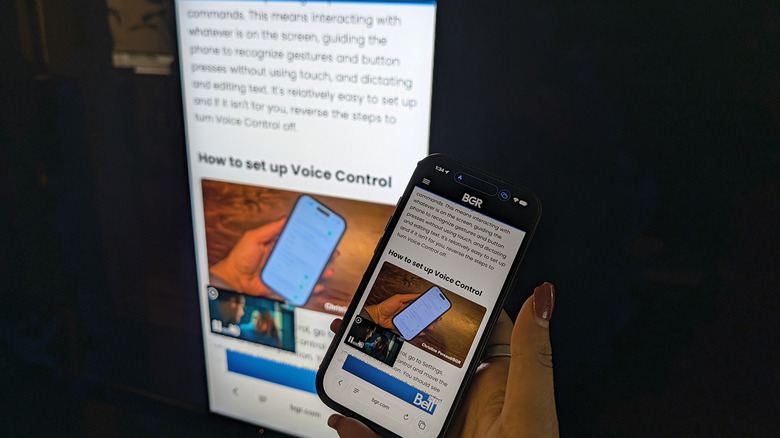
AirPlay is one of the best ways you can use iOS with a TV. With this feature and a compatible TV (many models from all the top brands have AirPlay support), you can wirelessly stream content from your phone to the big screen. Once both devices are on the same network, find the content you want to stream on your phone and tap the AirPlay button, which looks like a rectangle with an arrow at the bottom pointing upwards. With some apps, like Photos, you may need to select the Share button (square with an arrow at the top pointing up) first, then AirPlay. A list of devices will pop up if you have more than one. Choose the TV in question, and the content should show up on screen. If desired, you can set your iPhone to automatically AirPlay every time by going to Settings > General > AirPlay & Continuity > Automatically AirPlay.
Screen mirroring, meanwhile, extends this by allowing you to mirror whatever is on your phone's screen on the TV, a great way to use your streaming devices beyond watching TV. This could be a video, photo, webpage, document, social media profile, or even a game while you use the iPhone as a remote/gamepad. With both devices connected to the same network, go to Control Center > Screen Mirroring (two overlapping squares), select your TV, enter the passcode (if asked for), and voila!
Other ways to use iOS on a TV
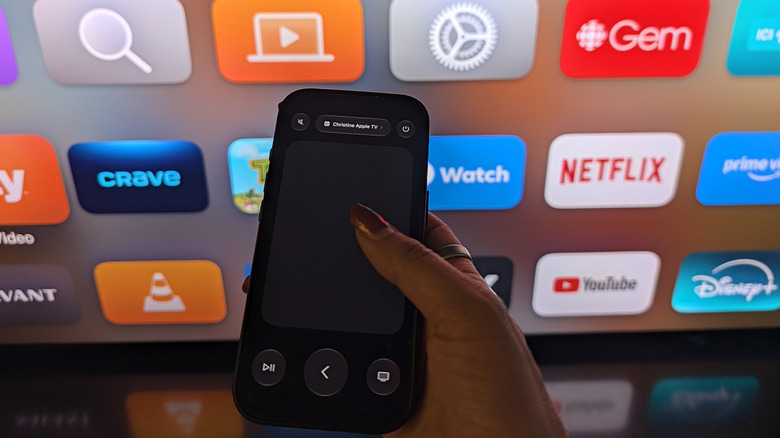
With an Apple TV 4K or an HD streaming box, your iPhone can act as a remote control. This is handy if you have misplaced the remote or prefer a larger touch surface. Open Control Center and select the Apple TV Remote button (depicted by a tiny remote). Choose your Apple TV, enter the passcode if asked, then use the virtual remote with its large touchpad, back button, play/pause, mute, and power on/off buttons. Have a Google TV? Download the Google TV app, and if it's signed into the same account as the TV, you can pair and control it from your iPhone.
Did you know that you can also set up a wired connection from an iPhone to a TV? This is ideal if you have an older or a non-AirPlay-enabled TV. All you need is an HDMI-to-USB-C adapter. Plug the USB-C side into the phone's charging port and the HDMI end into a TV. Switch the TV source to the appropriate HDMI port and view content from your phone on the TV. With older iPhones, you'll need a Lightning Digital AV adapter. Note that you may need to adjust the audio settings to ensure you can hear the audio from the TV's speakers instead of the phone. You likely have your iPhone with you 24/7, and while it's probably most used when you're out and about, iOS features make it useful at home for TV entertainment and control, too.