

5 Mac Features You Should Try If You Also Own An iPhone
We may receive a commission on purchases made from links.
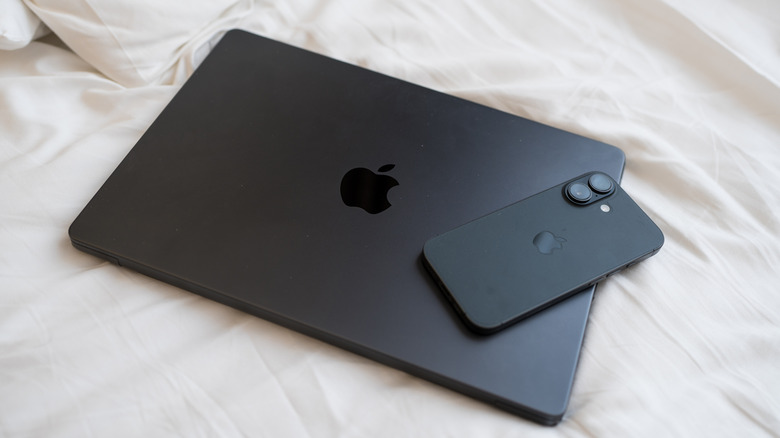
When people hear that a Mac and iPhone can work together, AirDrop usually comes to mind. However, that is just one popular example of Apple's Continuity features that allow Apple devices to exchange information when they're next to each other. As long as you have an iPhone XR or newer running the latest version of iOS, and you're using a Mac with an Apple Silicon chip or an Intel-Based Mac with a T2 Security Chip, you can take advantage of the Continuity features. Just have Bluetooth and Wi-Fi enabled, use the same Apple ID, and be in close proximity.
There's not much setup required, and you don't need to purchase, subscribe to, or download anything for these features to work. For example, you can display your entire iPhone screen on your Mac through screen mirroring. Even better, you can control it so you can use your iPhone without touching it. If you need a better camera for your Zoom meetings, you can use the iPhone's rear camera.
Also, whether you're typing something or using an app on your iPhone, you can continue what you're doing on the Mac. You can also send SMSs and receive calls on your Mac without picking up your iPhone. These are productivity-enhancing features that ensure you're using both devices to the fullest.
iPhone Mirroring
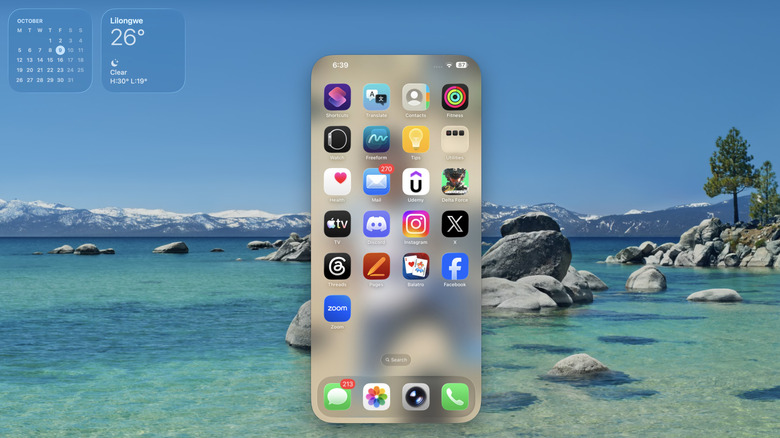
If you need to use your iPhone without taking your hands off your Mac, you can use the iPhone Mirroring app. This displays your iPhone's screen on the Mac, allowing you to interact with it like any other app on your computer. You can even drag and drop files between the Mac and iPhone, stream music and video (Netflix and other premium streaming apps block this), and play games. You don't need a third-party app, like you would with an Android phone.
To start a mirroring session, first lock your iPhone and launch the iPhone Mirroring app. If there are any additional steps, your Mac will let you know. Once it connects, the iPhone screen you were on will appear on the Mac's screen. You can then use various gestures to control the iPhone. For instance, click to select and click and drag left, right, up, and down to simulate swiping. Swiping on the touchpad with two fingers can also simulate swipes. Command + 1 opens the Home Screen, while Command + 2 will open the App Switcher. Press Command + 3 to open Spotlight and Command + 4 to open Control Center (iOS 27 or later).
Notifications will automatically come through on your Mac after mirroring begins, and you can view them by clicking the date and time in the top-right corner of the screen. You will continue to receive notifications as long as your phone is on, even when you're not actively mirroring.
Continuity Camera
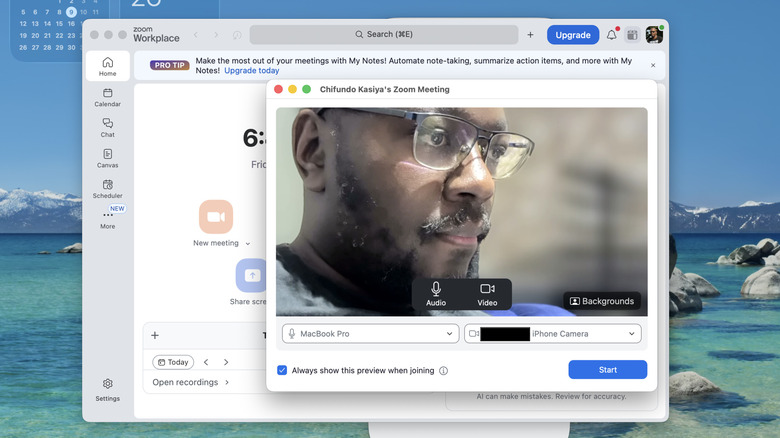
Whether it's an iMac or MacBook, there's a massive quality gap between the quality of its camera and that of the iPhone's. For example, a modern MacBook Pro has a 12MP camera, while the iPhone 14 Pro and newer have a 48MP camera. It would have been easier if Apple equipped the iMac and MacBook, especially the pricier ones, with such high-quality cameras. For people using a Mac mini, they need to purchase a webcam or a monitor with a built-in webcam.
But there's no point in worrying about a lower-quality camera or purchasing an external webcam if you have an iPhone because you can just use the Continuity Camera. The Continuity Camera works wirelessly, but the iPhone needs to be mounted or placed near the Mac, with the rear camera facing you. Afterward, open an app that needs to use the Mac's camera, such as FaceTime, Zoom, or OBS Studio, and switch the camera to the iPhone's camera.
You don't need a mount, but one is recommended for better stability and viewing angles. If you have a 3D printer, you can 3D-print a mount for the Continuity Camera for your MacBook. You can also purchase one like the Stouchi Continuity Camera Mount on Amazon for $18.99. Even something like the Eucos 62-inch Phone Tripod, which costs $23.99, can help keep your iPhone stable and at the right angle for what you need to do.
Handoff
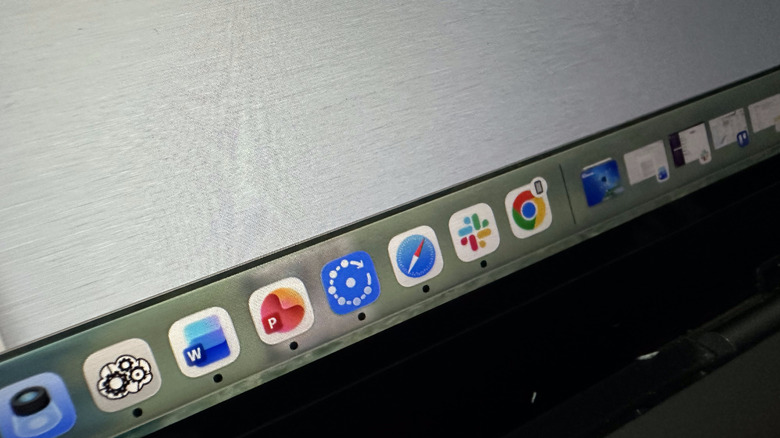
Handoff is a feature that lets you to start a task on your iPhone and then continue it on your Mac. It also works in the opposite direction, as well as with the iPad and Apple Watch. For instance, if you start writing a note in the Notes app on your iPhone, its Handoff icon will appear in the Mac's Dock – it will have a badge in the top-right corner in the shape of an iPhone. You can click it or press Command + Tab to switch to it. Now, if you start writing the note on your Mac, you will see the app's banner at the bottom of the App Switcher on iPhone. You simply need to tap it to continue the task on the iPhone.
Other than the Notes app, other apps that work with Handoff include Safari, FaceTime, Clock, Calendar, News, Mail, and several other third-party apps. While Handoff is enabled by default on both devices, it never hurts to check just in case the feature doesn't work.
To enable or disable Handoff on your Mac, do the following:
-
Go to System Settings.
-
Select General.
-
Click AirDrop & Continuity.
-
Under Continuity, ensure Allow Handoff between this Mac and your iCloud devices is toggled on.
On your iPhone, do the following:
-
Open Settings.
-
Tap General.
-
Tap AirPlay & Continuity.
-
Ensure Handoff is toggled on.
Universal Clipboard

Another feature that works with Handoff is the Universal Clipboard. It allows you to copy text, files, and images on your iPhone and paste them on your Mac. It also works in the other direction, from Mac to iPhone. It's simple, fast, and highly secure thanks to Apple keeping a tight lid on its ecosystem.
By default, Macs don't show a history of your copied items, so you can't choose what to copy and paste, like you can on Windows. So, for the best results, paste what you've copied immediately before you copy something else. If you want the clipboard history, you will have to enable it and access it through Spotlight Search.
Here's what you need to do:
-
Go to System Settings.
-
Select Spotlight.
-
Toggle on Results from Clipboard.
-
Press Command + Space to open Clipboard History.
-
Click the Clipboard icon on the right of the search bar or press Command + 4.
-
Click Allow.
Now the clipboard will show a list of items copied on your Mac. Unfortunately, it doesn't work for the iPhone. But if you want a clipboard that can capture content from the Universal Clipboard, you can install CopyClip on your Mac. Click its icon on the right side of the menu bar at the top to display a list of copied items.
Calls and Text Messages
Your Mac has a Phone, which Apple brought to Macs with macOS Tahoe, and the Messages app, but no SIM card slot. That's because those work hand in hand with their iPhone counterparts, allowing you to make phone calls and send text messages. So even if you leave your iPhone in another room, you don't have to worry that you will miss a call or text message. It can all be handled on your Mac without touching your phone.
Again, you still need to ensure that some settings are in place for this to happen. This is an essential troubleshooting step. Do the following on your iPhone:
-
Open Settings.
-
Tap Apps.
-
Tap Phone.
-
Tap Calls on Other Devices.
-
Turn on the toggle if it's off.
-
Turn on the toggle for your MacBook.
On your Mac, do the following:
-
Open Phone.
-
Click Phone in the menu bar at the top.
-
Select Settings.
-
Select the Calls tab.
-
Tick Calls from iPhone.
In the Messages app on iPhone, you just need to enable Messages in iCloud. Do the following:
-
Open Settings.
-
Tap your name.
-
Tap iCloud.
-
Tap Messages.
-
Toggle on Use this iPhone.
-
Tap Sync Now.
On your Mac, do the following:
-
Open Messages.
-
Click Messages in the menu bar at the top.
-
Select Settings.
-
Select the iMessage tab.
-
Tick Enable Messages in iCloud.