

Improve Your YouTube Recommendations By Doing These Simple Things
YouTube, one of Google's biggest brands, uses a recommendation system to decide what content appears in specific parts of the Platform. This includes your homepage, Shorts feed, Up Next recommendation at the end of a video you just watched, and even the videos that appear on a specific channel's homepage. It takes your viewing habits and compares them to those of people with similar tastes. But if it's been missing the mark lately, it's time to tune your recommendations.
Unfortunately, there's no direct way to tell YouTube what to recommend and what not to. Before you think your account is a lost cause just because you're overwhelmed with irrelevant recommendations, improving them is much simpler than you realize. You just need to target the signals that the recommendation system looks for, including clicks, likes, subscriptions, and search and watch history. By tweaking them, you can make your recommendations more relevant.
Tell the recommendation system what you like
When you tap the Like button, a thumbs-up or heart icon below the heading, YouTube assumes you want to see similar videos and that you'll like them too. The same goes if you tap the Share button and actually forward that video to someone. YouTube will prioritize showing other videos you're most likely to share. Alternatively, tapping the Dislike button (thumbs-down icon) signals to YouTube that this isn't the kind of content you enjoy. You may see fewer videos like it in the future.
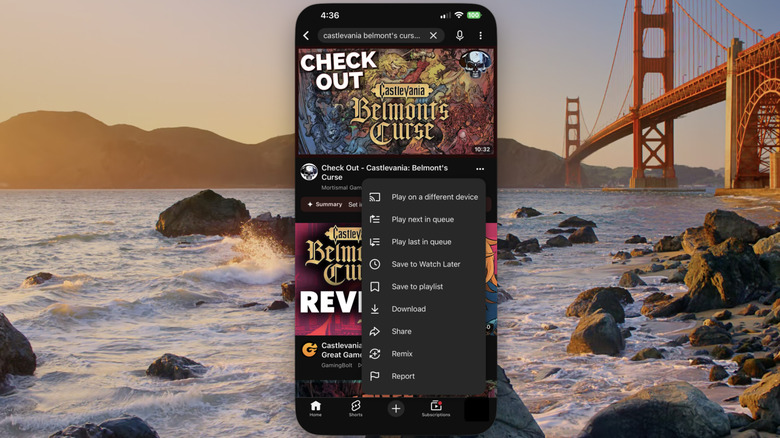
Another signal that shows YouTube you're interested in a video is tapping it. If you see the video in your feed but don't want to signal interest by tapping it, tap the three-dot icon in the bottom-right corner of the video card and select "Not interested." Afterward, tap Tell us why and then select I don't like this video. However, the channel's videos may still show up if it makes other content that aligns with your interests. So, if you don't want to see it again, tap Don't recommend channel.
It also helps to review the channels you've subscribed to and unsubscribe from the ones you're no longer interested in. Here's how.
-
Open the YouTube app.
-
Tap Subscriptions in the bottom menu.
-
Tap All in the top-right corner.
-
Tap the bell icon next to the channel.
-
Tap Unsubscribe in the menu.
Keep your search and watch history tight
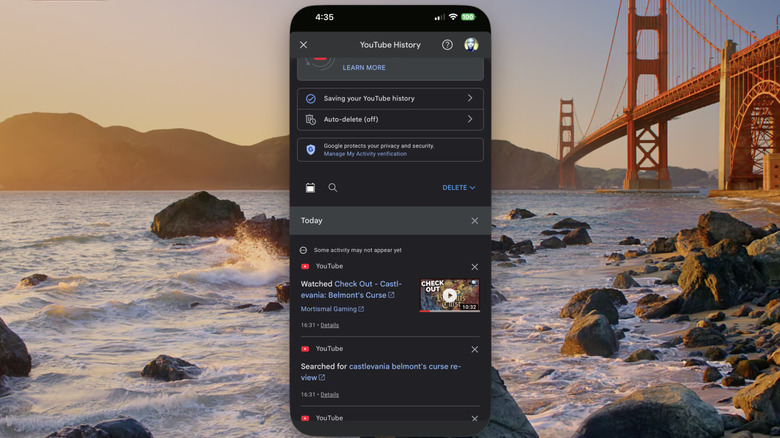
YouTube also looks at your search history and watch history to determine its recommendations. Start by deleting items from your search and watch history to see if that improves your recommendations. Here's how:
-
Open the YouTube app on your phone.
-
Tap You in the bottom right corner of the screen.
-
Tap Settings in the top-right corner of the screen.
-
Tap Manage all history.
-
Tap the X next to Search or Watch History.
If you still see irrelevant recommendations after clearing your watch history, it might be time to resort to the nuclear option—clearing it completely. To clear your watch history on YouTube, do the following:
-
Open the YouTube app on your phone.
-
Tap You in the bottom-right corner of the screen.
-
Tap Settings in the top-right corner of the screen.
-
Tap Manage all history.
-
Tap Delete.
-
Tap Delete all time.
If you don't want these items to appear in your search and watch history in the future, you can pause history saving. But if you want something you can easily switch out of, incognito mode is better. Here's how to turn it on:
-
Open the YouTube app on your phone.
-
Tap You in the bottom-right corner of the screen.
-
Tap Settings (gear icon) in the top-right corner of the screen.
-
Tap Switch or manage account.
-
In the menu at the bottom, tap Turn on Incognito mode.